Manage stock
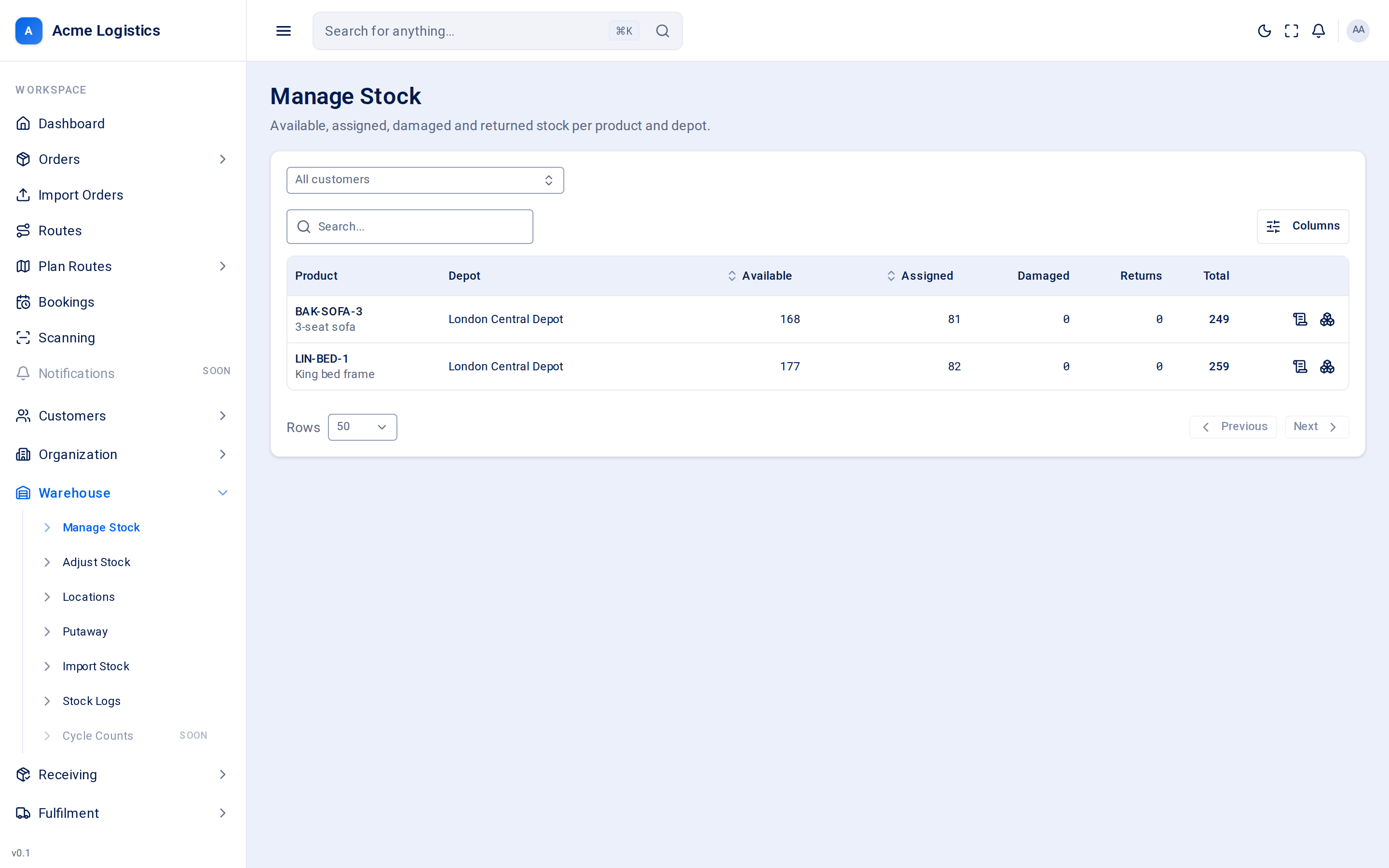
This screen shows every product you hold stock for, depot by depot, split into the buckets that decide what can be sold. From any row you can open the product’s movement ledger or see exactly which locations it sits in.
Where to find it: Warehouse > Manage Stock Who can use it: anyone with “View stock levels, placements & movements”. The stock-in, move and adjust actions in the breakdown need extra permissions (see Buttons and actions).
When you use this
Section titled “When you use this”- Answer “how many have we got?” for a customer’s product.
- Check why an order is on backorder - is stock assigned elsewhere, damaged, or not there at all?
- Find which shelf a product is on before you go and look.
- Trace a number that looks wrong through the ledger.
Filters
Section titled “Filters”| Field | What it means | Why it matters |
|---|---|---|
| Customer (All customers) | Shows only the products that belong to one customer. Choose “All customers” to clear it. | Stock always belongs to a customer; this is the quickest way to answer a customer’s stock question. |
| Search | Matches any part of the product code, description or barcode. | Useful when you have a barcode in hand but not the code. |
Columns
Section titled “Columns”Each row is one product at one depot. A product held in two depots has two rows.
| Column | What it means | Why it matters |
|---|---|---|
| Product | The product code, with its description underneath. | - |
| Depot | The depot the stock is in. | Orders are allocated from a specific depot’s stock. |
| Available | Units on hand that are free to be allocated to orders. | This is what new orders draw from. When it reaches 0, new orders for this product go on backorder. Receiving, stock-in and imports add to it. |
| Assigned | Units reserved for orders that have been allocated but not yet dispatched. | These units are spoken for. They leave stock when the order is dispatched, or go back to Available if the allocation is released. They cannot be moved by hand here - change the order instead. |
| Damaged | Units on site that are damaged and can never be allocated. | Comes from damage recorded on receipt with a quarantine reason, or from returns found to be damaged. Move them back to Available on Adjust stock only if they turn out to be fine. |
| Returns | Units that have come back and are waiting for inspection (“Returned, pending inspection”). | Not allocatable until someone decides whether they go back to Available or into Damaged. |
| Total | Available + Assigned + Damaged + Returns: every unit physically held. | Compare it with what is on the shelves during a stock check. |
You can sort by Available and Assigned.
Buttons and actions
Section titled “Buttons and actions”| Action | What it does |
|---|---|
| View ledger (scroll icon) | Opens the movement history for this product at this depot: every receipt, putaway, adjustment, allocation and dispatch, newest first. Same columns as Stock logs. |
| Stock breakdown by location (boxes icon) | Opens the breakdown panel for the product, described below. |
The stock breakdown panel
Section titled “The stock breakdown panel”The panel shows Total on hand for the product across all depots, then each depot and each location inside it with its quantity. Under each location you see how many units are free and how many are earmarked (set aside for a pick that is in progress). Inactive locations are marked Inactive. The Movement history for the product is at the bottom.
| Action | Who can use it | What it does |
|---|---|---|
| Stock in | “Put received stock away into locations” | Books new units into a location you choose. See Adjust stock. |
| Move stock | “Put received stock away into locations” | Moves units from one location to another, in the same or another depot. See Adjust stock. |
| Move stock from this location (arrows icon on a location) | “Put received stock away into locations” | Same as Move stock, with this location already chosen as the source. |
| Adjust quantity at this location (pencil icon) | “Adjust stock quantities” | Correct the count at this location, or move units between buckets. See Adjust stock. |
| Back to breakdown | Everyone | Leaves the form without saving. |
Boxes still owed
Section titled “Boxes still owed”A product with a barcode per box shows a badge under its code when units are waiting for a box, for example “2 missing box 2” or “1 box 2 damaged”. Those units count in Available but are incomplete, so they are not picked until the box arrives.
Tips and common mistakes
Section titled “Tips and common mistakes”- Stock that has been received but not yet put away sits in the depot’s STAGING location. It counts as Available, so orders can be allocated against it, but it cannot be picked until it is put away.
- A large Assigned figure with little Available usually means orders are waiting to be picked, not that stock is missing.
- If Total does not match the shelf, open the breakdown to find which location is wrong, then correct that location.