Delivery bookings
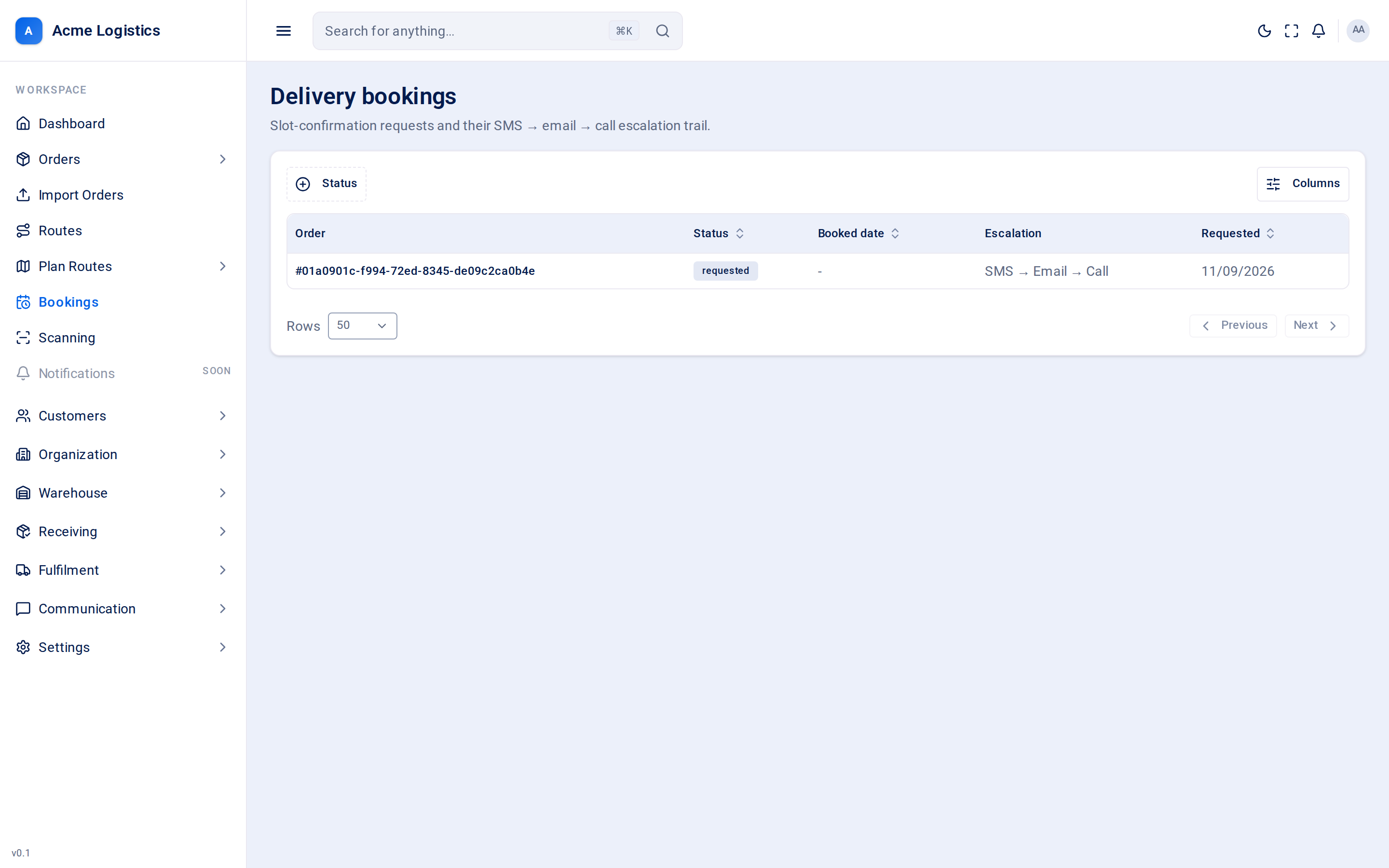
A delivery booking asks the recipient to agree a delivery date. Tracovy sends them a link to a booking page, and if they do not answer it tries again by email and then by phone call. This screen lists every booking request, its outcome, and which of those steps have happened.
Where to find it: Bookings in the sidebar Who can use it: users with “View delivery bookings”. Clearing a booking on an order needs “Manage delivery bookings”.
When you use this
Section titled “When you use this”- Check whether a recipient has accepted or declined their delivery date.
- See how far the reminders have got - text sent, email sent, call made.
- Find the bookings nobody has answered, so your customer service team can ring them.
How a booking works
Section titled “How a booking works”- A booking is requested for an order, optionally with a proposed date. It starts as requested and gets a private link to the recipient’s booking page.
- Step 1 - SMS. Straight away, Tracovy texts the recipient the booking link (template
order.confirm_request). - Step 2 - Email. If there is no answer after 24 hours, Tracovy emails them the same request (
order.confirm_request). - Step 3 - Call. If there is still no answer after another 24 hours, Tracovy places an automated phone call reading out the voice message (
order.confirm_request_voice, or the SMS wording if there is no voice wording). After the call, the recipient is also sent a follow-up message with the booking link (order.confirm_attempted). - The moment the recipient accepts or declines on the booking page, the steps stop.
| Recipient’s answer | Status | What happens |
|---|---|---|
| Accepts the date | accepted | The order is marked Confirmed. The recipient is sent a confirmation (order.confirm_accepted). |
| Declines the date | rejected | The recipient is sent order.confirm_declined. No stock is moved - the goods stay where they are, ready for another date. |
| No answer | requested | The steps continue as above. No steps are sent more than 3 days after the booking was requested; the booking stays requested. |
A step is skipped if the recipient has no phone number (SMS and call) or no email address (email), or if you have switched that template off - but it is still recorded in the trail, so you can see the steps have run.
Columns
Section titled “Columns”| Column | What it means | Why it matters |
|---|---|---|
| Order | The order the booking is for. | |
| Status | requested, accepted, rejected or expired (see below). | Filter on it to find the bookings still waiting for an answer. |
| Booked date | The date proposed to the recipient, or - if none was given. |
This is the date the recipient accepts or declines. |
| Escalation | The steps that have happened so far, shown on screen as SMS, Email and Call joined by arrows. - means none yet. |
Tells you whether the recipient has had every chance to answer before you ring them yourself. |
| Requested | The date the booking was requested. | The 3-day limit counts from here. |
You can sort by Status, Booked date and Requested, filter by Status, and choose which columns to show. There is no search on this screen.
Statuses
Section titled “Statuses”| Status | What it means |
|---|---|
| requested | Waiting for the recipient. The SMS, email and call steps run while a booking is in this status. |
| accepted | The recipient agreed the date. The order is Confirmed. |
| rejected | The recipient declined the date. |
| expired | The booking’s time to answer has run out. Tracovy does not yet move bookings to this status by itself - an unanswered booking stays requested after its steps stop. |
A booking that is accepted or rejected cannot be answered again from the same link.
Buttons and actions
Section titled “Buttons and actions”This screen is a list only - there are no buttons on the rows, and bookings are not started from here.
| Action | Where | What it does |
|---|---|---|
| Clear booking status | The order’s actions menu, on a Confirmed order | Removes the order’s Confirmed mark and releases any slot that was locked to the recipient’s confirmed time on its route stop, so the route can be replanned. Needs “Manage delivery bookings”. It does not message the recipient. |
Messages to the recipient
Section titled “Messages to the recipient”| Message | When |
|---|---|
order.confirm_request |
Step 1 (SMS) and step 2 (email). Carries the link to the booking page. |
order.confirm_request_voice |
Step 3, read out on the phone call. |
order.confirm_attempted |
After the call step, if there is still no answer. Carries the link again. |
order.confirm_accepted |
The recipient accepted. |
order.confirm_declined |
The recipient declined. |
order.route_cancelled |
Only for a recipient who had accepted a date, if their order is later taken off its route. Recipients who never accepted are not told about changes to a draft plan. |
See Notifications for every message Tracovy sends.
Tips and common mistakes
Section titled “Tips and common mistakes”- Filter on requested and look at the Escalation column: a booking whose trail ends in Call has had every automatic step, so it is time to ring the recipient yourself.
- Every step is recorded even when it could not be sent (for example no email address on the order). If a recipient says they heard nothing, check their phone number and email on the order.
- Declining does not cancel the order. Arrange another date with the recipient.
Related
Section titled “Related”- Booking page - what the recipient sees
- Route planner
- Tracking page
- Notifications