Notifications inbox
This page is about notices inside Tracovy, for you and your colleagues while you work. It is not about the emails and text messages Tracovy sends to your recipients, customers and suppliers - those are explained in Notifications: which email is sent when.
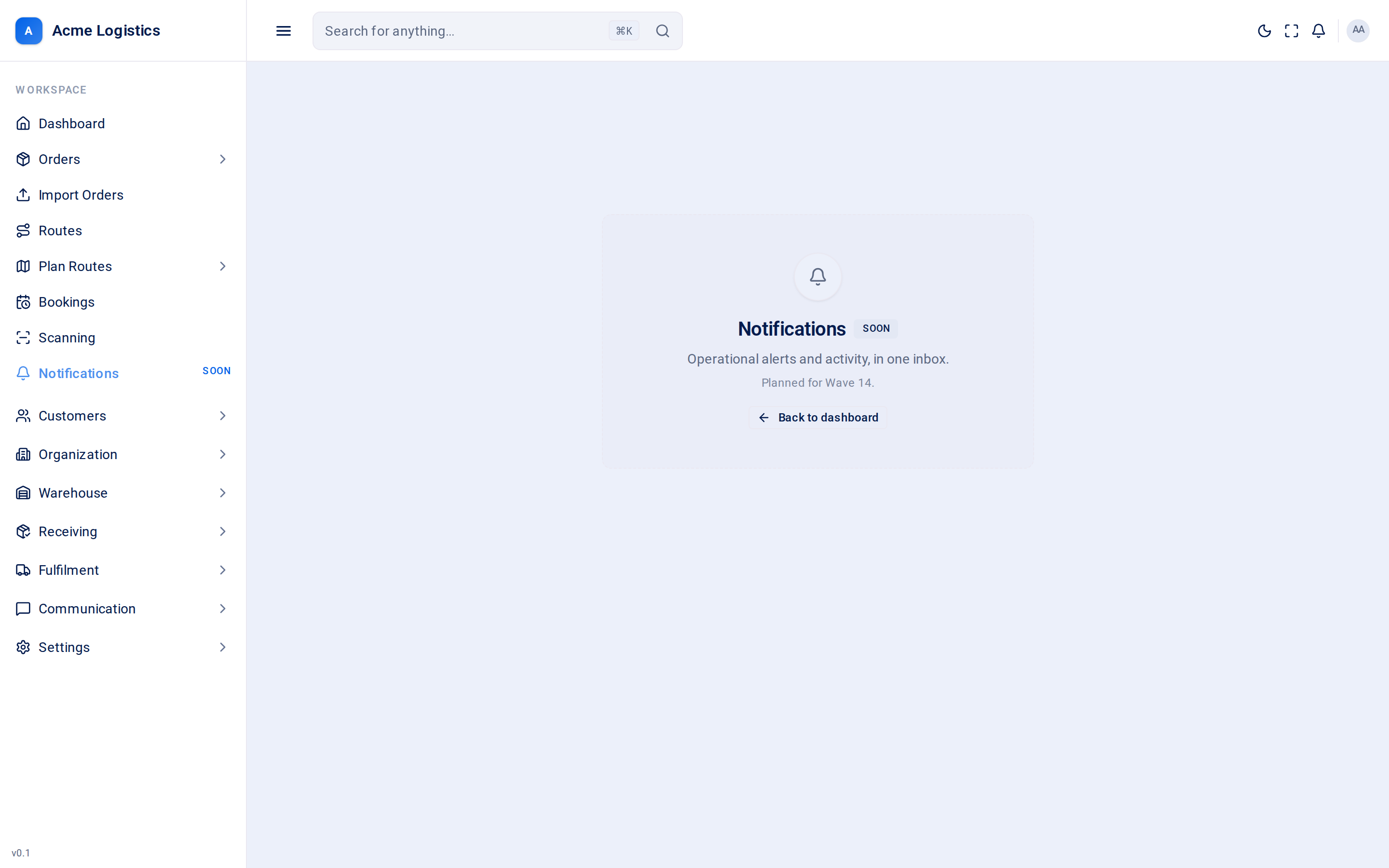
Where to find it: Workspace > Notifications (marked Soon), and the bell at the top right of every screen. Who can use it: everyone can open the Notifications page. The bell and reminder pop-ups need permission to view reminders.
In-app notices versus emails and texts
Section titled “In-app notices versus emails and texts”| In-app notices (this page) | Emails and texts | |
|---|---|---|
| Who gets them | You and other Tracovy users, while signed in. | Recipients, customers, suppliers and internal email groups. |
| Where they appear | The bell, pop-ups in the corner of the screen, and later the Notifications inbox. | In people’s email inbox or on their phone. |
| Where you change them | Settings > Reminders. | Settings > Templates > Email and SMS. |
The Notifications page
Section titled “The Notifications page”The Notifications page is planned to become one inbox for operational alerts and activity. It is not finished yet: opening it shows “Notifications - Soon” with a Back to dashboard button. Until it ships, your in-app notices come from reminders, as described below.
The reminder bell
Section titled “The reminder bell”| Part | What it means |
|---|---|
| Bell icon | Always shown if your role can view reminders. |
| Red number | How many of your reminders are overdue - addressed to you or to a user group you belong to. Above 99 it shows “99+”. No number means nothing is overdue. |
| Tooltip | “No reminders due”, or for example “3 reminders due”. |
| Click | Opens Settings > Reminders. |
The count refreshes about once a minute while Tracovy is open.
Reminder pop-ups
Section titled “Reminder pop-ups”When one of your reminders becomes overdue while you have Tracovy open, a warning pops up in the corner of the screen showing the reminder’s subject and text. It stays until you act on it, on any screen you move to.
| Action | What it does |
|---|---|
| Mark done | Completes the reminder. It leaves the bell count and your Dashboard list. |
| Close (X) | Hides the pop-up. The reminder stays open and still counts on the bell. |
Tips and common mistakes
Section titled “Tips and common mistakes”- No bell in your header? Your role cannot view reminders. Ask your administrator.
- Want an email when something happens to an order? That is a template, not an in-app notice - see Email templates.
Related
Section titled “Related”- Dashboard - your open reminders with tick boxes
- Notifications: which email is sent when
- Email templates