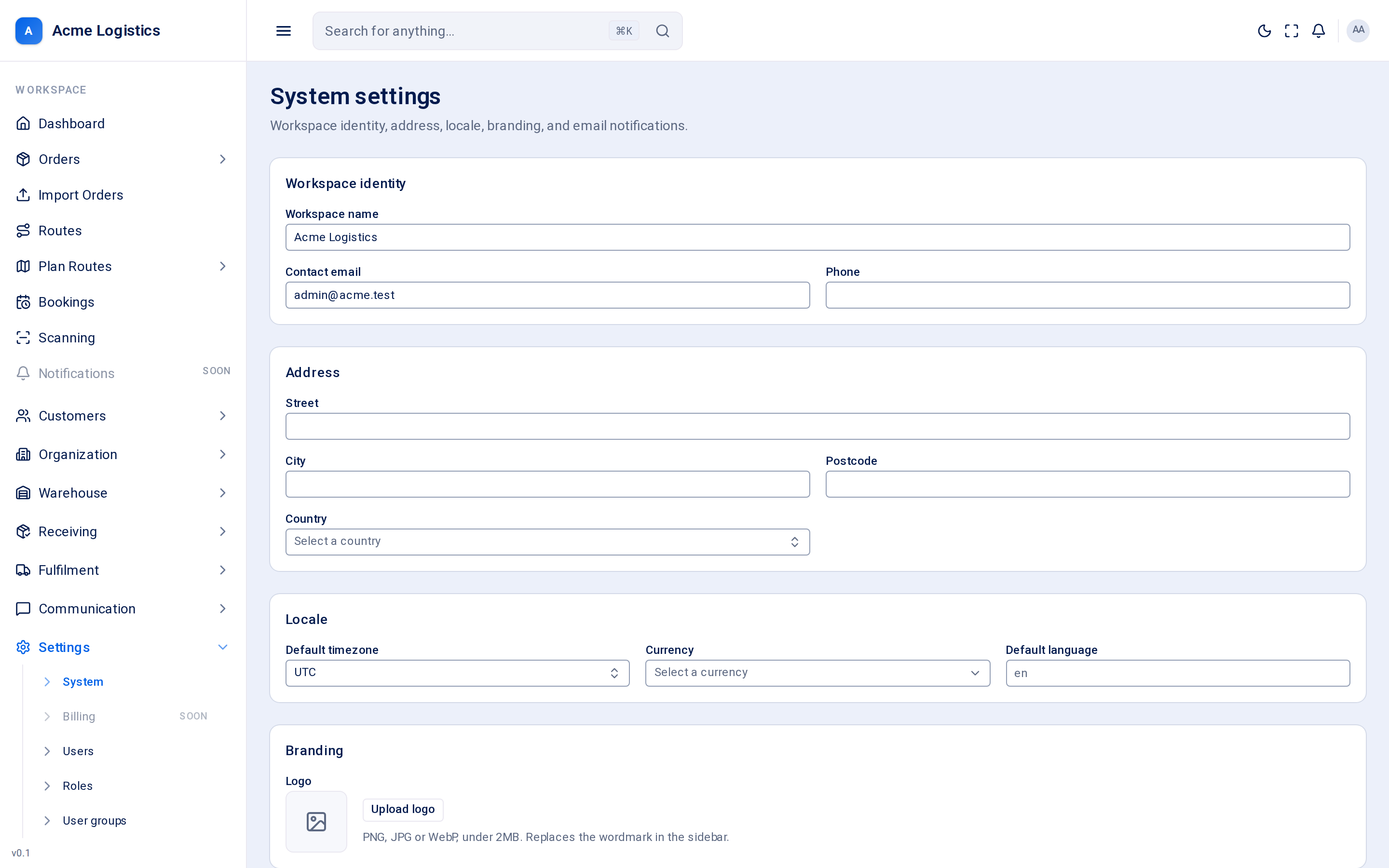
System settings hold the facts about your own business that Tracovy uses everywhere: your company name and contact details, your timezone and currency, the logo in the app, the logo at the top of every email, and which of your staff receive internal emails. Most workspaces set this up once and come back only when something changes.
Where to find it: Settings > System
Who can use it: anyone with “View workspace settings” can open the screen; you need “Manage workspace settings” to change anything. Without it every field is read-only and the buttons are greyed out.
Screenshot coming soonThe system settings screen with its five cards
Dates and times in emails (for example a failed attempt time) are written in this timezone. It also decides when “today” starts for the daily spending limit on SMS and calls. Depots have their own timezone for route schedules.
Currency
The currency your business trades in.
No
The currency of your price lists, order prices and invoices. Also used to show money on the route planning board, such as route income and cost.
Default language
The language code for the workspace, for example en.
No, up to 8 characters
Stored for the workspace. Leave it as en unless you are told otherwise.
Replaces the Tracovy wordmark in the sidebar for everyone in your workspace. PNG, JPG or WebP, under 2MB. It is not used in emails - see Email logo below.
The logo is saved as soon as you upload or remove it. You do not need to press Save changes for it.
This card controls how your emails look and which of your own staff receive internal emails.
Field
What it means
Required
Why it matters
Email logo
The logo printed in the header of every email Tracovy sends for your workspace.
No
Separate from the app logo, because email apps need a different kind of image. If you have no email logo, your company name is printed instead. PNG, JPG or WebP, under 2MB. A wide PNG with a transparent background works best.
Finance recipients
Email addresses of your staff who should receive the “Internal / New Invoice” email.
No, up to 20 addresses
Tracovy does not send the “Internal / New Invoice” email yet. An issued invoice is emailed only to the customer’s Invoice emails.
Operations recipients
Email addresses of your staff who receive an email when a customer’s manifest is imported through the API.
No, up to 20 addresses
These people receive the “Internal / New Manifest Import” email, so they know stock is on its way. Manifests typed in by your own staff do not send it.
To add an address to a recipient list, type it and press Enter or a comma (or click away from the box). Each address becomes a chip; click the x on a chip to remove it, or press Backspace in the empty box to remove the last one. An address that is already in the list is not added twice. Each person on the list receives their own copy of the email; they never see each other’s addresses.
It is saved as soon as you upload or remove it, like the app logo.
Tracovy cleans and converts the image when you upload it: a WebP file is turned into a PNG (Outlook cannot show WebP), and an image wider than 600 pixels is scaled down to 600 pixels wide.
SVG files are not accepted.
Removing or replacing the email logo does not break emails already sent: they keep showing the old image.
Logos save on their own, but text fields do not. If you changed your phone number and uploaded a logo, you still need to press Save changes for the phone number.
After uploading an email logo, open Settings > Templates > Email, pick any email and use Send test to see the logo in a real inbox.
Use a shared mailbox (for example accounts@yourcompany) in Finance recipients rather than one person’s address, so invoice emails are not missed when that person is away.
Check the Contact email carefully: when a recipient replies to a delivery email, the reply goes there.