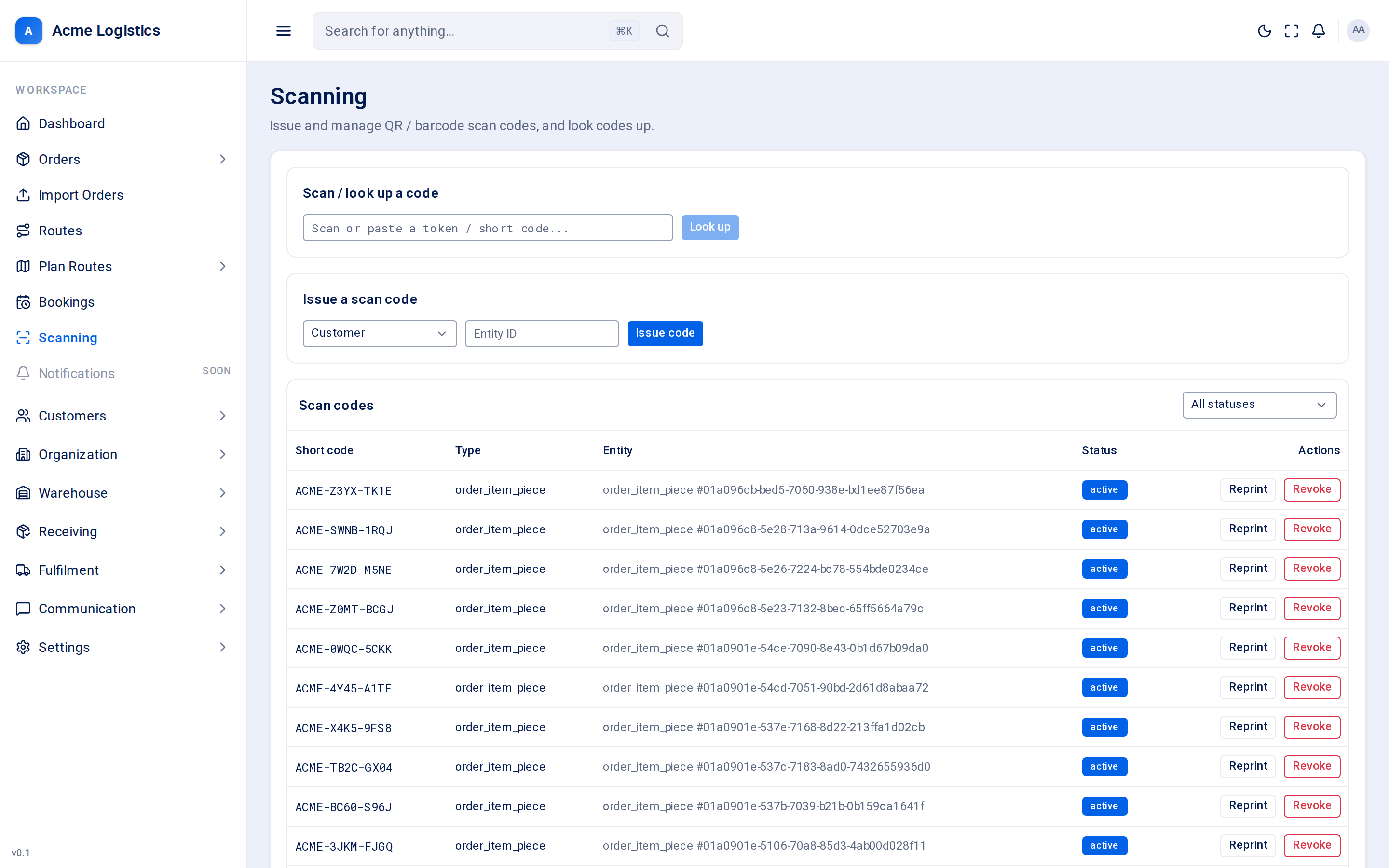
Everything Tracovy labels - a box on an order, a parcel, a customer, a zone in your warehouse - carries a scan code: a QR code and a barcode with a short code printed beside it. This screen lets you look a code up, issue new codes, and reprint or revoke existing ones. It also explains the scans that happen elsewhere - at the inbound bay, at dispatch, on the van and at the door.
Where to find it: Scanning (main menu)
Who can use it: anyone with “View scan codes & scan history” can open the screen and look codes up. Issuing codes needs “Issue & manage scan codes”, reprinting needs “Generate & reprint labels”, revoking needs “Revoke a scan code”, and recording a scan needs “Perform warehouse/dashboard scans”.
Screenshot coming soonThe Scanning screen with the look-up box, the Issue a scan code form and the list of scan codes
The code to look up. Click into the box and scan with a handheld scanner (it presses Enter for you), or paste the code and click Look up.
Yes
Tracovy checks the code on the server: that it is genuine, belongs to your company, has not expired and has not been revoked.
What you may see after a look-up:
Result
What it means
The item and its label lines
The code is valid. You see what it belongs to (for example a parcel) and the lines printed on its label, such as the order reference, the products and the recipient.
Offline check: … - the server will confirm.
A quick check in your browser found something wrong with the code’s format (for example it looks damaged or expired). The server still has the final say.
Not recognized or no longer valid.
The code is not a Tracovy code for your company, it has expired, or it has been revoked.
Code valid but the entity is gone.
The code is genuine, but what it pointed at no longer exists (for example it was deleted).
Action
What it does
Look up
Checks the code and shows what it belongs to. A look-up on its own changes nothing and is not recorded.
Record lookup scan
Records a lookup scan of this code in the scan history. Nothing about the item changes; the scan is simply on record with your name and the time. Result shows how it went (see Scan results).
Shown only if you can issue codes. Parcels and order boxes get their codes automatically (a parcel when it is packed, each box on an order line when the line is saved), so here you only issue codes for things that do not get one by themselves.
Field
What it means
Required
Why it matters
Type
What the code is for: Customer or Zone.
Yes
A zone code marks a place in your warehouse that scanning devices can scan to say where they are working. A customer code identifies a customer when scanned.
Entity ID
The ID of the customer or zone.
Yes
Must be an existing customer or zone. Each one can have only one active code: if it already has one, Tracovy says “This entity already has an active scan code. Reprint it instead.”
Action
What it does
Issue code
Creates the code and shows its full code (the token) and its short code.
Shown if you can print labels. Reissues the label with exactly the same code, so the old label and the new one scan the same and nothing that already recorded the code is affected. Use it for a torn or smudged label.
Revoke
Shown if you can revoke codes, and only for active codes. The code stops working immediately - every later scan of it is refused - and it stays in the list as a record. This cannot be undone.
Every scan is recorded with what it was for. Most scans are made on a handheld scanner or in the driver app, not on this screen, but they all follow the same rules and appear in the same history.
Scan
What it is for
What it changes
Inbound
Goods arriving at your warehouse. Scan the label on each box of an order.
The box is marked as arrived. When every box on an order line has arrived, the line is received, and the order’s Received step turns green once every line that can arrive has arrived. The first inbound scan also starts the order’s age on the planning map. You can also receive boxes from a desk with the Manual scanning button on an order.
Dispatch
A packed parcel placed on the dispatch bay.
The parcel moves from packed to staged. Needs the “Stage / dispatch-prep parcels” permission.
Route load
A staged parcel loaded onto the van. Usually scanned by the driver.
The parcel moves to loaded and its stock leaves your books: the reserved stock is used up and taken out of the warehouse. A driver can only load parcels for stops on their own route.
Delivery
A parcel handed over at the door.
The parcel moves from in transit to delivered. In the driver app this happens as part of recording the delivery with its proof, so a delivery can never be marked without the proof your settings require - see Proof of delivery.
Return
A delivered parcel coming back to the warehouse.
The parcel moves to returned and its units are booked in as returned, pending inspection - they are not available again until inspected.
Lookup
Checking what a code is.
Nothing. The scan is only recorded.
Two more kinds exist in the list - put away and exception - but nothing uses them yet: a scan of this kind on a parcel or box is refused.
Between loaded and in transit there is no scan: parcels go out for delivery when the route is started, and that is when recipients get their “on its way” message (order.en_route). See Notifications.
Every scan, accepted or not, is recorded with who scanned, when, and where (if the device sent a location).
Result
Meaning
accepted
The scan was valid and its change was made.
duplicate
The very same scan was sent twice (for example a device retried after losing signal). It is counted once.
rejected_state
The item is not at the right step for this scan - for example a parcel that is already loaded.
rejected_auth
You are not allowed to make this scan, or the code has been revoked.
rejected_context
This kind of scan does not apply to this kind of code - for example a dispatch scan of a customer code.
invalid_token
The code is not a genuine Tracovy code for your company, or it has expired.
If a device’s clock is more than five minutes out from Tracovy’s, the scan is still recorded but flagged, because the scan time it reported cannot be trusted.
Look up works with the full code read from the QR code or barcode. Typing only the short code is not recognised by the look-up at the moment - scan the label instead.
Reprint, do not revoke, a damaged label. Revoking kills the code for good; anything still carrying it will be refused.
A refused scan is not lost: it is in the history with the reason, which is the first place to look when a driver says “it would not scan”.