Adjust stock
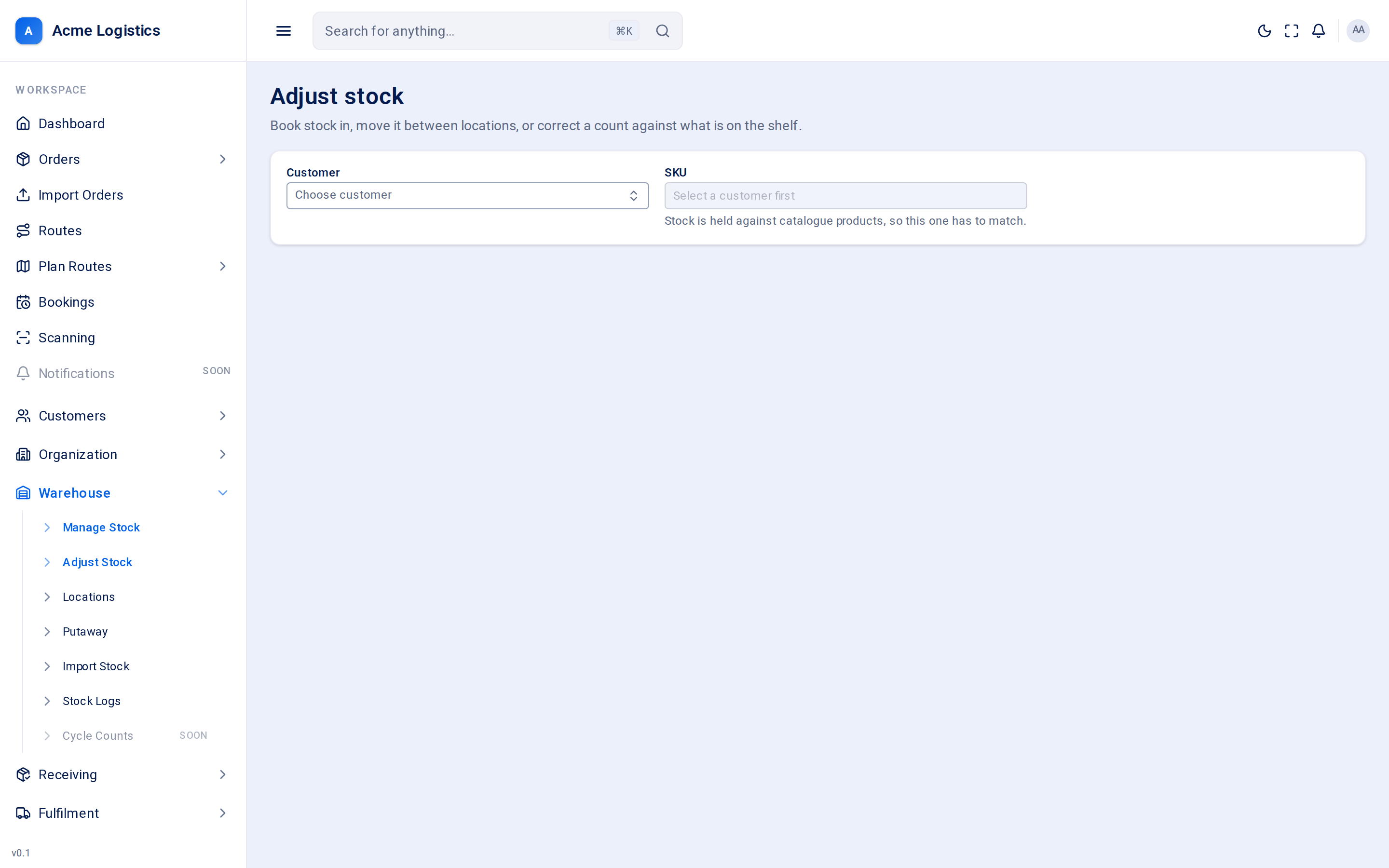
When the shelf and Tracovy disagree, or stock arrives without a manifest, this is where you put it right. Pick the customer and the product, and the stock breakdown opens with every way to change it.
Where to find it: Warehouse > Adjust Stock. The same breakdown also opens from the boxes icon on Manage stock. Who can use it: you need “Adjust stock quantities” to open this screen and to correct counts. Stock in and Move stock also need “Put received stock away into locations”.
When you use this
Section titled “When you use this”- A stock check found more or fewer units on a shelf than Tracovy shows.
- Stock arrived without a manifest and you need to book it in.
- You are moving stock to another bin or another depot.
- A returned or damaged unit has been inspected and is fine to sell again.
Choosing the product
Section titled “Choosing the product”| Field | What it means | Required | Why it matters |
|---|---|---|---|
| Customer | The customer who owns the product. | Yes | Changing it clears the SKU, because SKUs belong to a customer’s catalogue. |
| SKU | Type the product code and pick it from the suggestions (“Type a SKU”). | Yes | Stock is held against catalogue products, so it has to match a product in the customer’s catalogue. Picking it opens the stock breakdown. |
The breakdown panel is the same as on Manage stock: total on hand, each depot and location with free and earmarked quantities, and the movement history.
Stock in
Section titled “Stock in”Books units that genuinely arrived into a location. Use it for stock with no manifest; anything on a manifest should be received on the Receive screen instead.
| Field | What it means | Required | Why it matters |
|---|---|---|---|
| Depot | The depot the stock is going into. | Yes | Changing it clears the location. |
| Location | The location the units are placed in. Only active locations in the chosen depot are offered. | Yes | Stock always lives in a location. If the depot has none, you see “This depot has no active locations yet” - create one on Locations first. |
| Quantity | How many units arrived. | Yes, a whole number of 1 or more | Added to Available at that depot straight away. |
| Reference (optional) | Free text, such as a delivery note number. | No, up to 255 characters | Shown as the reason in the stock log, so others can see where the stock came from. |
Add stock saves it. The movement appears in the stock log as a “receive”.
Move stock
Section titled “Move stock”Moves units from one location to another. The product’s total never changes.
| Field | What it means | Required | Why it matters |
|---|---|---|---|
| From | The source location, shown as depot / location with its free quantity. Only locations with free units are offered. | Yes | Earmarked units (set aside for a pick) cannot be moved. If nothing is free you see “This product has no free stock to move.” |
| Destination depot | The depot you are moving to. Defaults to the source’s depot. | Yes | Choosing a different depot moves the units’ Available stock from one depot to the other, which changes what each depot can allocate. |
| To | The destination location. Only active locations in the destination depot, other than the source, are offered. | Yes | - |
| Quantity | How many units to move. The hint shows how many are free at the source. | Yes, 1 or more, up to the free quantity | A move larger than the free quantity is refused. |
Move stock saves it. Moves inside a depot are logged as one “transfer”; moves between depots are logged as a transfer out and a transfer in.
For a product with a barcode per box, complete units move first. A unit still waiting for a box only moves when there are not enough complete units at the source, and the box it waits for is then sent to the new location (and the new depot) when it arrives.
Adjust at a location
Section titled “Adjust at a location”Opened with the pencil icon next to a location. The panel shows the Depot, Location and Current quantity. Under What happened, choose one of two jobs.
Correct a count
Section titled “Correct a count”Type what is actually on the shelf. Tracovy works out the difference for you.
| Field | What it means | Required | Why it matters |
|---|---|---|---|
| Actual quantity | The number of units you counted at this location. Starts at the current quantity. | Yes, 0 or more | The hint under the field shows the change, for example “12 to 10 (-2)”. The difference is added to or taken off Available. |
| Reason | Why the count was wrong: Physical stock count, Damaged stock, Missing stock, Found stock, Data correction, Receiving discrepancy, Dispatch discrepancy or Other. Defaults to Physical stock count. | Yes | This is what someone reads in the stock log months later. Pick the one that explains the difference. |
| Notes (optional) | More detail. | No, up to 2000 characters | Kept on the stock movement. |
Apply adjustment saves it. The button stays disabled until the actual quantity differs from the current one.
For a product with a barcode per box, a count down takes complete units first. If you count down by more than the complete units at the location, the rest are units still waiting for a box, oldest first. Those units leave stock, so Tracovy stops waiting for their boxes and the “missing box” badge goes down to match.
Move between buckets
Section titled “Move between buckets”Changes which bucket holds the units at this depot without changing the total on hand.
| Field | What it means | Required | Why it matters |
|---|---|---|---|
| From | Where the stock is now: Damaged, or Returned, pending inspection. | Yes | - |
| To | Where it is going. From Damaged you can only go to Available. From Returned, pending inspection you can go to Available or Damaged. | Yes | Moving to Available makes the units sellable again and lets orders be allocated against them. |
| Units | How many units to move. | Yes, 1 or more | The total on hand does not change. |
| Reason (optional) | One of the same reasons as a count. | No | Shown in the stock log. |
Move stock saves it. It appears in the stock log as a “requalify”.
Tips and common mistakes
Section titled “Tips and common mistakes”- Use Stock in for goods that arrived, and Correct a count for numbers that were already wrong. They look similar but read very differently in the stock log.
- Adding stock here (stock in, a count up, or a bucket move to Available) does not automatically fill orders that are already on backorder. Only completing a manifest does that.
- Stock in places units straight into the location you choose, so there is no putaway step afterwards.
- Count one location at a time. If a product is on several shelves, correct each one.