Import stock
Upload a CSV to create a customer’s products and add (or remove) stock for them in one go. This is mainly for taking on a new customer with existing stock, or loading opening balances.
Where to find it: Warehouse > Import Stock Who can use it: you need the “Bulk import stock via CSV” permission.
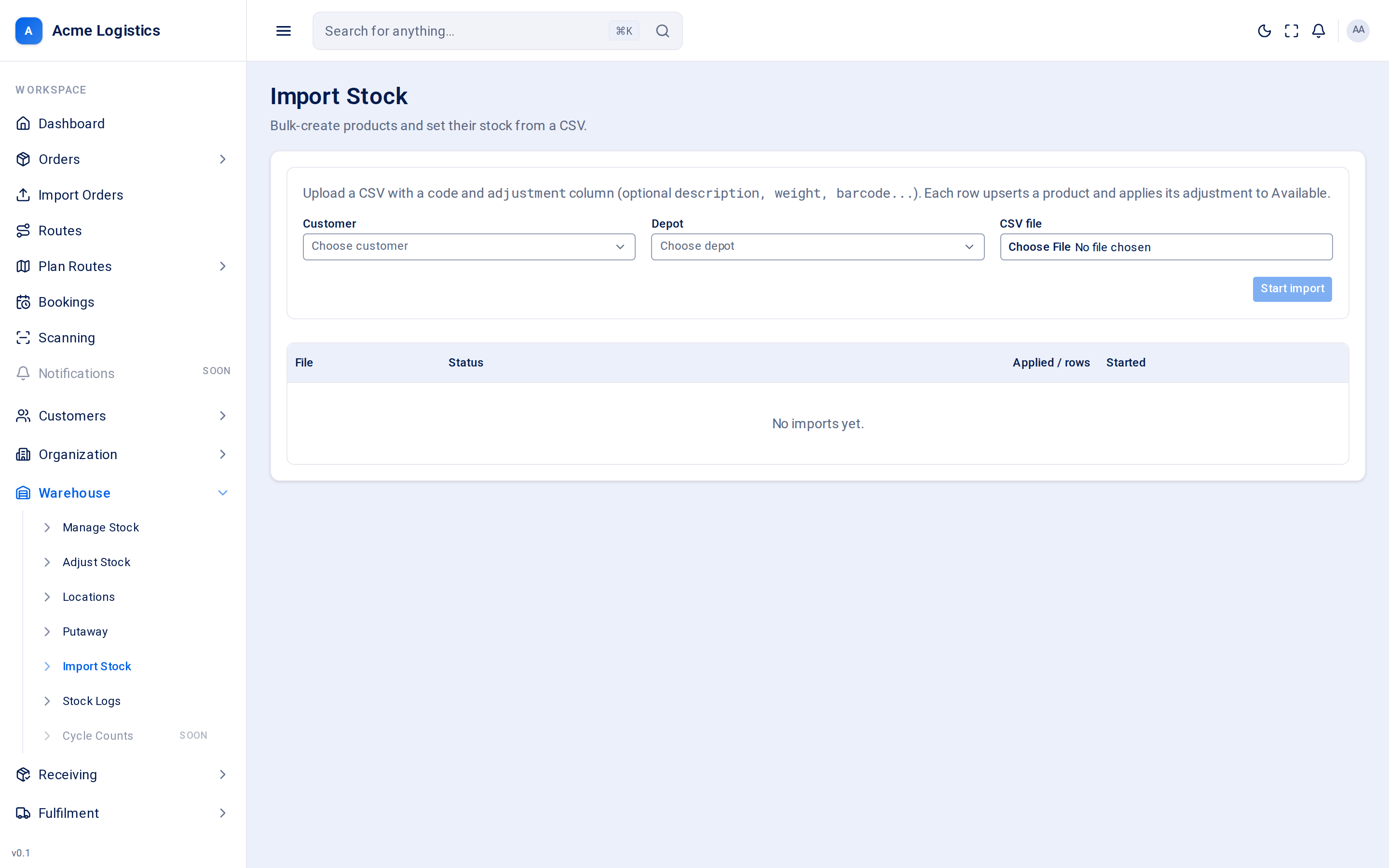
Screenshot coming soonThe import stock form and the list of previous imports
When you use this
Section titled “When you use this”- A new customer moves their stock into your warehouse and sends a spreadsheet of what they have.
- Loading opening balances when you start using Tracovy.
- Creating or updating many products at once.
Fields
Section titled “Fields”| Field | What it means | Required | Why it matters |
|---|---|---|---|
| Customer | The customer the products and stock belong to. | Yes | Products are matched and created in this customer’s catalogue. |
| Depot | The depot the stock goes into. | Yes | Stock is added to this depot and placed in its STAGING location. You can only choose depots you are allowed to see. |
| CSV file | The file to import (.csv). |
Yes, up to 5 MB | See The CSV file. |
The CSV file
Section titled “The CSV file”The first row must be the column headings. Headings are not case-sensitive.
| Column | Required | What it does |
|---|---|---|
| code | Yes | The product code. If the customer already has a product with this code it is updated; otherwise a new product is created. |
| adjustment | Yes | A whole number added to the product’s Available stock at the depot. Use a negative number to take stock away, or 0 to only create or update the product. |
| description | No | Product description. |
| parts | No | Number of parts. |
| weight | No | Weight in kg. |
| length, width, height | No | Dimensions in cm. |
| cbm | No | Volume in cubic metres. |
| barcode | No | The product barcode. Needed to receive the product by scanning on the Receive screen. |
| Part 2 Barcode, Part 3 Barcode, … | No | For a product that comes in several boxes: the barcode on each box after the first (barcode is box 1). Give one for every part, so parts and the number of barcodes must match. A barcode on box 2 or later cannot belong to another product of the same customer. Format these columns as text so Excel does not round them. |
For a product that already has a barcode per box:
- A row that changes parts must give every Part N Barcode for the new number of parts. parts 1 turns it back into one shared barcode.
- A new barcode cannot be one of the product’s own later boxes.
- While some of its units are still waiting for a box, a row cannot change its parts, barcode or box barcodes. That row fails with “Some units of this product are still waiting for a box. Receive the boxes or adjust those units out first.”
Empty optional cells leave the product’s existing value unchanged.
code,adjustment,description,barcodeSOFA-3S-GREY,12,Three-seat sofa grey,5012345678900CHAIR-OAK,40,Oak dining chair,5012345678917Buttons and actions
Section titled “Buttons and actions”| Action | What it does |
|---|---|
| Start import | Uploads the file and starts processing it in the background. The import appears in the list below with status pending, then processing. The list refreshes by itself. |
The import list
Section titled “The import list”| Column | What it means |
|---|---|
| File | The name of the uploaded file. |
| Status | See Statuses. |
| Applied / rows | How many rows were applied out of how many rows the file had. |
| Started | When the import was started. |
Statuses
Section titled “Statuses”| Status | What it means |
|---|---|
| pending | Uploaded, waiting to be processed. |
| processing | Rows are being applied. |
| completed | Every row was applied. |
| completed_with_errors | Some rows were applied and some failed. A bad row (for example a missing code or a non-numeric adjustment) is skipped; the rest of the file still goes in. |
| error | The import failed as a whole and nothing more was applied. |
What the import changes
Section titled “What the import changes”- Products are created or updated in the customer’s catalogue.
- Each non-zero adjustment changes Available stock at the depot and is placed in, or taken from, the depot’s STAGING location. Stock must be put away before it can be picked.
- A negative adjustment can only take away stock that is in STAGING. If there is not enough, that row fails.
- For a product with a barcode per box, a negative adjustment takes complete units first. Past them it takes units still waiting for a box, and Tracovy stops waiting for those boxes.
- Every applied row is written to the stock log as an “import” with the reason “Csv import”.
Tips and common mistakes
Section titled “Tips and common mistakes”- Try a small file first and check the result on Manage stock.
- When a row fails, fix just that row in a new file - do not re-import the rows that already went in.
- Include the barcode column if you will be receiving more of these products by scanning.