Reminders
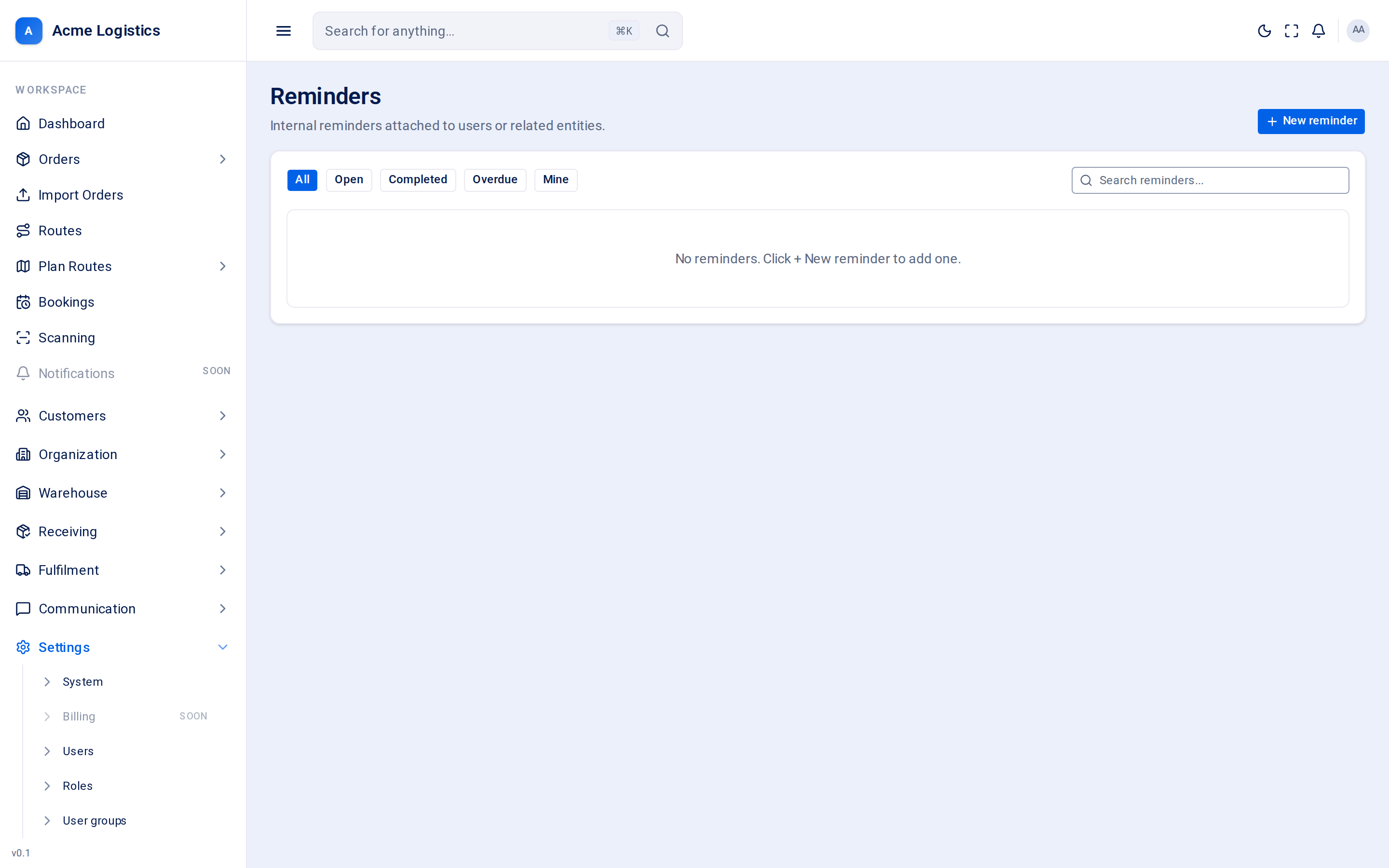
Reminders are internal to-dos for your staff: “Call the recipient back about access”, “Chase the customer for the missing manifest”. A reminder belongs to one person (or one user group), can have a due time, and can be linked to the order, customer, route or user it is about. Recipients and customers never see reminders.
Where to find it: Settings > Reminders Who can use it: “View reminders” to see them; “Manage reminders” to create, edit, complete and delete them. Administrators, Managers and Staff have both by default.
When you use this
Section titled “When you use this”- Make sure a follow-up does not depend on someone’s memory.
- Hand a task to a colleague with a deadline.
- See everything that is overdue.
The reminder list
Section titled “The reminder list”Each reminder shows a tick box, its subject, the first lines of its notes, and badges for its due time and, if it has one, what it is linked to.
| Badge | What it means |
|---|---|
| Due in … | Open, with a due time in the future. |
| Overdue … | Open, and the due time has passed. Shown in red. |
| No due date | Open, with no due time. |
| Completed | Done. The subject is crossed out. |
Link, for example order#1a2b3c4d |
What the reminder is about, with the start of its ID. Hover over it to see the full ID. |
Filters and search
Section titled “Filters and search”| Control | What it does |
|---|---|
| All / Open / Completed / Overdue | Shows only reminders in that state. Overdue reminders are always open ones. |
| Mine | Shows only reminders assigned to you or to a user group you are in. Works together with the other filters. |
| Search reminders | Finds reminders whose subject or notes contain your words. |
Creating or editing a reminder
Section titled “Creating or editing a reminder”| Field | What it means | Required | Why it matters |
|---|---|---|---|
| Assignee | The person the reminder is for. New reminders only. | Yes | They see it in their list and get the pop-up when it is due. It cannot be changed later: to hand a reminder to someone else, delete it and create a new one. |
| Subject | A short summary of what needs doing. | Yes, up to 255 characters | It is the title in the list and in the pop-up. |
| Notes | Any detail. | No | Shown under the subject and in the pop-up. |
| Due at | The date and time it is due, in your browser’s local time. | No | When it passes, the reminder becomes overdue and a pop-up appears for the assignee. Without a due time the reminder never pops up. |
| Related type (optional) | What kind of record the reminder is about: order, customer, route or user. | No | Fill in both this and Related ID, or neither. |
| Related ID | The ID of that record. | Only if Related type is set | Must be the record’s ID (a long code such as 0190...), not an order reference. |
When you add a reminder from an order’s own screen, the link to that order is filled in for you and the related fields are not shown.
The due pop-up
Section titled “The due pop-up”While Tracovy is open in your browser, a reminder that becomes overdue raises a pop-up in the corner of the screen, whatever page you are on. It stays until you close it or choose Mark done.
Buttons and actions
Section titled “Buttons and actions”| Action | What it does |
|---|---|
| New reminder | Opens an empty form. |
| Tick box | Marks the reminder done. A completed reminder cannot be un-ticked. |
| Edit (row menu) | Opens the reminder to change its subject, notes, due time or link. |
| Delete (row menu) | Removes the reminder straight away, without a confirmation. |
| Mark done (in the pop-up) | Completes the reminder from wherever you are. |
| Create reminder / Save changes | Saves the reminder. |
Tips and common mistakes
Section titled “Tips and common mistakes”- Always set a due time if the task matters. Reminders without one never pop up.
- Put the reference the person will search for (order number, customer name) in the subject, so the list makes sense at a glance.
- Use Mine with Overdue at the start of the day to see what you missed.