Picking
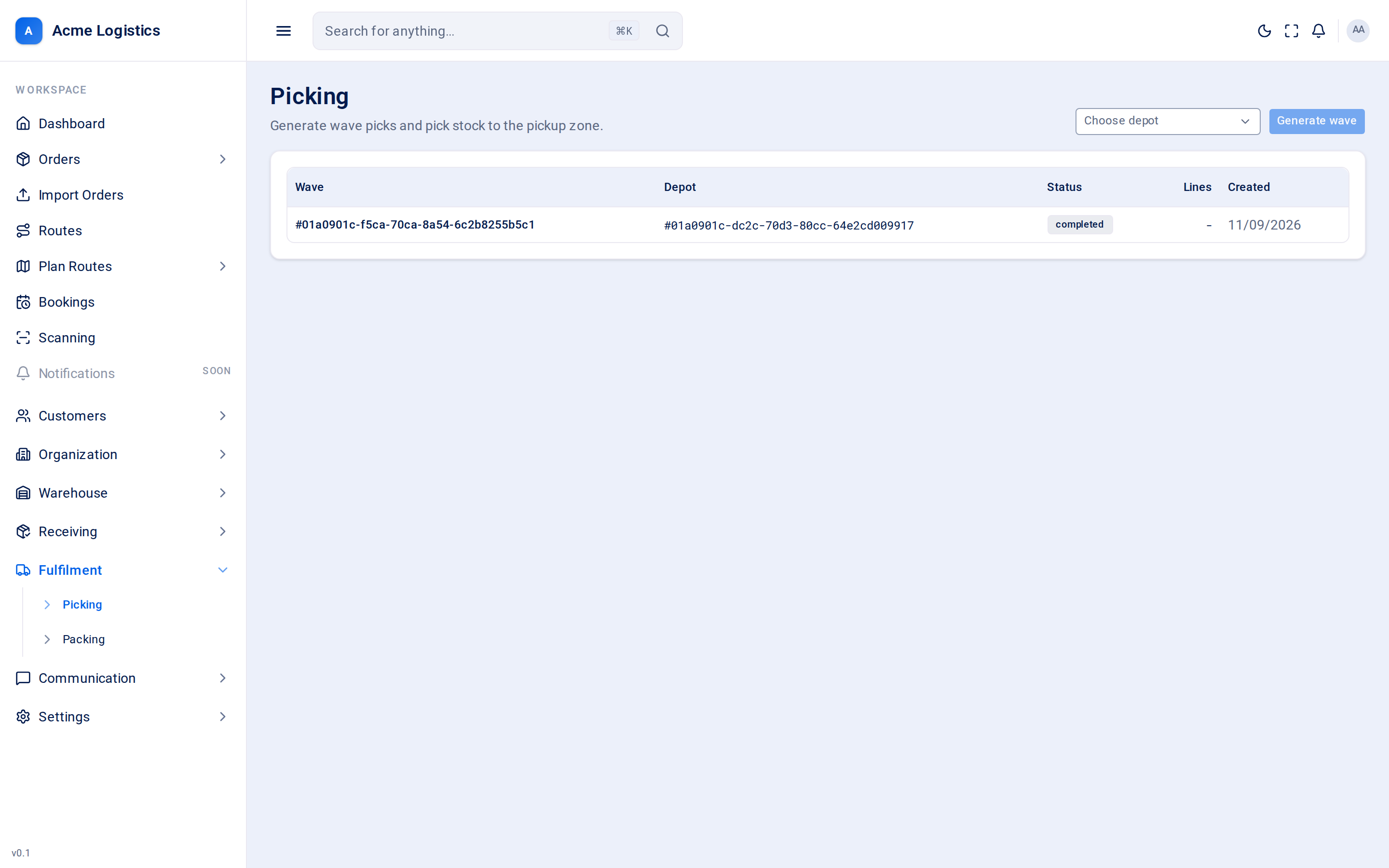
Picking is where warehouse staff collect the stock for warehouse orders. You generate a wave for a depot - one list of everything waiting to be picked there - and then pick each line from its storage location to the depot’s pickup zone, ready for packing.
Where to find it: Fulfilment > Picking Who can use it: anyone with the “Pick stock against wave picks” permission. The Warehouse Manager and Warehouse Operator roles have it by default.
When you use this
Section titled “When you use this”- Start a picking run for a depot: collect every warehouse order that has stock reserved for it.
- Work through a wave line by line, moving stock to the pickup zone.
- See which lines are short - stock that could not be found to cover an order.
- Cancel a wave you no longer want, so the stock it set aside is free again.
Live (cross-dock) orders are never picked. Their goods arrive for the order and go straight to packing as a live parcel - see Packing.
How a wave is built
Section titled “How a wave is built”When you click Generate wave, Tracovy looks at the chosen depot and:
- Takes every order line that has stock reserved at that depot, on orders that are allocated or partially allocated. Deleted orders are left out.
- Skips anything already on another wave that has not been cancelled, so the same stock is never picked twice.
- Works oldest order first.
- For each line, finds pickable storage locations holding that product, oldest stock first, and earmarks the quantity it needs - that stock is now set aside for this wave and cannot be promised to another one.
- Writes one pick line per location it takes stock from. If one location does not hold enough, the line is split across several locations.
- If there is not enough pickable stock to cover the line, the rest becomes a short line with no location, so the gap is visible instead of quietly picked under.
Every pick line goes to the same destination: the depot’s pickup location.
The wave list
Section titled “The wave list”| Field / column | What it means | Why it matters |
|---|---|---|
| Choose depot | The depot you want to generate a wave for. Only depots you are allowed to work at are listed. | A wave belongs to exactly one depot and only picks stock held there. |
| Wave | The wave’s name. Click it to open the wave and start picking. | Waves have no reference of their own yet, so the wave’s ID is shown. |
| Depot | The depot the wave was generated for. | Tells pickers which building the wave is in. |
| Status | Where the wave is: open, in progress, completed or cancelled (see Statuses). | Tells you which waves still need work. |
| Lines | The number of pick lines on the wave. | A quick idea of how much work the wave is. |
| Created | When the wave was generated. | Newest waves are listed first. |
Picking a wave
Section titled “Picking a wave”Open a wave from the list to see its lines.
| Column | What it means | Why it matters |
|---|---|---|
| Product | The customer’s product to pick. | What the picker looks for on the shelf. |
| Pick from | The storage location the stock is taken from. Empty on a short line. | Where to go. This stock is earmarked for this wave. |
| To | The pickup location the stock goes to. Empty on a short line. | Where packing will find it. |
| Qty | How many units this line needs. | The target for the line. |
| Picked | How many units have been picked so far. | Lines can be picked in several goes. |
| Action | A quantity box and a Pick button while the line is still open. Once the line is done it shows picked or cancelled; a line that could not be covered shows short. | Shows at a glance what is left to do. |
Buttons and actions
Section titled “Buttons and actions”| Action | What it does |
|---|---|
| Generate wave | Builds a new wave for the chosen depot as described above. Greyed out until you choose a depot. If nothing is waiting to be picked, you get an empty wave. |
| Pick | Picks the quantity in the box beside it. Leave the box empty to pick everything still left on the line. The quantity must be at least 1 and no more than what is left. The stock is moved from the Pick from location to the To location, and the earmark on it is released. |
| Cancel wave | Cancels the whole wave and returns you to the list. Every line not yet fully picked is cancelled and its earmarked stock is set free again. Stock already picked stays at the pickup location - cancelling does not put it back on the shelf. Not shown once the wave is cancelled. |
Picking twice by accident is safe: a line that is already fully picked is not picked again.
Statuses
Section titled “Statuses”Wave
| Status | Meaning |
|---|---|
| open | Generated, nothing picked yet. |
| in progress | At least one pick has been made. |
| completed | Every line is picked, short or cancelled. The wave moves here by itself after the last pick. |
| cancelled | The wave was cancelled. Its open lines were cancelled and their stock released. |
Pick line
| Status | Meaning |
|---|---|
| pending | Still to pick (possibly partly picked). Shown as the quantity box and Pick button. |
| picked | The full quantity has been picked. |
| short | There was not enough pickable stock at the depot to cover this part of the order. It cannot be picked. |
| cancelled | The wave was cancelled before this line was finished. |
Tips and common mistakes
Section titled “Tips and common mistakes”- A short line does not fix itself, and generating another wave does not pick it up again: an order line already on a wave is left off new waves. Tell your supervisor about short lines so the stock can be checked.
- Generate waves when you are ready to pick. A wave earmarks stock as soon as it is created, so a forgotten wave keeps stock tied up until you cancel it.
- Only storage locations marked pickable are used as a source. Stock sitting in a location that is not pickable will not appear on a wave.
- Cancelling an order cancels its open pick lines and frees their stock. Once any of the order has been picked, the order can no longer be cancelled.
- Picking moves stock to the pickup zone, it does not ship it. The stock leaves your books when the parcel is loaded onto a van.