The order screen
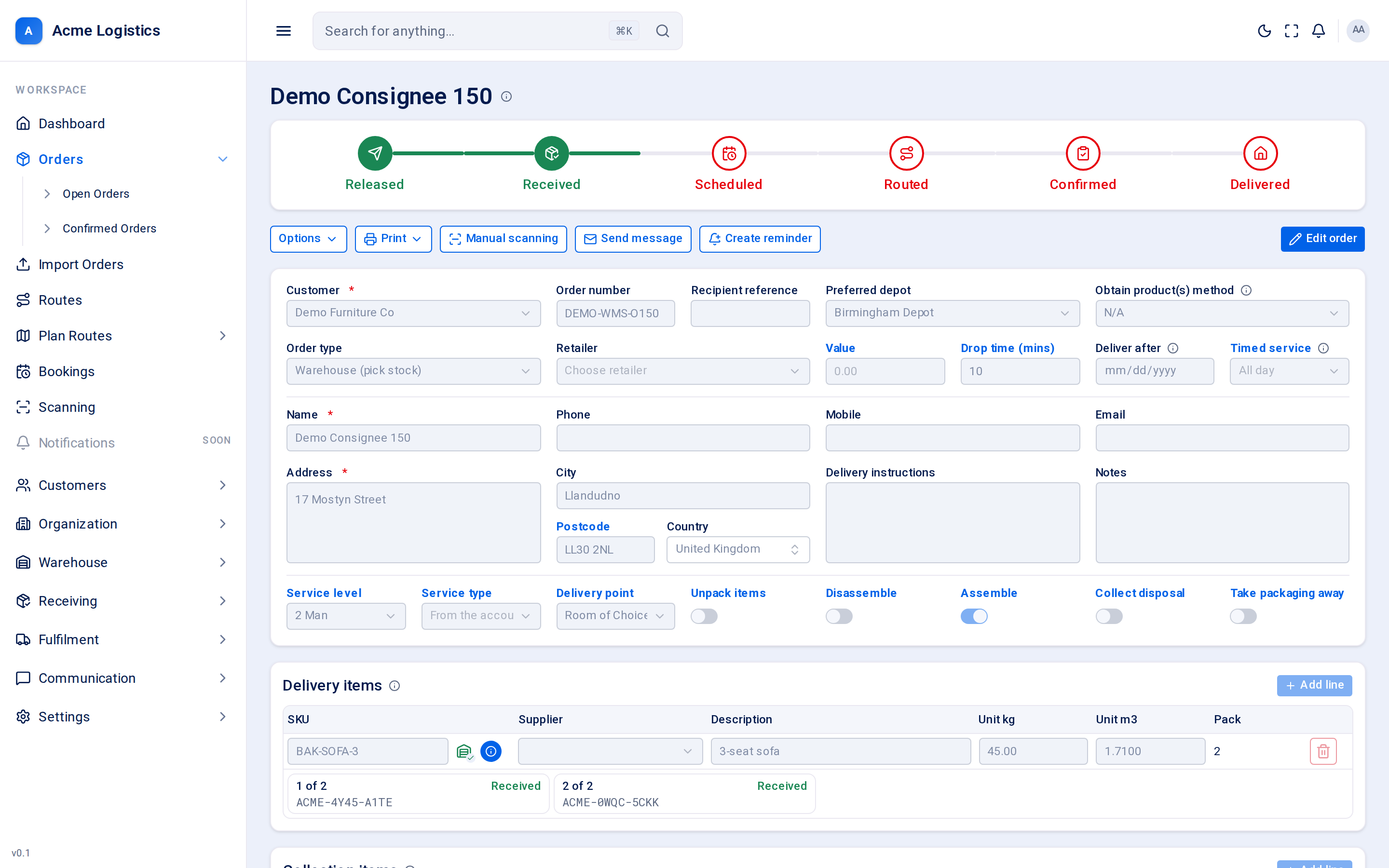
The order screen shows one order from top to bottom: how far it has got, what you can do with it, the booking details, its items, and the stock reserved for it. It opens read-only; you press Edit order to change anything, so a stray keystroke cannot change a booking someone else is working on.
Where to find it: Orders > Open Orders, then click an order number. Also from a route, the proximity report or the app-wide search. Who can use it: anyone who can view orders. Each button needs its own permission (listed below); buttons you cannot use are not shown.
When you use this
Section titled “When you use this”- Answer a customer or recipient asking where their order is.
- Correct an address, phone number or delivery date.
- Put an order on hold, or let it go again.
- Print labels or a proof of delivery.
- Send the recipient a one-off email or text.
- Receive boxes by hand when there is no handheld scanner to hand.
- Check how close other booked stops are before planning a route.
Page heading
Section titled “Page heading”The heading is the recipient’s name (or the order number if there is no name). The postcode is shown beside it as a hint.
The progress bar
Section titled “The progress bar”Six steps across the top. Each is green when done and red when not. The steps are separate facts and can be done in any order - for example an order can be routed weeks before its goods arrive. See Order statuses and progress for the full explanation.
| Step | Done when |
|---|---|
| Released | The order is on the floor. Every new order starts released; it only turns red if someone un-releases it. |
| Received | Every box of every delivery line has arrived (or, on a warehouse order, the stock is fully reserved). |
| Scheduled | The order has a Deliver after date, or is on a route. |
| Routed | The order is a stop on a route. |
| Confirmed | The recipient has accepted the delivery booking. |
| Delivered | The last parcel of the order has been delivered. |
Action buttons
Section titled “Action buttons”A row of buttons sits under the progress bar. On the right are Edit order, or Cancel and Save changes while you are editing.
| Action | What it does | Permission |
|---|---|---|
| Options | A menu of actions that change the order (see below). Greyed out while you are editing. | Depends on the entry |
| A menu of documents to print (see below). | Print labels, or view deliveries | |
| Manual scanning | Receive boxes by hand (see below). | Operate scanning |
| Send message | Send the recipient a one-off email and/or text (see below). | Edit deliveries |
| Create reminder | Create a reminder linked to this order (see below). | Create reminders |
| Edit order | Unlocks the fields and the item tables. | Edit orders |
| Cancel (while editing) | Throws away your changes and locks the fields again. | - |
| Save changes (while editing) | Saves the details first, then any added, changed or removed lines. Shows “Saving…” while it works. Disabled while an item row is half entered. | Edit orders |
Options menu
Section titled “Options menu”| Entry | What it does | Shown when |
|---|---|---|
| Proximity report | Opens the proximity report (see below). It only reads; it changes nothing. | You can view routes |
| Put on hold… | Opens the hold dialog (see below). | The order is not held and you can edit orders |
| Release hold | Lets the order go straight away. No questions asked. Clears the hold reason and date. | The order is held |
| Release order | Puts an un-released (draft) order back on the floor. Only needed after an un-release. | The Released step is not done |
| Un-release order | Takes the order back off the floor, for example while something is corrected. Reserved stock stays reserved and every other step stays as it was. The order moves to the Not Released tab on Open Orders. | The Released step is done |
| Clear booking status | Marked Soon and cannot be used yet. | The Confirmed step is done and you can manage bookings |
| Raise collection | Adds a matching collection line for every delivery line, so the crew drops off and takes back in one visit. Lines already being collected are skipped, so pressing it twice is safe. If there is nothing left to collect you see “There is nothing left to collect on this order.” | You can edit orders |
| Cancel order | Asks you to confirm, then cancels the order (see below). | You can cancel orders |
On a cancelled order the Options menu has nothing to offer and is not shown.
Putting an order on hold
Section titled “Putting an order on hold”A hold keeps the order off the planning board until someone lets it go.
| Field | What it means | Required | Why it matters |
|---|---|---|---|
| Reason | Why the order is held (“Why is this order being held?”). | No, up to 500 characters | Shown on the order and on the On hold flag on the board, so the next person knows why without opening anything. |
| Hold until | The last day of the hold. | No | The hold runs to the end of this day and lifts itself overnight. Leave it empty to hold until someone releases it. |
Put on hold saves the hold; Cancel closes the dialog. Opening the dialog on an order that is already held shows its current reason and date so you can change them.
While an order is held, a red notice at the top of the screen says This order is on hold (with “until” and the date if one was set), the reason (or “No reason was given.”), when it was held, and whether it lifts itself or stays until someone releases it.
Cancelling an order
Section titled “Cancelling an order”The confirmation reads “Cancel this order?”. Cancel order confirms, Keep it backs out.
- The order stays on the books with the status
cancelled. - Any reserved stock is returned to available.
- The order can no longer be edited, held, released or scanned. It can still be printed, messaged and have reminders.
- An order that has already been picked or packed cannot be cancelled.
- If the order has charges that are not on an invoice yet, the confirmation says so (“This order has unbilled charges of …”). Those charges are not invoiced once the order is cancelled.
Print menu
Section titled “Print menu”| Entry | What it does |
|---|---|
| All labels | Prints a label for every box on the order, one 4x6 inch label per page. |
| Delivery labels | Labels for the delivery boxes only. |
| Collection labels | Labels for the collection boxes only. |
| Proof of delivery | Builds the proof of delivery document. |
The document opens in a new browser window. If nothing appears, allow pop-ups for Tracovy. A label carries the recipient name, address, contact number, the order number and what the item is.
Manual scanning
Section titled “Manual scanning”Lists every box still to arrive (the title shows how many). Ticking a box records the same arrival a handheld scanner would.
| Field | What it means | Required | Why it matters |
|---|---|---|---|
| (Box check boxes) | One row per outstanding box: Deliver or Collect, product code, description, barcode and which box it is (for example “2 of 3”). | At least one | Each ticked box is marked received. |
| Scan into depot | The depot the boxes arrived at. | Yes | Choosing a depot narrows the locations to that depot. |
| Location | The shelf or bay the boxes were put in. | Yes | A box received into a depot with no location is a box nobody can find again. On a warehouse order the goods are also added to stock at this location, if you have permission to put stock away. |
Receive products records the arrivals. When every box has arrived the dialog says “Every box on this order has arrived.”; when the order has no boxes yet it says “This order has no boxes to receive yet.”
When the last box of a live order arrives, the order becomes Received and the Order / Received email is sent to the recipient (if switched on). See Notifications.
Un-receive a box
Section titled “Un-receive a box”Below the Receive products button, Received lists the boxes already in. Use it when a box was scanned by mistake, is the wrong item, or came in damaged: tick the boxes, choose a Reason (Scanned by mistake, Wrong item or Damaged), add a Note if you want, and press Un-receive. The box goes back to waiting, and the order’s Received stage follows. On a warehouse order the units the receipt added to stock come off again, which needs permission to put stock away. A box that is loaded onto a van or packed cannot be taken back here; the message says what to do first. Nor can one that has been out on a delivery and come back: it certainly arrived. The order’s history names each box taken back, with the depot and shelf it had been put on. When no box of the order is still in, the order no longer counts as arrived on the planning board. The recipient is not told: a “goods arrived” email already sent stays sent.
Send message
Section titled “Send message”A one-off message to this order’s recipient. There is no “to” field: it always goes to the email and phone number on the order.
| Field | What it means | Required | Why it matters |
|---|---|---|---|
| Channel | Email, SMS, or Email and SMS. | Yes, defaults to Email | If the recipient has no address for the chosen channel, the message is refused. |
| Subject | The email subject. Hidden for SMS only. | No, up to 255 characters | - |
| Message | What you want to say. | Yes, up to 2000 characters | Texts cost credit; keep them short. |
Send queues the message; Cancel closes the dialog.
Create reminder
Section titled “Create reminder”Creates a reminder linked to this order, so it points back here.
| Field | What it means | Required |
|---|---|---|
| Assignee | Who should be reminded. You are listed first. You can only pick colleagues if you can view users. | Yes |
| Subject | What the reminder is about. | Yes, up to 255 characters |
| Notes | Any detail. | No |
| Due at | When the reminder is due. | No |
Create reminder saves it.
Proximity report
Section titled “Proximity report”Titled “Proximity report for” the order’s postcode. It lists stops already booked near this order on or after the date shown under the title, nearest first, so a planner can see whether a van is passing the door anyway.
| Column | What it means |
|---|---|
| Miles | Straight-line distance from this order, not road distance. Shown in green when under 20 miles. |
| Route | The route code (a link to the route) and the route’s finish time (F=). |
| Date | The day that route runs. |
| Recipient | The other stop’s recipient (a link to that order) and its arrival time (@). |
If the order has no map position yet, the report says “This order has no coordinates yet, so nothing can be measured from it.” Fix the address first.
Order details
Section titled “Order details”The same fields as the new order form, greyed out until you press Edit order. What each field drives is explained there. On this screen:
- Customer and Order type cannot be changed.
- Changing the Address, City, Postcode or Country looks the address up on the map again and may add or clear a location flag.
- Once you save the order, its Deliver after date counts as set by you: taking the order off a route will no longer clear it. Clearing the date on an order that is not on a route takes away the Scheduled step.
- A call button sits beside Phone and Mobile if you can place calls. It dials the saved number, so it is greyed out while the box holds an unsaved change (“Save the order to call this number”), when there is no number, or while you are already on a call.
Delivery items and Collection items
Section titled “Delivery items and Collection items”The same tables as on the new order form, filled with the order’s lines. Beside each table’s title, a count such as “3/5 boxes scanned” shows how many of its boxes have arrived; it turns green once every box is in, and is hidden while the table has no boxes. Once saved, each line also shows:
- Barcode button - opens a dialog with a QR code and a barcode for every box on the line, and whether each box is Received or Awaiting.
- Pack - how many boxes the item ships in.
- A card per box under the line (when it has more than one), showing Received or Awaiting and its barcode, or “No barcode”.
- A row colour: green when all the line’s boxes are in, amber when only some are.
While editing you can add rows, remove rows, change the supplier on any line, and change the description, product code, weight and volume of a custom item. A catalogue item’s weight and volume come from its product: correct them on the product, and the orders still to be delivered take the new figures. The SKU of a saved line cannot be changed: remove the line and add a new one. Removing a delivery line returns any stock it had reserved.
Allocation panel
Section titled “Allocation panel”The block at the bottom of the screen.
| Item | What it means |
|---|---|
| Status badge | The allocation status: pending, allocated, partially allocated, on hold or cancelled. |
| Customer, type, split | The customer name, live or warehouse, and “hold if short” (the order waits for all its stock in one depot) or “split allowed”. |
| Flags | Red badges for each flag on the order (for example On hold or Invalid location), with the hold reason and date beside them. |
The items table:
| Column | What it means |
|---|---|
| Item | The product, or the product code or description of a custom item. |
| Qty | How many (one per line). |
| Allocated | How many are reserved from stock. |
| Backordered | How many are still waiting for stock. |
| State | Deliver or Collect, the line’s own status, Received once it has arrived, and a red No barcode if a box cannot be scanned in. |
Reservations by depot (shown when stock is reserved) lists each reservation: Product, Depot, Reserved quantity and Status (reserved, released or consumed).
Tips and common mistakes
Section titled “Tips and common mistakes”- Save before you call: the call button dials the saved number, not what is in the box.
- Use Un-release order for a short correction and Cancel order only when the order is not going ahead. Un-release keeps the stock; cancel gives it back.
- An empty Hold until date means the hold never lifts by itself.