Manifests
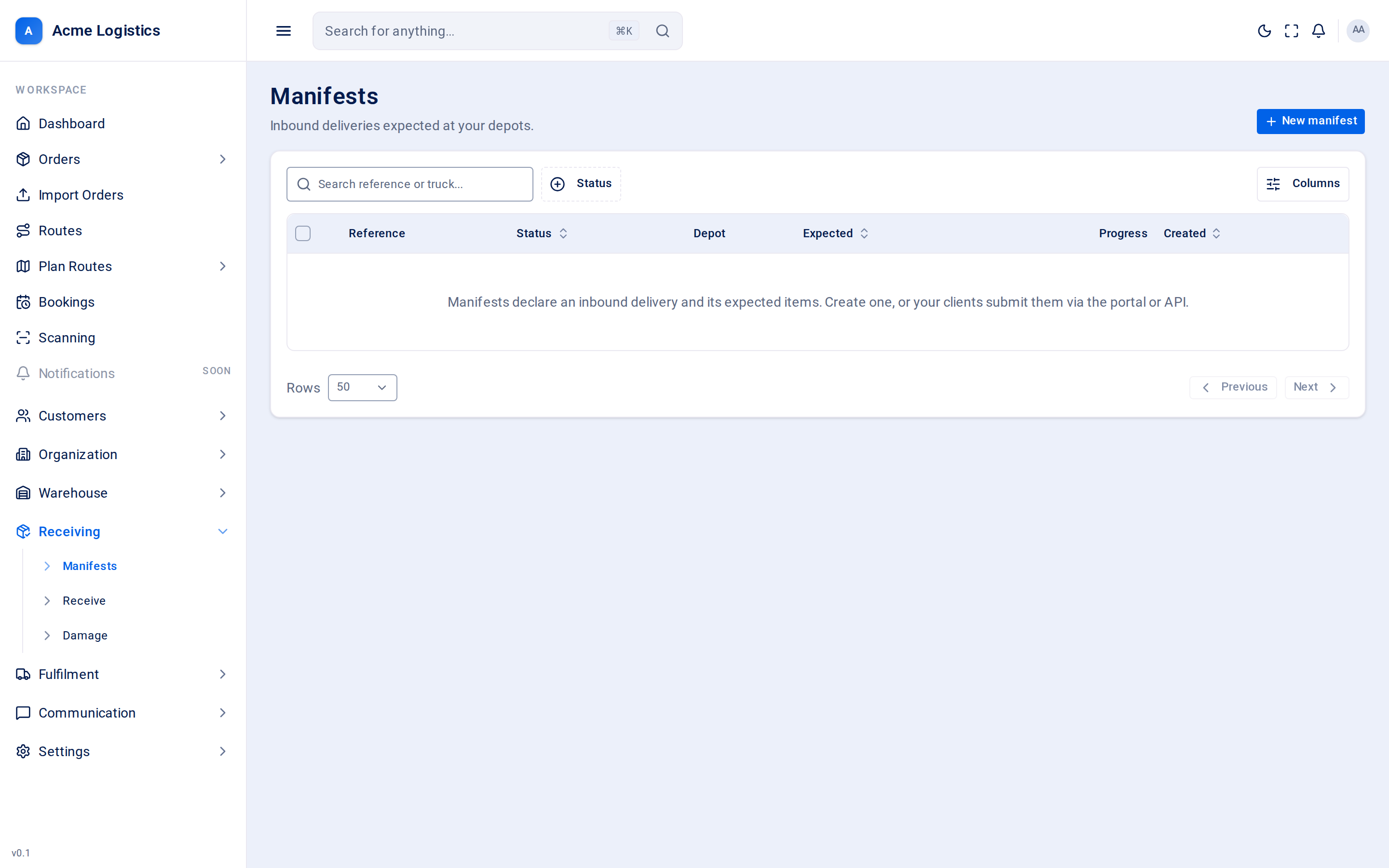
A manifest is a customer’s notice that stock is on its way to your warehouse: which products, how many of each, and which depot they are going to. This screen lists every manifest, shows how far receiving has got, and lets you cancel manifests that will not arrive.
Where to find it: Receiving > Manifests Who can use it: anyone with “View manifests” can see the list. You need “Create & edit manifests” to create or cancel manifests.
When you use this
Section titled “When you use this”- Check what is due in at your depot today.
- See how much of a delivery has been scanned in so far.
- Find a manifest by its reference or the truck’s registration.
- Cancel manifests a customer has called off.
Where manifests come from
Section titled “Where manifests come from”| Source | How it arrives |
|---|---|
| Typed in by your staff | New manifest on this screen. See Create a manifest. |
| Sent by the customer’s system | Through the Tracovy API, using an API key that belongs to that customer. These manifests appear here the same way, and an email goes out to confirm the import (see Emails). |
| Imported from the client’s receipt file | Import on this screen. See Import a manifest. |
The manifest list
Section titled “The manifest list”| Column | What it means |
|---|---|
| Reference | The customer’s or supplier’s reference for the delivery. If the manifest has no reference, a # followed by its internal ID is shown instead. |
| Status | Where the manifest is in its life: Pending, In progress, Completed, Completed with missing or Cancelled. See Statuses. |
| Depot | The depot the delivery is going to. At the moment this column shows the depot’s internal ID (starting with #) rather than its name. |
| Expected | The expected arrival date, if one was given. Shows “-” when there is none. |
| Progress | Units received so far against units expected, across all lines (for example 40 / 60). Damaged units are not counted as received. |
| Created | When the manifest was created in Tracovy. |
You can sort by Status, Expected and Created, and filter by Status. The search box matches the reference and the truck registration (any part of either, not case-sensitive).
Buttons and actions
Section titled “Buttons and actions”| Action | What it does |
|---|---|
| New manifest | Opens the form to declare a new inbound delivery. See Create a manifest. |
| Import | Opens the side sheet to create a manifest from the client’s receipt file. See Import a manifest. |
| Search reference or truck… | Narrows the list to manifests whose reference or truck registration contains what you type. |
| Status filter | Shows only manifests in the statuses you tick. |
| Select rows (tick boxes) | Selects manifests for a bulk action. You can also select every manifest that matches the current filter, across all pages. |
| Complete | Row action on an In progress manifest, for users with the receive permission. Asks you to confirm, then closes the manifest. Tracovy decides if it is Completed or Completed with missing. Refused while unidentified units wait to be linked (“Link the unidentified units first.”). |
| Cancel selected | Asks you to confirm, then cancels the selected manifests (or every manifest matching the filter). Only shown if you can create and edit manifests. A message tells you how many were cancelled. |
Receipt products
Section titled “Receipt products”The Receipt products sheet shows each line with Expected, In stock, Complete, Damaged and Still to come. For a product that has a barcode per box, the line has one row per box (“Box 2 of 2”) with its barcode, how many arrived (for example “1 + 1 damaged”), and how many were used for units from an earlier manifest. A badge on the line such as “2 missing box 2” says how many units still wait for that box. Complete counts the units that have all their boxes, and Still to come counts the units that do not, so a line waiting for boxes is never shown as done.
Lines that were not on the manifest carry badges:
- Extra - the product is the client’s but was not on the manifest. It was received as an extra line (expected 0).
- Unidentified - nobody knew the product. The line shows the scanned code instead of a product.
On an unidentified line, Link (for users who can edit manifests, while the manifest is In progress) links the units to one of the client’s existing products, or to a new one. Linking books the units into STAGING as stock. The box Save AC-05 LCB as this product's barcode is shown only if you may edit products. It is ticked when the product has no barcode. A product holds one barcode, so when it already has another the box starts unticked and says what it replaces (Replaces OLD-1); tick it only if the code should take over. When the product’s barcode already is the code, there is no box. Untick it to keep the code off the product. A product with a barcode per box cannot be linked.
On a Completed or Completed with missing manifest, a supervisor with the receive and amend permissions sees Remove units (not for a product with a barcode per box). See Correcting a manifest.
Trailer arrival
Section titled “Trailer arrival”The Receipt products sheet ends with Trailer arrival: the photos the warehouse app took of the trailer this manifest came on, grouped under Before unloading (load as it arrived, number plate, seal) and Empty trailer. It shows when the trailer was opened. See Receive for how they are taken.
- A step that was skipped shows
Skipped <time>: <reason>, with the note when the reason is Other, and who skipped it. - A step with nothing yet says “Not taken yet.”
- A photo that cannot be loaded says “Photo unavailable.”
- A manifest that was not put on a trailer says “No arrival photos.” That is the case when the photo switch was off, or for manifests received before arrival photos existed.
- Several manifests can share one trailer, so they show the same photos. Customers see them in the customer portal.
Photos are kept for 90 days by default (set in Receiving settings). After that the files are deleted: the step then says “These photos are no longer kept.” and the record, including any skip and its reason, stays.
Statuses
Section titled “Statuses”| Status | What it means | What you can still do |
|---|---|---|
| Pending | Created, nothing received yet. | Receive against it, record damage, cancel it. |
| In progress | The first unit has been received. The manifest is now locked: its details and expected quantities can no longer be edited freely. | Keep receiving, record damage, cancel it, complete it. A supervisor can amend an expected quantity. |
| Completed | Closed, and every line received at least its expected quantity. | A supervisor can remove units (see Correcting a manifest). |
| Completed with missing | Closed while at least one line had received less than expected. | A supervisor can remove units (see Correcting a manifest). |
| Cancelled | Called off. | Nothing - this is final. |
The flow is always Pending, then In progress, then one of the closed statuses. A Pending manifest can also go straight to Cancelled.
Locking on first scan
Section titled “Locking on first scan”As soon as the first unit is scanned in on the Receive screen, the manifest moves to In progress and is locked. From then on, the only way to change an expected quantity is an amendment by a supervisor with the “Amend a locked manifest (supervisor)” permission. Every amendment is written to the audit log with the old and new quantity and who made it. Amending never changes stock.
Completing a manifest
Section titled “Completing a manifest”Completing closes an In progress manifest. Tracovy decides the result for you:
- Completed if every line has received at least its expected quantity.
- Completed with missing if any line received less. Damaged units do not count as received, so a line with damage ends up short unless its expected quantity was amended.
When a manifest is Completed, Tracovy automatically tries to fill waiting backorders for the products on it, oldest order first.
Completing is refused while unidentified units wait to be linked to a product.
Correcting a manifest
Section titled “Correcting a manifest”Counts go wrong. Tracovy lets you take units back so the lines, the stock and what the client is told still agree.
While the manifest is open (warehouse app):
- Undo last scan takes back the units you just received. It is gone after your next receive, after you leave the screen, close the manifest or press Lines, and after 10 minutes. It is not offered after a box scan. If the units were already moved, it says “These units were moved. Remove them from Lines.”
- Lines shows each line with expected, received, extra or unidentified, and boxes owed. Pick a line, enter the quantity and a reason (Scanned twice, Wrong product, Not actually delivered, Other with a note) and press Remove. Unidentified lines also offer the single reason “Not ours / returned to carrier”. A product with a barcode per box says: “This product has a barcode per box. Correct it with a stock adjustment.”
- Unidentified units are not stock and nobody can pick them. They block the close until the office links them to a product.
After the manifest is closed (supervisors):
Open Remove units on the Receipt products sheet, or on the warehouse app scan or type the reference under Correct a closed manifest. You need the receive and amend permissions. Pick the reason, then choose what happens to the stock:
| Choice | What it does |
|---|---|
| Also remove the stock | Takes the units out of stock as well as off the manifest line. |
| Stock already corrected | Only changes the manifest line. Use it when stock was already fixed. |
When only one place holds the product, the units are taken from there. When several places hold it, you pick the place, STAGING included: after the close, STAGING may hold a newer delivery of the same product, so Tracovy never assumes it. Places without enough free units are greyed out. If no one place holds them all, remove them in parts.
Tracovy then recalculates the status (Completed or Completed with missing). No email is sent again. Client systems using the Tracovy API receive the manifest.corrected event.
Cancelling
Section titled “Cancelling”Cancelling stops further receiving. Units that were already scanned in stay in stock - they physically arrived, so Tracovy does not remove them.
A manifest with unidentified units cannot be cancelled (“Link the unidentified units first.”): once it is cancelled they could no longer be linked or removed. Link them to a product, or remove them from Lines on the warehouse app as “Not ours / returned to carrier”, then cancel.
Emails
Section titled “Emails”Manifests send emails to your customer and, when the manifest names one, to the supplier. Each person receives their own copy, so a customer never sees the supplier’s address or the other way round.
| Template | When it is sent | Who receives it |
|---|---|---|
Customer / Manifest Import Success (customer.manifest_import_success) |
A manifest arrives through the API. Manifests typed in by your staff do not send it. | The customer |
Internal / New Manifest Import (internal.new_manifest_import) |
Same moment as above. | Your operations staff list |
Customer / Manifest Completed (customer.manifest_completed) |
A manifest is completed with everything received. | The customer |
Customer / Manifest Missing Items (customer.manifest_missing) |
A manifest is completed with missing items. Includes a table of every line: SKU, expected, received, damaged. | The customer |
Supplier / Manifest Missing Items (supplier.manifest_missing) |
Same moment, same table. | The supplier, if the manifest names one |
Customer / Manifest Damage (customer.manifest_damage) |
Damage is recorded. One email per damage record. | The customer |
Supplier / Manifest Damage (supplier.manifest_damage) |
Same moment. | The supplier, if the manifest names one |
The completed email lists extra lines under “Also received, not on the manifest”, and the missing-items email marks extra lines “(extra)”. Unidentified lines are never in an email to your customer or supplier. If you never edited the completed email, it gets the new wording automatically. If you edited it, your text stays as it is: add the {{extra_lines}} placeholder yourself, or use Restore default in Email templates to take the new wording (your edits are lost).
The customer’s copy goes to the addresses in Warehouse emails on the customer record. If that list is empty, Tracovy uses Alert emails instead. If both are empty, the customer gets no manifest email. The supplier’s copy goes to the email on the supplier record.
You can change the wording of each email, or switch it off, in Email templates.
Tips and common mistakes
Section titled “Tips and common mistakes”- Search by truck registration when the driver is at the gate and does not know the reference.
- If a customer says they never got the “missing items” email, check Warehouse emails and Alert emails on their customer record.
- Cancel rather than leave old Pending manifests lying around - they still appear in the manifest pickers on the Receive and Damage screens.