Create a manifest
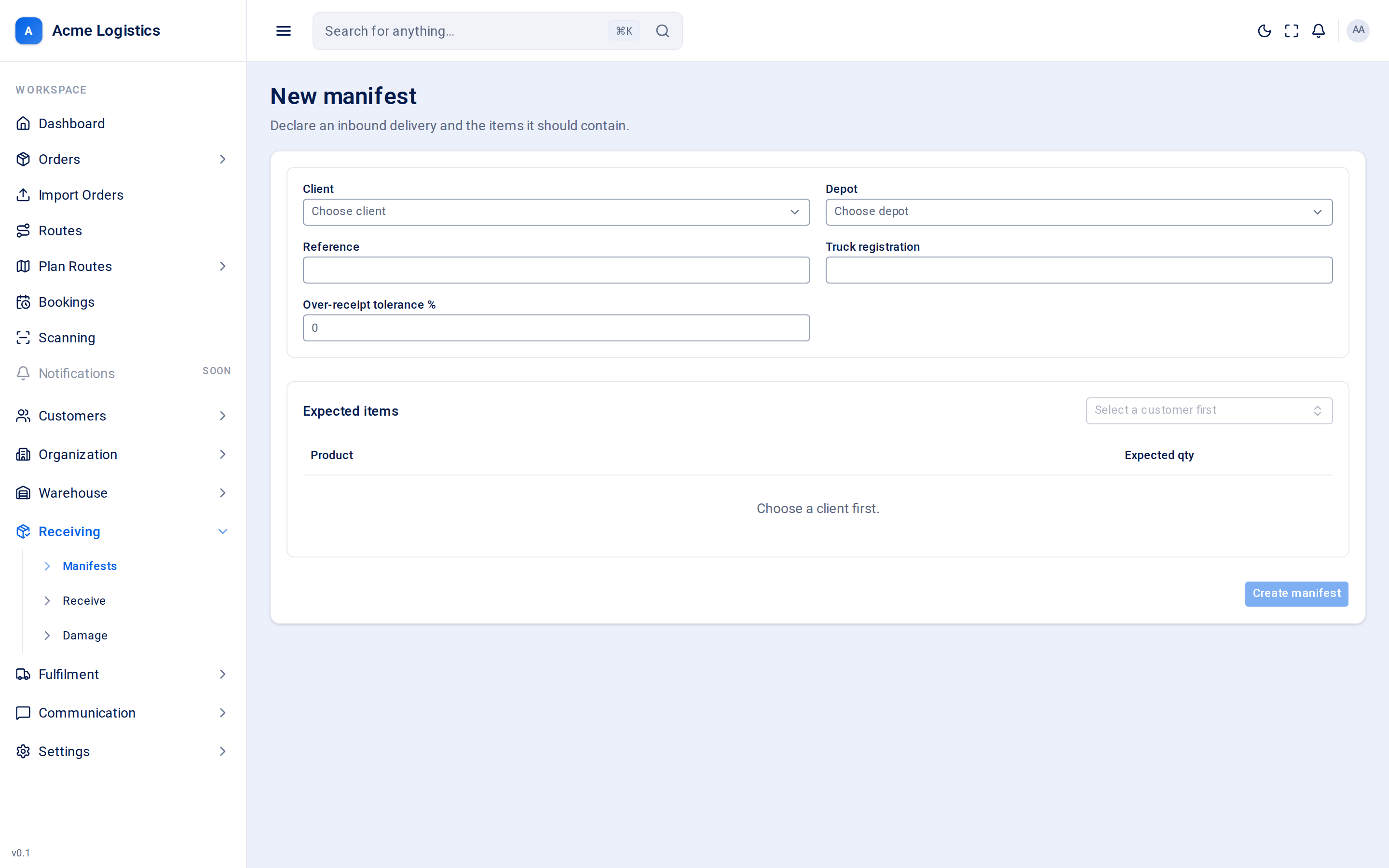
Use this screen to tell Tracovy that a delivery is coming in for one of your customers. The expected quantities you enter here are what your receiving team scans against, and what decides whether the manifest ends up complete or short.
Where to find it: Receiving > Manifests > New manifest Who can use it: you need the “Create & edit manifests” permission.
When you use this
Section titled “When you use this”- A customer phones or emails to say a truck is on its way.
- A customer does not send manifests through the API, so you type them in.
- You need to receive stock and there is no manifest for it yet - receiving only works against a manifest.
Fields
Section titled “Fields”| Field | What it means | Required | Why it matters |
|---|---|---|---|
| Client | The customer who owns the stock. | Yes | Stock is held per customer. Only this customer’s products can be added, and changing the client clears the expected items you already added. The client’s warehouse contacts receive the manifest emails. |
| Depot | The depot the delivery is going to. | Yes | Received units are booked into this depot’s stock. You can only choose depots you are allowed to see. |
| Reference | The customer’s or supplier’s reference for the delivery, such as a PO or ASN number. | No, up to 255 characters | It is what your team searches for in the manifest list and what the customer sees in the email subject. If left empty, the manifest is shown by its internal ID. |
| Truck registration | The registration of the vehicle bringing the goods. | No, up to 40 characters | Lets the gate team find the manifest by searching for the registration. |
| Over-receipt tolerance % | How far above the expected quantity your team may receive, as a whole-number percentage from 0 to 100. | No | Leave it empty to use your company default (normally 0, which means no extra units are accepted). See Over-receipt. |
Expected items
Section titled “Expected items”| Field | What it means | Required | Why it matters |
|---|---|---|---|
| Choose product (picker) | Search the client’s product catalogue and pick a product to add it as a line. Disabled until a client is chosen (“Select a customer first”). | At least one line | Receiving rejects any product that is not on the manifest, so every product on the truck must be listed here. Each product can only be added once. |
| Product | The product code of the line. | - | Read-only. |
| Expected qty | How many units of that product you expect. Starts at 1. | Yes, a whole number of 0 or more | Received units are compared with this number. It sets the over-receipt limit and decides whether the manifest completes in full or with missing items. |
Buttons and actions
Section titled “Buttons and actions”| Action | What it does |
|---|---|
| Remove line (bin icon) | Removes that product from the manifest. |
| Create manifest | Saves the manifest as Pending and returns you to the manifest list. Enabled once a client, a depot and at least one line are filled in. No stock changes until units are received. |
Over-receipt tolerance
Section titled “Over-receipt tolerance”Tracovy will not let your team receive more than the expected quantity plus the tolerance. The limit for each line is the expected quantity multiplied by (1 + tolerance / 100), rounded down.
| Expected qty | Tolerance | Most that can be received |
|---|---|---|
| 100 | 0 (or empty with default 0) | 100 |
| 100 | 5 | 105 |
| 10 | 10 | 11 |
| 5 | 10 | 5 (5.5 rounded down) |
A scan that would go over the limit is refused, and the stock is not booked in.
Details that cannot be entered on this screen
Section titled “Details that cannot be entered on this screen”Manifests also have a supplier, a truck serial, an expected arrival date and notes. These can be sent by a customer’s system through the API, but this form does not have fields for them yet.
Tips and common mistakes
Section titled “Tips and common mistakes”- Pick the client first. Changing it later wipes the lines you added.
- An expected quantity of 0 means nothing can be received for that line (unless you give a tolerance, and even then 0 plus any percentage is still 0).
- Small lines with a small tolerance get no extra room because of rounding down - for example 5 units at 10%. Use a whole extra unit’s worth of percentage if you need it.
- Check the quantities before the truck arrives. Once the first unit is scanned in, the manifest is locked and only a supervisor can amend an expected quantity.
- Products need a barcode in the customer’s catalogue to be received by scanning. See Receive.