Create an order
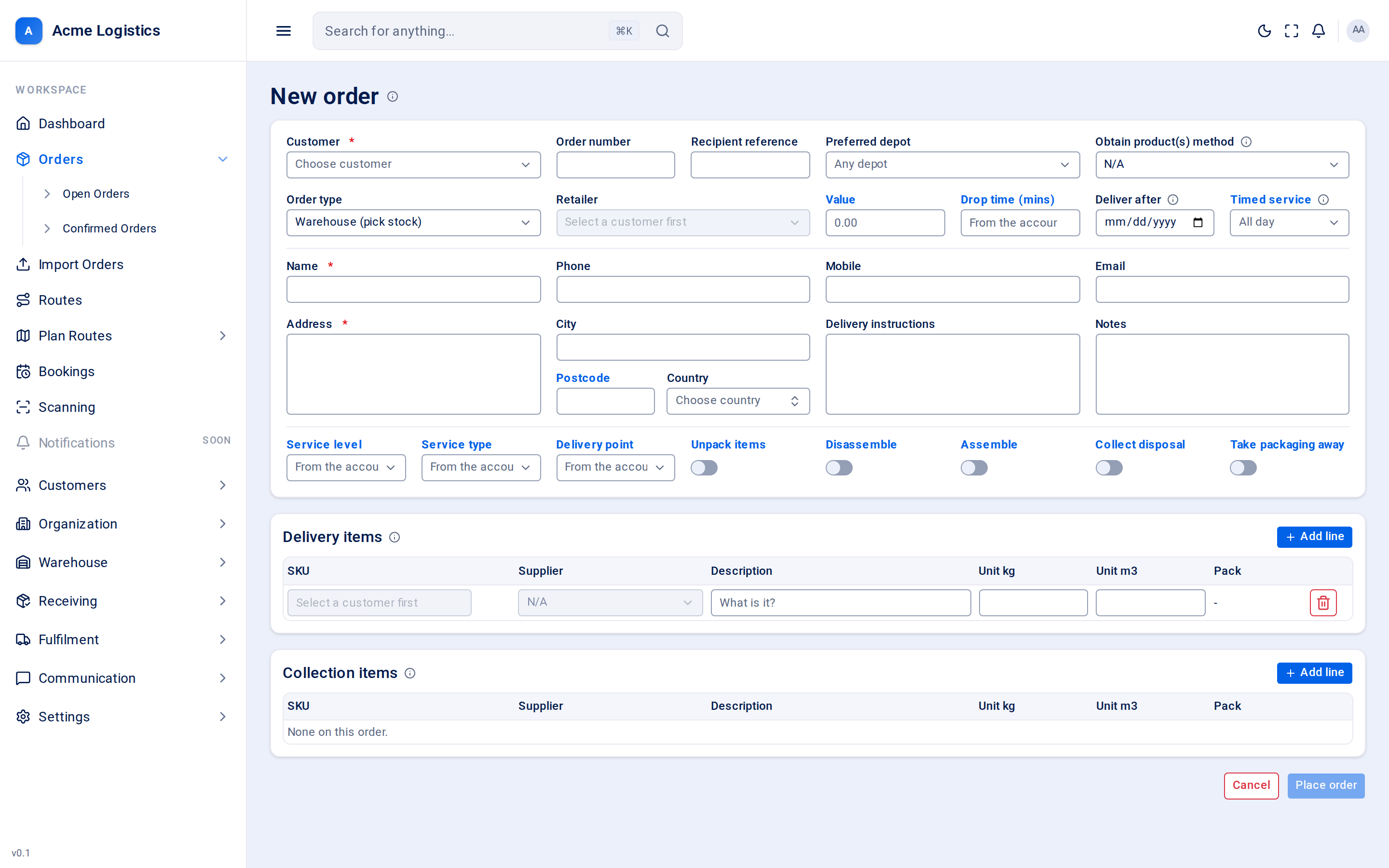
The new order form books a delivery (or a collection, or a service visit) for one of your customers to one recipient. Customer service staff and planners use it to take orders by phone or email; larger volumes usually come in by import or through the customer portal.
Where to find it: Orders > Open Orders > New order Who can use it: anyone with permission to create orders.
When you use this
Section titled “When you use this”- A customer phones in a delivery for one of their customers.
- You need to book a collection (for example taking an old sofa away) with or without a delivery.
- You need to book a service visit that moves no goods, such as an assembly or a repair.
What happens when you place the order
Section titled “What happens when you place the order”- The order gets its own consignment (tracking) number straight away.
- It goes on the floor immediately: the Released step is done from the start.
- The address is looked up on the map. If it cannot be placed, the order is still taken but carries a location flag (see Open Orders).
- For a warehouse order, stock is reserved for catalogue delivery lines from the stock you hold.
- Each box gets its own barcode, so labels can be printed before the goods arrive.
- If you set a Deliver after date, the Scheduled step is done straight away.
- If you use a price list, the price is worked out and saved on the order. If you can see order money, the form shows it above Place order while you fill it in, line by line with the total before VAT. An order the price list cannot price, and saved without a price, waits on the Needs a manual quote tab of Open Orders.
- The Order / Created email and text to the recipient is sent if you have switched it on (it is off by default). See Notifications.
- You are taken to the new order screen.
Order details
Section titled “Order details”The top block of the form.
| Field | What it means | Required | Why it matters |
|---|---|---|---|
| Customer | Your client the order is for. | Yes | Decides which products you can pick in the item tables, which retailers and suppliers you can choose, and the defaults the form fills in (drop time, service options, order property answers, recipient country). Changing the customer clears the item tables and re-applies that customer’s defaults. Cannot be changed after the order is placed. |
| Order number | The customer’s own order number. | No, up to 255 characters | Shown on the board, searchable, and quoted on labels and messages. Imports use it to skip duplicates, so keep it unique per customer. |
| Recipient reference | The recipient’s own reference for the order. | No, up to 255 characters | Quoted back on paperwork and when the recipient phones in. |
| Preferred depot | The depot that should fulfil the order. “Any depot” when empty. | No | Only depots you are allowed to see are offered. When you use a price list, this is also the depot the order is priced from. |
| Obtain product(s) method | How the goods reach the depot. Choices: N/A, Collect From Customer, Collect From Other Location, Collect From Supplier, Already Collected, Customer Delivering Into Depot, Supplier Delivering Into Depot, Pick From Internal Stock, Full Stock Control. | No, defaults to N/A | Tells the warehouse and planners where the goods are coming from before they can go out. |
| Order type | Warehouse (pick stock) - fulfilled from stock you already hold. Live (cross-dock) - the goods arrive for this order and leave on the next van. | Yes, defaults to Warehouse | Decides whether stock is reserved and how the order counts as received. A live order needs weight and volume on every catalogue product, or it is refused. Cannot be changed after the order is placed. |
| Retailer | The shop or brand the recipient bought from, from the customer’s active retailers. | No | Only available once a customer is chosen (“Select a customer first”). |
| Value | What the goods are worth. | No, 0 or more | The value of the goods, not what you charge for the job. |
| Drop time (mins) | Minutes the crew spends on site. Shows “From the account” when empty. | No, 0 to 1440 | Filled in from the customer’s default drop time when you pick the customer. Used to plan how long the stop takes on a route. |
| Deliver after | The earliest day the goods may go out. | No | The planning board offers the order from this day onward, not on this day only. Setting it marks the order Scheduled. It is also the date used in messages to the recipient. |
| Timed service | A delivery slot. “All day” when empty. | No | Only active slots are offered. Slots are managed in Settings > Delivery slots. |
Recipient
Section titled “Recipient”The person or business receiving the delivery.
| Field | What it means | Required | Why it matters |
|---|---|---|---|
| Name | The recipient’s name. | Yes, up to 255 characters | Printed on labels, shown as the order’s title and used to greet the recipient in emails and texts. |
| Phone | A landline or main number. | No, up to 40 characters | Used for text messages and printed on labels when there is no mobile. |
| Mobile | The number the driver texts on the day. | No, up to 40 characters | Text messages go to the mobile when it is filled in, and it is the number printed on labels. |
| The recipient’s email address. | No, must be a valid email, up to 255 characters | Order emails (created, received, booking, delivery) go here. With no email and no phone, the recipient gets no notifications. | |
| Address | The street address. Type it over several lines if you like. | Yes | The first line is stored as address line 1; any further lines are joined with commas into line 2 (up to 255 characters each). Changing it moves the map pin. |
| City | Town or city. | No, up to 255 characters | Part of the address used to place the order on the map. |
| Postcode | The postcode. | No, up to 20 characters | Used to place the order on the map, shown on the board and used by the proximity report. A missing or wrong postcode is the usual cause of an Invalid location flag. |
| Country | Type the country name; it is stored as a two-letter code. | No | Filled in from the customer’s main address, then follows the preferred depot’s country until you pick one yourself. Countries the depot does not serve are marked (not served). Used for the map lookup, to format phone numbers for texts, and to find the price zone. |
| Delivery instructions | Notes for the crew, such as access or parking. | No | Kept with the recipient’s details on the order. |
| Notes | Internal notes about the order. | No | Shown from the Notes icon on the board. |
Service options
Section titled “Service options”What the crew is booked to do. When you pick a customer, these are filled in from the customer’s defaults; you can change any of them for this order. Lists you leave empty (“From the account”) are filled in from the customer when the order is saved.
| Field | What it means | Required | Why it matters |
|---|---|---|---|
| Service level | The level of service booked, from your service level list. | No | Copied onto the order, so a later change to the customer does not change what this crew was sent to do. |
| Service type | The type of service, from your service type list. | No | As above. |
| Delivery point | Where the goods are delivered to, from your delivery point list. | No | Copied onto the order like the service level. |
| Unpack items | Switch. The crew unpacks the goods. | No | Adds work at the stop. |
| Disassemble | Switch. The crew takes something apart. | No | Usually paired with a collection. |
| Assemble | Switch. The crew builds the goods. | No | Adds time on site. |
| Collect disposal | Switch. The crew takes away an old item for disposal. | No | The van needs space on the way back. |
| Take packaging away | Switch. The crew removes the packaging. | No | The van needs space on the way back. |
Order properties
Section titled “Order properties”Extra questions your workspace asks on every order, set up in Settings > Order properties. This block only appears if you have at least one active question.
| Field | What it means | Required | Why it matters |
|---|---|---|---|
| (Each question) | A text box, text area, switch, radio buttons, check boxes or a drop-down, depending on how the question was set up. A hint icon shows the question’s help text. If you can see order money, an answer that adds to the delivery price shows how much beside it, for example +20.00 in your currency. | Only questions marked required (red star) | Answers are pre-filled from the customer’s default answers. Answers are checked when you place the order; a problem is shown under the question. |
Delivery items and Collection items
Section titled “Delivery items and Collection items”Two tables with the same columns. Delivery items is what the crew takes to the door; catalogue delivery lines reserve and use stock. Collection items is what the crew brings back; nothing is reserved, because the goods are not in the building yet.
Each row is one physical item. To send two of the same product, add two rows.
| Column | What it means | Required | Why it matters |
|---|---|---|---|
| SKU | Type a product code. Matching products from the customer’s catalogue drop down; pick one to fill in the row. A code that matches nothing becomes a custom item. | No, but a row needs either a catalogue product or a description | An icon beside the box shows the kind: a warehouse icon for a catalogue item, a tag icon for a custom item. Its colour shows whether the goods have arrived (grey none, amber some, green all). |
| Barcode (info button) | Appears after the order is saved. Opens the barcodes for the item’s boxes. | - | Only shown if you can print labels. |
| Supplier | Who supplies the goods. Filled in from the catalogue product; you can change it or choose N/A. | No | Only the chosen customer’s active suppliers are offered. |
| Description | What the item is (“What is it?”). | Yes for a custom item, up to 255 characters | Printed on labels. Locked for catalogue items - the catalogue owns the description. |
| Unit kg | Weight of one item in kg. | No | Drives vehicle loading. Locked for catalogue items. |
| Unit m3 | Volume of one item in cubic metres. | No | Drives vehicle loading. Locked for catalogue items. |
| Pack | How many boxes (cartons) the item ships in. A dash until the order is saved. | - | Read-only. Each box gets its own label and barcode and is scanned separately. |
| Remove (bin button) | Removes the row. The last row is emptied rather than removed. | - | - |
Add line adds an empty row to that table.
Buttons and actions
Section titled “Buttons and actions”| Action | What it does |
|---|---|
| Add line | Adds a row to the Delivery items or Collection items table. |
| Cancel | Leaves the form without saving and returns to the Orders board. |
| Place order | Saves the order. Enabled once a customer, recipient name and address are filled in and no row is half entered. Shows “Placing…” while it works. |
Tips and common mistakes
Section titled “Tips and common mistakes”- Pick the customer first. Changing it later clears the items you have entered.
- A live order with a catalogue product that has no weight or volume is refused with “Live orders require weight and volume”. Fix the product in the customer’s catalogue, or use a warehouse order.
- Fill in at least a mobile or an email, or the recipient cannot be told about bookings and deliveries.
- Check the postcode. A wrong one means the order cannot be placed on the map or routed.