Credit
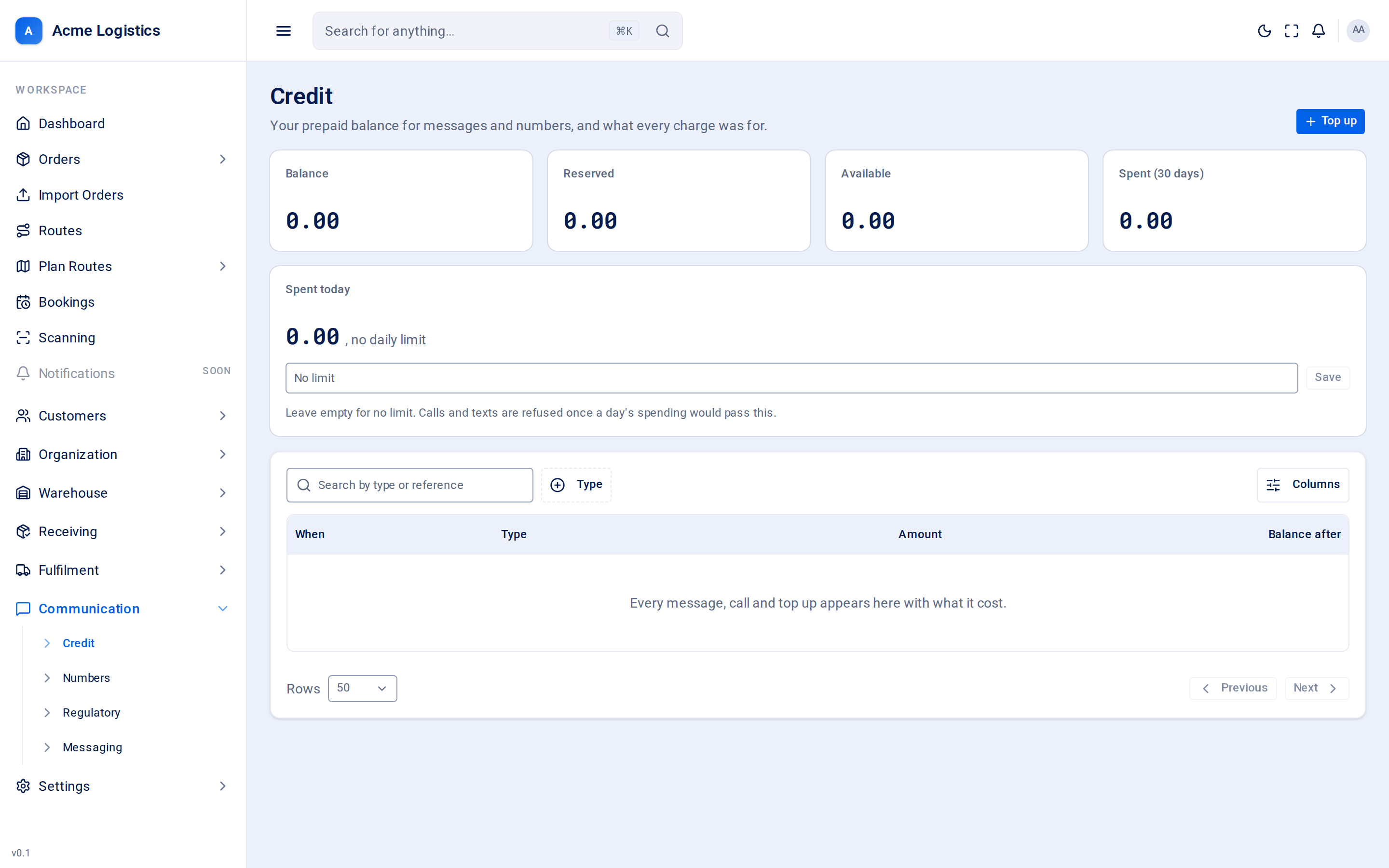
Text messages and phone calls are paid for from a prepaid balance, like a pay-as-you-go phone. This screen shows the balance, lets you top it up and set a daily spending limit, and lists every charge so you can see what each message and call cost.
Where to find it: Communication > Credit Who can use it: people with permission to manage billing and subscription - normally administrators.
When you use this
Section titled “When you use this”- Top up before a busy week so delivery texts keep going out.
- Set a daily limit so a mistake cannot spend the whole balance in a day.
- Check what a message or call cost, or reconcile your spending.
The balance
Section titled “The balance”All amounts are in your workspace’s billing currency.
| Figure | What it means | Why it matters |
|---|---|---|
| Balance | The money in your account. | What you have paid in, minus everything spent. |
| Reserved | Money held back for calls that are in progress. A call’s cost is not known until it ends, so its maximum is set aside when it starts and settled when it hangs up. | Reserved money cannot be spent on anything else until the call ends. |
| Available | Balance minus Reserved. | What new texts and calls can actually use. When it reaches zero, texts and calls are refused. |
| Spent (30 days) | Everything charged in the last 30 days. Top ups are not counted. | Tells you whether the balance is a week’s worth or a month’s. |
| Low balance alert | The level at which you are warned that the balance is low. Only shown when a warning level has been set. | A warning before texts start being refused. |
Spent today and the daily limit
Section titled “Spent today and the daily limit”| Field | What it means | Required | Why it matters |
|---|---|---|---|
| Spent today | Today’s spending, shown “of” your daily limit, or with “no daily limit”. | - | How close you are to the limit. |
| Daily spend limit | The most the workspace may spend on texts and calls in one day. Leave it empty for no limit. | No, 0 or more | Once a day’s spending would pass the limit, further texts and calls are refused until the next day. It protects you from a fault or a mistake sending thousands of messages. Empty never means “spend nothing” - it means no limit. |
Click Save beside the box to apply a new limit. The button is only active after you change the figure.
Topping up
Section titled “Topping up”| Field | What it means | Required | Why it matters |
|---|---|---|---|
| Amount | How much to add, in your billing currency. | Yes, at least 1.00 and no more than two decimal places | The amount charged to your card and added to your balance. |
| Action | What it does |
|---|---|
| Top up | Opens the Top up credit window. |
| Continue to payment | Takes you to Stripe to pay by card. |
When you come back from Stripe you see “Payment received. Your balance updates shortly.” The balance rises as soon as the payment clears, usually within moments. If you leave Stripe without paying, nothing is charged and nothing changes.
If you see “Set a billing currency for this workspace before topping up.”, your workspace has no billing currency yet - an administrator needs to choose one in the Currency field of Settings > System.
The statement
Section titled “The statement”Every charge and top up, newest first.
| Column | What it means |
|---|---|
| When | When the charge or top up happened. |
| Type | Top up, Message sent, Message received, Call made, Call received, Browser call or Adjustment. Older workspaces may also see Number bought, Number refunded or Number rental from before numbers were included in the plan. |
| Amount | + for money in, - for money spent, with the currency. |
| Balance after | The balance straight after this entry. |
| Action | What it does |
|---|---|
| Search by type or reference | Finds entries by type or by what they were for, such as a payment reference. |
| Type filter | Shows only the types you pick, for example only Message sent to see what texts cost. |
Tips and common mistakes
Section titled “Tips and common mistakes”- Phone numbers are included in your plan; they do not use credit. Only texts and calls do.
- A long text message is sent as several parts and charged per part. Shorter templates cost less - see SMS templates.
- Set a daily limit comfortably above a normal busy day, so it only stops something unusual.