Receive
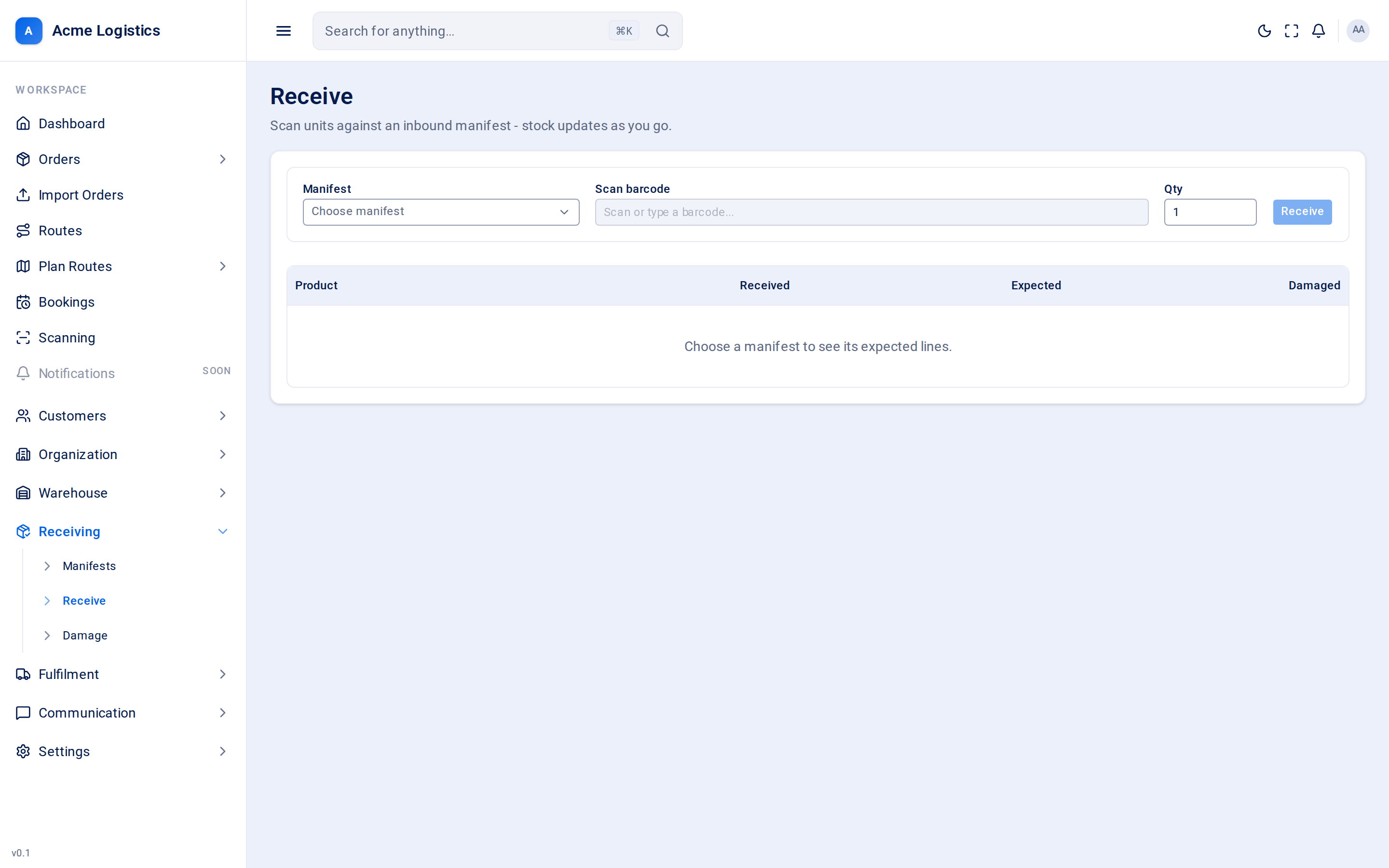
This is the screen your team uses at the dock. Choose the manifest for the truck, scan each product’s barcode, and Tracovy books the units into stock as you go. The table underneath shows what has arrived against what was expected.
Where to find it: Receiving > Receive Who can use it: you need the “Perform receiving scans” permission, and the manifest must be for a depot you are allowed to see.
When you use this
Section titled “When you use this”- Unloading a truck that has a manifest.
- Booking in a delivery that arrived in several drops - you can come back to the same manifest as often as you like until it is closed.
Fields
Section titled “Fields”| Field | What it means | Required | Why it matters |
|---|---|---|---|
| Manifest | The delivery you are receiving. Only Pending and In progress manifests are offered, shown by reference (or internal ID) and status. | Yes | Units are only accepted for products on this manifest, and they are booked into the manifest’s depot for its customer. The choice is kept in the page address, so you can bookmark or share it. |
| Scan barcode | The barcode on the unit. Scan it, or type it and press Enter. Disabled until a manifest is chosen. | Yes | Tracovy looks the barcode up in the customer’s product catalogue, only among products on this manifest. Clears itself after each accepted scan so you can scan the next unit. |
| Qty | How many units this scan stands for. Starts at 1. | Yes, a whole number of 1 or more | Use it when you have a full carton of the same product: set the quantity once, then scan. It stays as you set it between scans. |
Buttons and actions
Section titled “Buttons and actions”| Action | What it does |
|---|---|
| Receive (or Enter in the barcode box) | Books the scanned quantity in. The table updates with the new received count. |
The lines table
Section titled “The lines table”| Column | What it means |
|---|---|
| Product | The product on the manifest line. At the moment this shows the product’s internal ID (starting with #) rather than its product code. |
| Received | Good units booked in so far. |
| Expected | The quantity on the manifest. |
| Damaged | Units recorded as damaged on the Report damage screen. These are not included in Received. |
What happens when you receive
Section titled “What happens when you receive”- The units are added to the product’s Available stock at the manifest’s depot. New orders can be allocated against them straight away. Orders already waiting on backorder are filled when the manifest is completed in full.
- Physically, they are placed in the depot’s STAGING location (Tracovy creates it the first time). They must be put away into a storage location before they can be picked.
- The first accepted unit moves the manifest from Pending to In progress and locks it, so its expected quantities can no longer be edited freely.
- If a line goes above its expected quantity (within the tolerance), the extra is recorded as an overage on that line.
- Every scan is written to the stock log as a “receive” movement, and to the audit log.
Products with a barcode per box
Section titled “Products with a barcode per box”Some products come in several boxes, each with its own client barcode (the product’s box barcodes). Scanning one of them tells Tracovy the product and the box number, so scan each box as it comes off the truck.
- A unit is booked into stock with its first box, whichever box that is. Received goes up then, and the unit waits for its other boxes.
- A later box completes the oldest unit still waiting for that box, even one started on an earlier manifest. It does not add to Received again.
- The over-receipt tolerance counts each box on its own: no box may arrive more times than the line expects, not counting boxes used to complete units from earlier manifests.
- A late box can be scanned on any open manifest at the depot for the same customer, even one that does not list the product. Tracovy adds the product to that manifest with an expected quantity of 0 and uses the box for the unit waiting for it. A box of that product that no unit is waiting for is asked about like a product not on the manifest (below); Receive anyway makes the line an extra line.
Products whose boxes all share one barcode are received one scan per unit, as above.
Products that are not on the manifest
Section titled “Products that are not on the manifest”On the warehouse app, a code that is not on the manifest is not simply refused:
- A product of this client that is not on the manifest asks
Not on this manifest: <code> <description>. Receive anyway?. Receive anyway adds an extra line with an expected quantity of 0. - A code nobody knows asks
Unknown code <code>. Receive as unidentified?. The units are counted on a line with no product, and the office links them to a product later. - Another client’s product is refused.
This web screen refuses all three in plain words (“This product is not on the manifest. Use the warehouse app to receive it.”, “No product has this code. Use the warehouse app to receive it.”, “This code belongs to another client’s product.”).
Trailer photos on the warehouse app
Section titled “Trailer photos on the warehouse app”When arrival photos are switched on in Receiving settings, the warehouse app asks for photos of the trailer so a disputed delivery can be checked later. The web Receive screen does not ask for photos. The questions come in this order, and only before the first receive of a manifest.
Which trailer is this?
Section titled “Which trailer is this?”A manifest that has not started yet first asks Which trailer is this manifest on?:
| Choice | What it does |
|---|---|
| New trailer | Opens a trailer for this manifest and goes to the photos before unloading. This manifest is the one that opened the trailer. |
| Same trailer as … | Shown for each trailer opened at this depot today, named after its first manifest. A trailer stays on the list all day, even once it is unloaded; it then shows unloaded HH:MM. Joins this manifest to that trailer and goes straight to receiving, even if that trailer’s before photos are not taken yet. Only the manifest that opened the trailer is asked for them. |
One trailer often carries several manifests, so the photos belong to the trailer, not to a manifest. A manifest cannot change trailer once it is on one. A manifest that was already started before it had a trailer is not asked.
Before unloading
Section titled “Before unloading”Take these before anything is moved. Before unloading asks for photos of the load as it arrived, the number plate and the seal (before it is cut), from 1 to 4 photos each. The camera only: nothing can be picked from the gallery. Press Start unloading once every kind has at least one photo and all of them have reached Tracovy.
Each photo is saved on the phone the moment it is taken and sent afterwards, so a dead zone or a closed app does not lose it. If some are still on the phone the screen says {n} photo(s) not sent yet. with Send again. They are also sent when you come back to the screen. A photo that cannot be sent at all says “A photo could not be sent. Take it again.”
Skip photos
Section titled “Skip photos”Skip photos skips the whole step and asks why:
| Reason | When to use it |
|---|---|
| Already unloaded | The trailer was emptied before you got to it. |
| No seal on this trailer | There is no seal to photograph. |
| Camera not working | The phone cannot take photos. |
| Other | Anything else. A note is required, up to 200 characters. |
Tracovy records the reason, the note, who skipped and when. Skipping once covers all three before photos. The empty trailer step has its own skip.
Unloading done
Section titled “Unloading done”After the first receive, while the empty trailer photo is still missing, the warehouse app shows Unloading done on any manifest of that trailer, and again with Close manifest when every line is received. It asks for a photo of the empty trailer (1 to 4 photos, or Skip photos with a reason). Closing the manifest does not wait for it: a short manifest may be closed from the web hours after the trailer left.
On the warehouse app, Undo last scan takes back the units you just received. It disappears after your next receive, after you leave the screen, close the manifest or press Lines, and after 10 minutes. See Correcting a manifest.
When a scan is refused
Section titled “When a scan is refused”| Message | Why | What to do |
|---|---|---|
| Barcode ‘…’ is not on this manifest. | No product on this manifest has that barcode in the customer’s catalogue, or the product is not on the manifest at all. | Check you chose the right manifest. If the product really arrived, it has to be added to a manifest before it can be received. If the product has no barcode, add one to the product. |
| Barcode ‘…’ is not on this manifest. (a box of a product with a barcode per box) | The product is not on this manifest, and fewer of its units at this depot are waiting for that box than the quantity you scanned. | Check the quantity and the box. Scan the box on the manifest it came with, or add the product to a manifest. |
| Barcode ‘…’ matches multiple products on this manifest; choose one. | Two or more products on this manifest share the barcode. | This screen cannot choose between them yet. Ask an administrator to give the products distinct barcodes. |
| Over-receipt exceeded: attempted X against expected Y (cap Z). | This scan would take the line above its expected quantity plus the manifest’s over-receipt tolerance. Nothing is booked in. | Check the quantity. If the customer really sent more, a supervisor can amend the expected quantity. |
| Manifest cannot transition from … to receive. | The manifest is already completed or cancelled. | Choose an open manifest. |
Tips and common mistakes
Section titled “Tips and common mistakes”- Set Qty back to 1 after receiving a full carton, or the next single scan will book a carton’s worth.
- Damaged units should not be scanned here - record them on the Report damage screen instead, so they never enter available stock.
- The manifest list only offers the most recent open manifests. If an older one is missing, cancel the stale ones you no longer need.
- After the truck is done, put the stock away so it can be picked.