Dashboard
The Dashboard is the first screen after you sign in. It greets you by name and gathers the things worth seeing at the start of a shift: what is left to set up, how today is going, and what you have promised to do.
Where to find it: Workspace > Dashboard, or click your organisation’s name at the top of the menu. Who can use it: everyone who can sign in. The Your reminders card only appears if your role can view reminders.
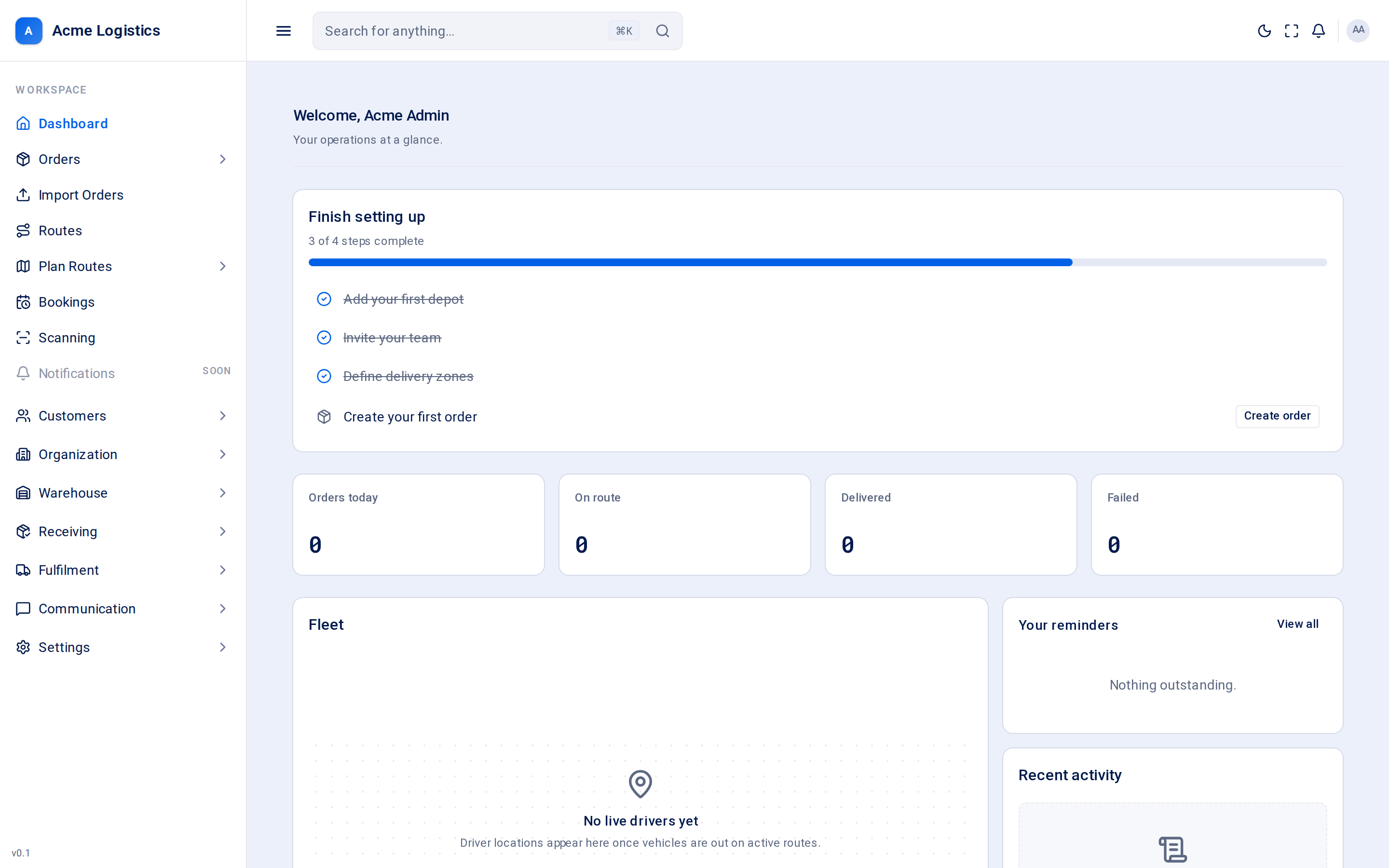
Screenshot coming soonThe dashboard with the set-up checklist, today's figures and the reminders card
When you use this
Section titled “When you use this”- On a new workspace, to work through the set-up steps in order.
- At the start of a shift, to see your overdue and upcoming reminders and tick them off.
- To get back to a known starting point from anywhere in the app.
What is on the screen
Section titled “What is on the screen”| Card | What it shows | Why it matters |
|---|---|---|
| Finish setting up | A checklist with a progress bar (“2 of 4 steps complete”): Add your first depot, Invite your team, Define delivery zones and Create your first order. The next unfinished step has a button (Add depot, Invite users, Add zone, Create order) that takes you to the right screen. | Each step is ticked automatically once the thing exists - you cannot tick it by hand. The card disappears by itself when every step is done. |
| Orders today, On route, Delivered, Failed | Four figures for today. | Meant as a quick read of the day. See the note below. |
| Fleet | Where your drivers are. Today it shows “No live drivers yet”. | The live map is not built yet; the card is a placeholder. |
| Your reminders | Your open reminders, the soonest deadline first, each with a due label. An overdue one has a red label. | Lets you clear your to-do list without leaving the Dashboard. |
| Recent activity | Order updates, deliveries and system events as your team works, newest first, with who did it and how long ago. Click a line to open what it is about. | A quick “what has happened while I was away”. |
Buttons and actions
Section titled “Buttons and actions”| Action | What it does |
|---|---|
| Add depot / Invite users / Add zone / Create order | Shown on the next unfinished set-up step. Opens Organization > Depots, Settings > Users, Organization > Zones or Orders. |
| Tick box beside a reminder | Marks that reminder done. It leaves the list straight away. |
| View all | Opens Settings > Reminders, the full list of reminders. |
Tips and common mistakes
Section titled “Tips and common mistakes”- The reminders card shows only reminders for you - ones addressed to you directly or to a user group you belong to.
- A reminder that becomes overdue while you have Tracovy open also pops up as a message in the corner of the screen, wherever you are. See Notifications inbox.