Stock logs
Every time stock changes in Tracovy, a line is added here. Lines are never edited or deleted, so this is the record you use to explain any stock number.
Where to find it: Warehouse > Stock Logs Who can use it: anyone with “View stock levels, placements & movements”.
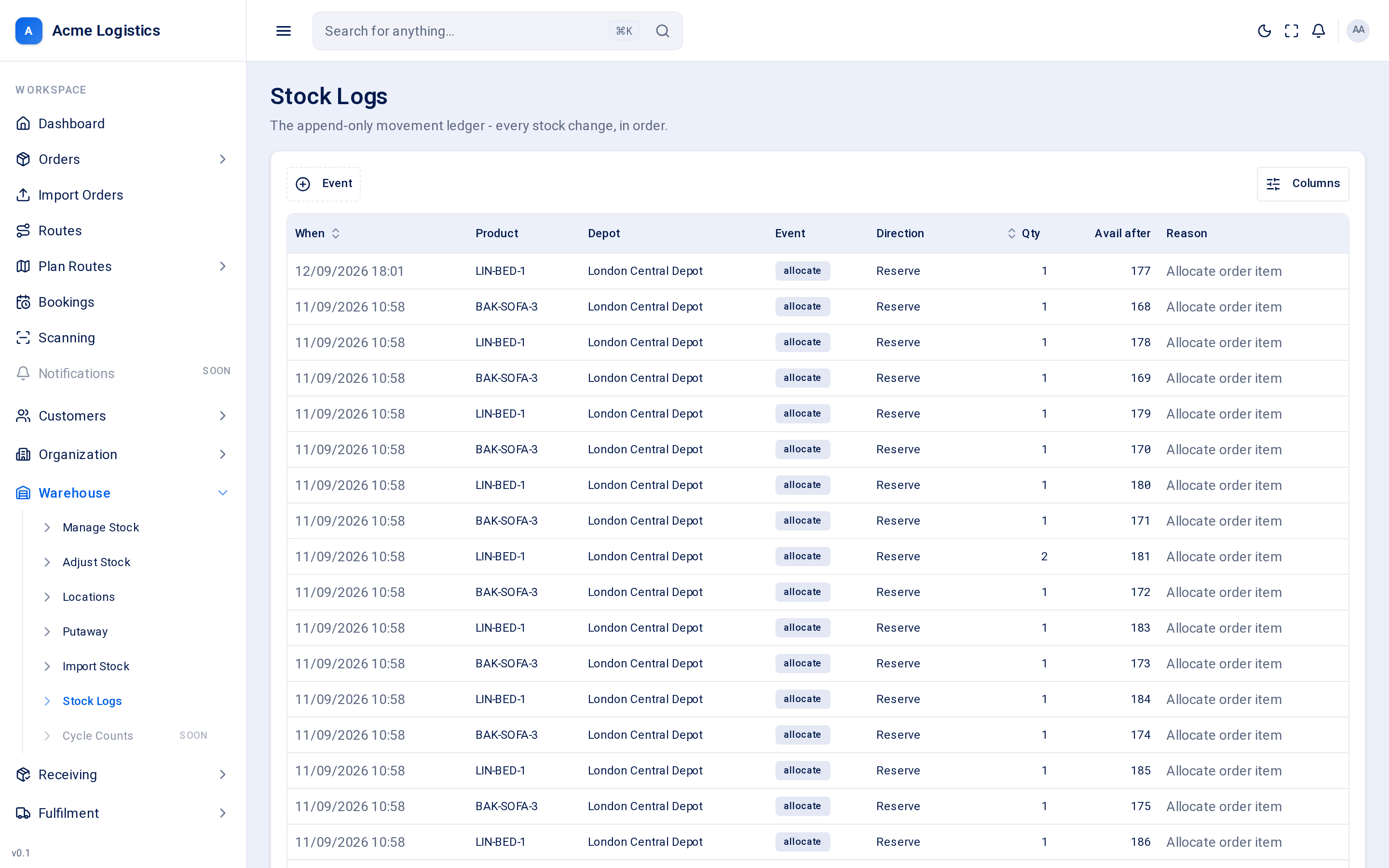
Screenshot coming soonThe stock logs table with event, direction and quantity columns
When you use this
Section titled “When you use this”- A customer asks why their stock went down.
- A count is wrong and you want to see what happened last.
- Checking that a receipt, import or adjustment went through.
The same history for one product is also available from the scroll icon on Manage stock.
Columns
Section titled “Columns”| Column | What it means |
|---|---|
| When | When the change happened. Newest first. |
| Product | The product code. |
| Depot | The depot the change happened in. |
| Event | What kind of change it was. See Events. |
| Direction | In (stock added), Out (stock removed), Move (same total, moved between locations or buckets), Reserve or Unreserve (set aside for or released from an order). |
| Qty | How many units the line moved. |
| Avail after | The product’s Available stock at that depot right after this change. |
| Reason | Why it happened - for example the adjustment reason chosen, “Receive”, “Putaway”, “Transfer”, “Csv import”, or the reference typed on a stock in. |
You can sort by When and Qty, and filter by Event.
Events
Section titled “Events”| Event | What caused it |
|---|---|
| receive | Units scanned in on Receive, booked in with Stock in, or damaged units quarantined on Report damage. |
| putaway | Units moved from STAGING to a storage location on Putaway. |
| adjust | A count corrected on Adjust stock, or a box of a warehouse order un-received from the order’s Manual scanning (reason Receiving discrepancy). |
| allocate | Available stock reserved for an order. |
| release | An order’s reservation given back to Available. |
| pick, pack, dispatch, deliver | The order moving through picking, packing, loading and delivery. |
| return | Stock coming back. |
| requalify | Units moved between buckets, such as Returned to Available, or Damaged to Available. |
| count | A stock count. |
| import | A row from a stock import. |
| transfer | Units moved between locations or depots. |
Tips and common mistakes
Section titled “Tips and common mistakes”- To follow one product, open its ledger from Manage stock rather than scrolling here.
- “Avail after” only shows the Available bucket. A move between Damaged and Returns, for example, will not change it.