Packing
Packing turns picked stock into parcels - the boxes that are labelled, loaded onto a van and delivered. Each parcel belongs to exactly one order and gets its own scan code (its dispatch label) the moment it is packed.
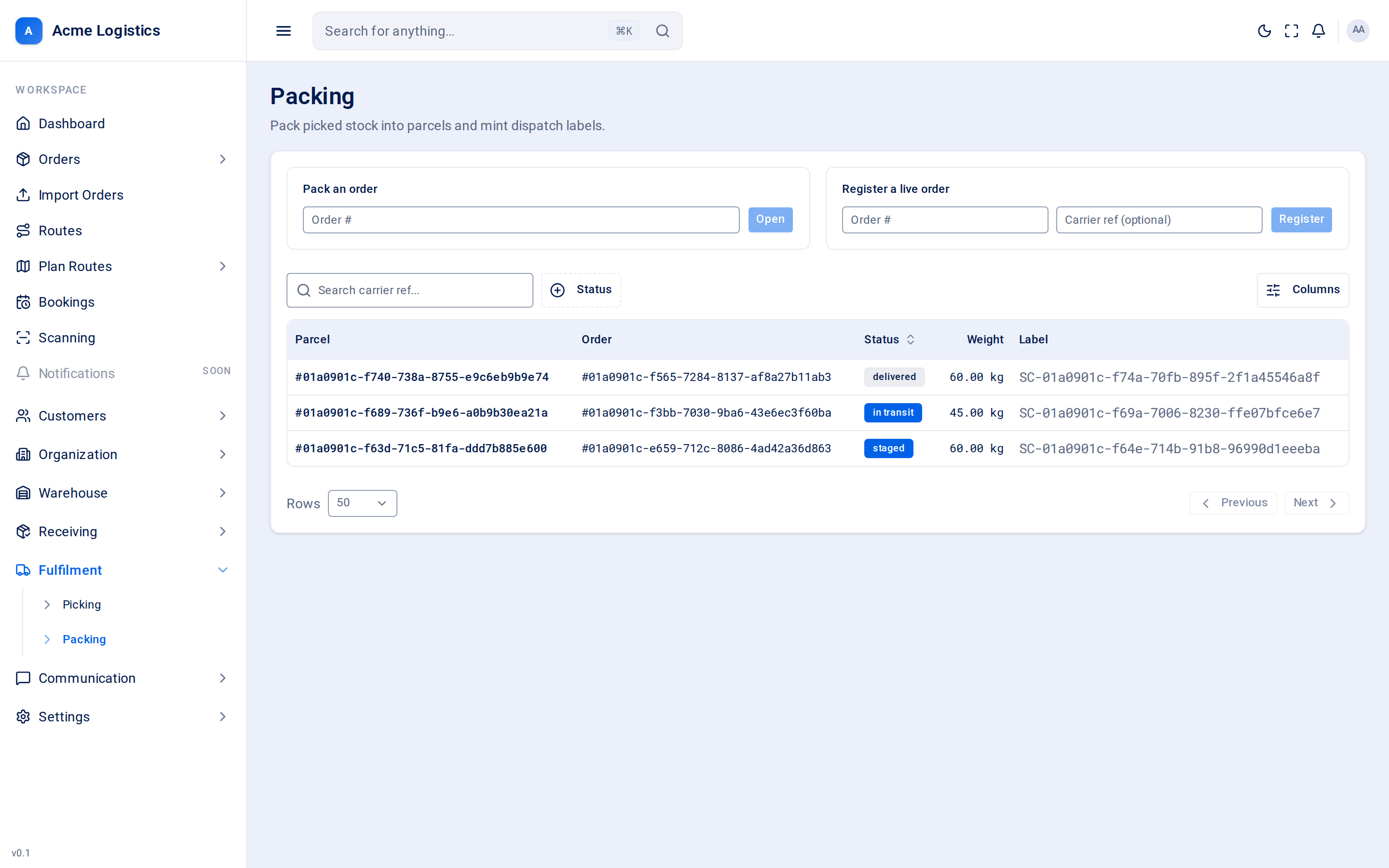
Where to find it: Fulfilment > Packing Who can use it: anyone with the “Pack picked stock into parcels” permission. Seeing the parcel list also needs “View dispatch parcels”. The Warehouse Manager role has both by default.
When you use this
Section titled “When you use this”- Pack a warehouse order once its stock has been picked to the pickup zone.
- Split an order across several parcels by packing it in more than one go.
- Register a live (cross-dock) order as a parcel without picking or packing it.
- Check where a parcel is: packed, staged, loaded, on the van, delivered or returned.
The packing screen
Section titled “The packing screen”| Field | What it means | Required | Why it matters |
|---|---|---|---|
| Pack an order - Order # | The order you want to pack. Open takes you to the pack station for it. | Yes | Packing is always done one order at a time; a parcel can never mix two orders. |
| Register a live order - Order # | The live order whose goods you want to turn into a parcel. | Yes | Only live orders can be registered here. Any other order is refused with “Only live orders can be registered as a live parcel.” |
| Carrier ref (optional) | A label or reference already on the goods, for example a carrier’s tracking number. | No, up to 255 characters | Lets you find the parcel later with the search box, using the label your team can already see on the box. |
The parcel list
Section titled “The parcel list”| Column | What it means |
|---|---|
| Parcel | The parcel’s ID. |
| Order | The order the parcel belongs to. |
| Status | Where the parcel is in its journey (see Parcel statuses). You can filter and sort by it. |
| Weight | The parcel’s weight in kg, worked out from the weights on the order lines and the quantities packed. |
| Label | The parcel’s scan code. Every packed parcel gets one; this is what is scanned at dispatch, loading and on returns. |
The search box searches the Carrier ref. Use the column menu to hide columns you do not need; your choice is remembered.
Packing an order (the pack station)
Section titled “Packing an order (the pack station)”The pack station lists every line on the order.
| Field | What it means | Required | Why it matters |
|---|---|---|---|
| Product | The customer’s product on this order line. | - | What should go in the box. |
| Ordered | How many units the order asks for. | - | The full quantity for the line. |
| Allocated | How many units are reserved for the order. | - | The most you can expect to pack for this line. |
| Pack qty | How many units of this line go into this parcel. | At least one line must be more than 0 | Leave a line empty (or 0) to keep it out of this parcel. Only lines with a quantity are packed. |
Buttons and actions
Section titled “Buttons and actions”| Action | What it does |
|---|---|
| Open | Opens the pack station for the order you entered. |
| Register | Creates a live parcel for the order: it holds every line’s allocated quantity, gets its scan code, and goes straight to staged - there is nothing to pick for a live order. The carrier ref is saved on the parcel. |
| Pack parcel | Creates one parcel with the quantities you entered, gives it its scan code (its dispatch label) and returns you to the packing screen. The parcel starts as packed. |
| Cancel | Leaves the pack station without packing anything. |
Weight and size warnings
Section titled “Weight and size warnings”After Pack parcel, Tracovy adds up the weight and volume of what you packed. If the parcel is heavier than 30 kg or bigger than 1 cubic metre, you see a warning. Warnings are advice only: the parcel is still packed. Consider splitting it into two parcels for handling.
Parcel statuses
Section titled “Parcel statuses”A parcel moves forward through these statuses. Most moves happen because someone scans the parcel’s label.
| Status | Meaning | How it gets here |
|---|---|---|
| packed | Packed at the pack station and labelled. | Pack parcel. |
| staged | Ready on the dispatch bay. | A dispatch scan of a packed parcel (needs the “Stage / dispatch-prep parcels” permission). A live parcel starts here. |
| loaded | On the van. The stock now leaves your books: the reserved stock is used up and taken out of the pickup location. | A route load scan of a staged parcel, usually by the driver in the driver app. |
| in transit | Out for delivery. | When the route is started, every loaded parcel on it moves here. This is also when the recipient gets the “on its way” message (order.en_route). |
| delivered | Handed over. | The driver records the delivery with proof - see Proof of delivery. |
| returned | Came back to the warehouse. The units are booked in as returned, pending inspection - not yet available to sell or pick again. | A return scan of a delivered parcel. |
| cancelled | The parcel will not be delivered. | There is no button for this on the packing screen. |
A parcel that was only staged, not load-scanned, stays staged when the route starts - it is not out for delivery.
Tips and common mistakes
Section titled “Tips and common mistakes”- Pick first, then pack. If Pack parcel says the quantity exceeds what was picked, check the wave on the Picking screen.
- Want two boxes for one order? Pack it twice, entering only the quantities for each box.
- Register a live order only once its goods have arrived: the parcel is built from what is allocated at that moment.
- Once an order has a parcel (or any of it has been picked), the order can no longer be cancelled - there is no un-pack step yet.
- Every scan of a parcel is checked against its status. Scanning a packed parcel for route load, for example, is refused - it has to be staged first.
Related
Section titled “Related”- Picking
- Scanning - the scan steps a parcel goes through
- Route detail - starting a route
- Notifications: which email is sent when