Open Orders
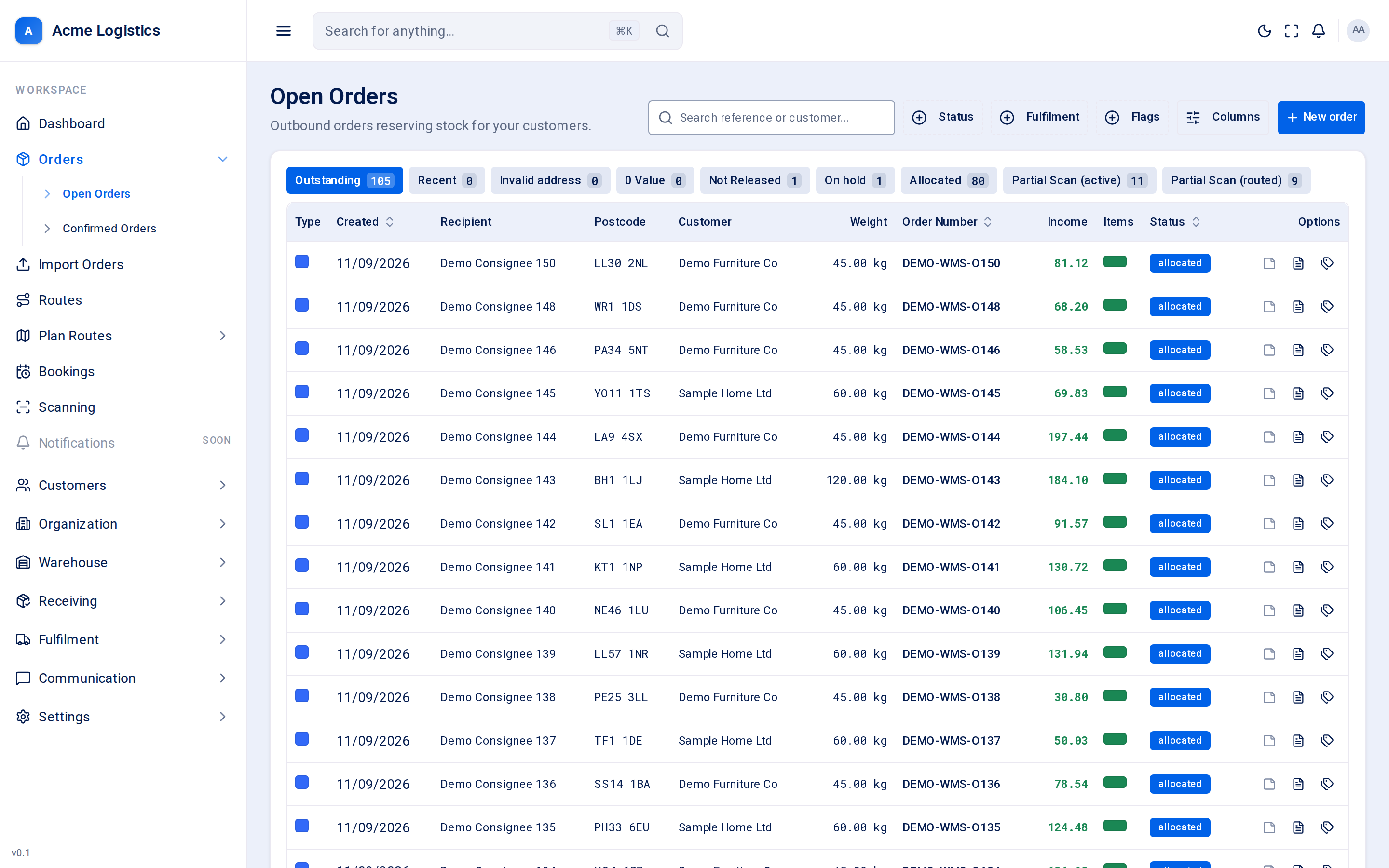
Open Orders is the board of outbound orders that nobody has put on a route yet. Each tab is a worklist with the number of orders waiting on it, so you can see at a glance which pile needs you today - orders with a bad address, orders priced at zero, orders on hold, orders still waiting for boxes.
Where to find it: Orders > Open Orders Who can use it: anyone who can view orders. The New order button needs permission to create orders.
When you use this
Section titled “When you use this”- Start the day: see how many orders are outstanding and which need fixing before they can be planned.
- Fix addresses Tracovy could not place on the map (Invalid address tab).
- Chase orders that earn nothing (0 Value tab).
- Check which orders still have boxes to arrive, including ones already booked on a van (Partial Scan tabs).
- Print labels or a proof of delivery straight from the row.
Worklist tabs
Section titled “Worklist tabs”Every tab except Needs a manual quote and Partial Scan (routed) only shows orders that are not on a route. The number on each tab is counted with your search and filters already applied, so it always matches what the tab would show. Hover over a tab to see a one-line explanation. The 0 Value and Needs a manual quote tabs show money, so you only see them with the “View order price, goods value and charges” permission.
| Tab | What it shows |
|---|---|
| Outstanding | Every order not on a route yet. The board opens here. |
| Recent | Orders taken in the last 7 days. |
| Invalid address | Orders whose address could not be resolved to map coordinates. They carry the Invalid location flag. The router cannot reach them until the address is fixed. |
| 0 Value | Orders priced at zero, or never priced at all. These jobs go out for nothing. Orders waiting for a manual quote are not here. |
| Needs a manual quote | Orders the price list cannot price, with a Why column saying why. Type a price in the row’s Price before VAT box and press Save (needs permission to edit orders), or open the order and enter it there. The order then leaves this tab. Includes orders already on a route; cancelled orders are left out. |
| Not Released | Orders that have been un-released (pulled back to draft). See Order statuses. |
| On hold | Orders an operator put on hold. |
| Allocated | Orders where every box of every delivery line has been scanned in. |
| Partial Scan (active) | Some boxes scanned in, some still outstanding, and not on a route. |
| Partial Scan (routed) | Some boxes still outstanding, but the order is already on a route. The only tab that shows routed orders - a van is booked for goods that are not all here yet. |
Columns
Section titled “Columns”| Column | What it means | Why it matters |
|---|---|---|
| Type | A small square showing what the driver does at the door. Blue = delivery, amber = collection, split corner to corner = both, grey = a service job with no goods (for example an assembly or repair). Hover for the words. | Tells the planner how much van space and time the stop needs. |
| Created | When the order was placed in Tracovy. Sortable. | Old orders on the Outstanding tab are the ones most at risk of being late. |
| Recipient | The name of the person or business receiving the delivery. | The name the driver asks for at the door. |
| Postcode | The recipient’s postcode. | Lets you group orders by area at a glance. |
| Customer | Your client the order belongs to. | Who you bill and who you report to. |
| Weight | Total weight of the order in kg. | Drives vehicle loading. A dash means no weight is known. |
| Order Number | The order number, as a link into the order. Any flags on the order are shown beside it as red badges (for example Invalid location or On hold). Sortable. | The flags are warnings someone needs to act on. |
| Why | Only on the Needs a manual quote tab. Why the price list could not price the order, cut to one line; hover for the whole reason. “-” when no reason is stored. | Tells you what to fix (for example a country the depot does not deliver to, or a postcode in no price zone) before you quote. |
| Income | What the job earns. Green when it earns something, red 0.00 when it is unpriced or priced at zero. An order waiting for a price shows Needs a manual quote instead; a price typed by hand has a Quote or Admin tag beside the amount (hover for Manual quote or Admin price). On the Needs a manual quote tab, for someone who can edit orders, this column is Price before VAT and holds the price box. | A red 0.00 is a job going out for nothing. |
| Items | A small two-part bar. Left half = released, right half = received. Each half is green when done and red when not. Hover for the words (for example “Released, not yet received”). | Shows at a glance whether the order is on the floor and whether its goods are in the building. |
| Status | The stock allocation status: pending, allocated, partially allocated, on hold or cancelled. Sortable. See Order statuses. |
Shows whether stock is reserved for the order. |
| Options | Quick buttons for this row: Notes, Print POD and Print labels (see below). | Saves opening the order for the most common jobs. |
Three more columns are hidden by default. Turn them on from Columns:
| Column | What it means |
|---|---|
| Fulfilment | Live (cross-dock: goods arrive for this order and leave on the next van) or Warehouse (picked from stock you already hold). Sortable. |
| Flags | The order’s flags as plain text. |
| Backordered | How many items are still waiting for stock. |
Search and filters
Section titled “Search and filters”| Control | What it does |
|---|---|
| Search box (“Search reference or customer…”) | Finds orders whose order number or customer name contains what you type. Not case-sensitive. |
| Status | Filter by one or more allocation statuses. |
| Fulfilment | Filter to live or warehouse orders. Works even while the Fulfilment column is hidden. |
| Flags | Filter by the flags Tracovy raises itself: Invalid location, Location not checked and Map budget reached. |
| Reset | Clears the search and every filter. Shown only when something is set. |
| Columns | Choose which columns to show. Your choice is remembered. |
| Column headings | Click Created, Order Number, Status or Fulfilment to sort. |
The location flags
Section titled “The location flags”| Flag | Meaning | What to do |
|---|---|---|
| Invalid location | The map provider looked and could not find the address. | Correct the address on the order and save. Tracovy tries again. |
| Location not checked | The map provider could not be reached when the order was saved. | Nothing is wrong with the address itself. Saving the address again retries. |
| Map budget reached | Your monthly map budget was spent, so the address was not looked up. | The address is placed on the next edit once the budget resets or is raised. |
An order carries at most one of these at a time, and it always describes the current address.
Buttons and actions
Section titled “Buttons and actions”| Action | What it does |
|---|---|
| New order | Opens the new order form. |
| Order Number link | Opens the order screen. |
| Notes (note icon) | Shows the order’s notes in a pop-up. Greyed out when the order has no notes; highlighted when it has some. |
| Print POD (document icon) | Builds the proof of delivery for the order. Needs permission to view deliveries. |
| Print labels (tag icon) | Prints every label on the order, one per box. Needs permission to print labels. |
| Tabs | Switch worklist. Your place in the list resets to the first page. |
Print buttons you have no permission for are not shown at all.
Tips and common mistakes
Section titled “Tips and common mistakes”- Work the Invalid address tab before planning: those orders cannot be routed.
- An order you just put on a route disappears from Outstanding. That is expected - this board is for orders that still need a route.
- Selecting several rows to act on them at once is not available yet.