Order properties
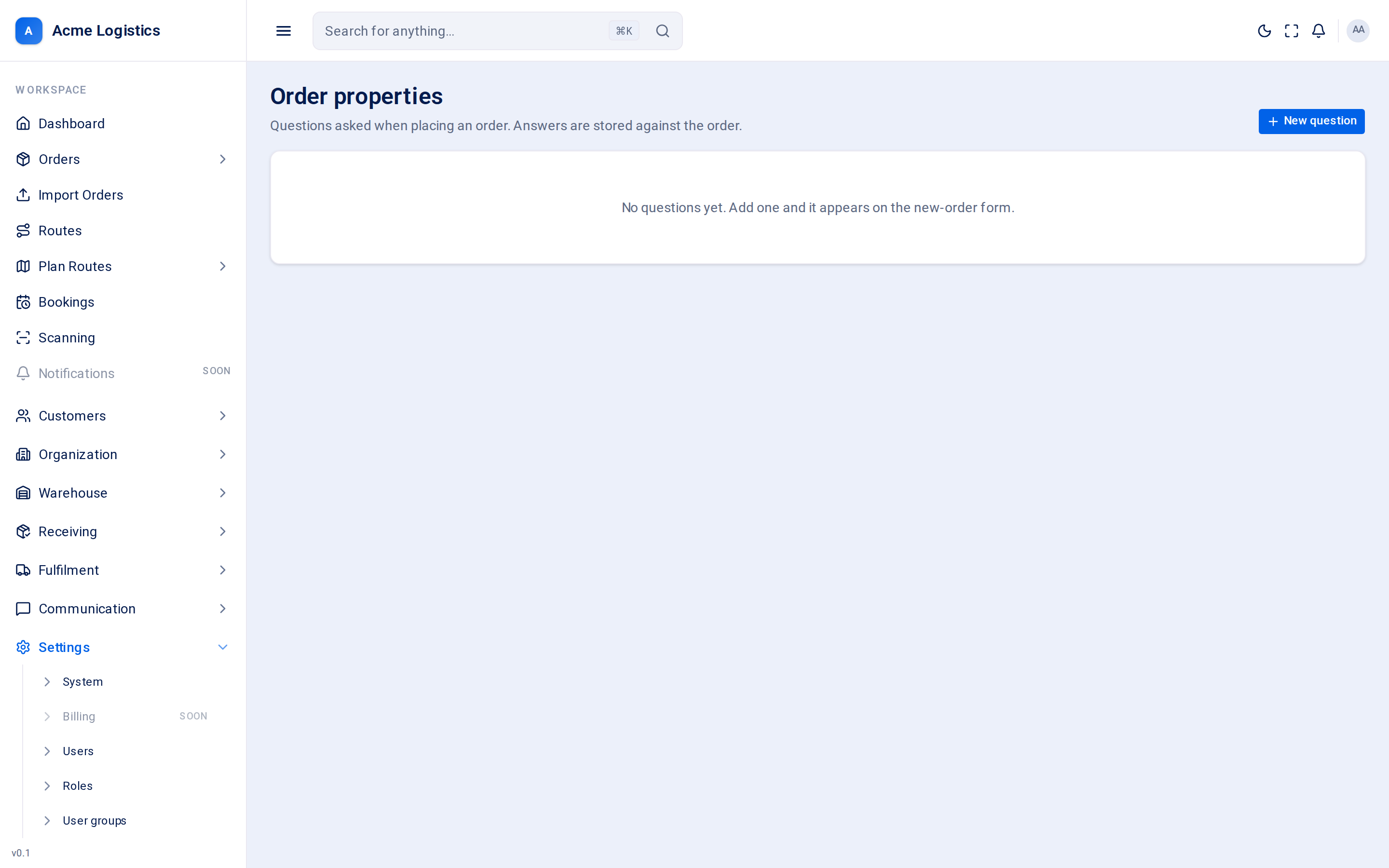
Order properties are your own questions on the order form. Every business needs to capture something Tracovy does not ask by default - which floor the delivery goes to, whether the old item is being taken away, a customer’s own job number. Add a question here and it appears on the form when an order is placed; the answer is stored against the order.
Where to find it: Settings > Order properties Who can use it: “View workspace settings” to see the questions; “Manage workspace settings” to add, edit and retire them. Setting a price on an answer also needs “Edit price lists, price zones, serviceable countries and order property prices”; without it, a question that has prices cannot be hidden or retired.
When you use this
Section titled “When you use this”- Your team keeps typing the same information into order notes. Turn it into a question so it is always asked and always in the same place.
- A customer needs extra information captured on their orders.
- A question is no longer needed.
The question list
Section titled “The question list”| Column | What it means |
|---|---|
| Position | Where the question appears on the order form. Lower numbers come first. |
| Question | The wording shown on the form. A Required badge means it must be answered. |
| Reference | The question’s fixed key. |
| Answer type | How the question is answered (see below). |
| Answers | How many answer choices it has, for types that use choices. “-” for the others. |
| Adds to the price | One chip for each answer that adds to the delivery price, with how much in your currency, for example Two flights +20.00 and Three flights +30.00. “-” when no answer has a price. |
| Status | On the form or Hidden. |
Adding or editing a question
Section titled “Adding or editing a question”Click New question, or the pencil icon on a question’s row.
| Field | What it means | Required | Why it matters |
|---|---|---|---|
| Question | The wording shown on the order form, for example “Delivery point”. | Yes, up to 255 characters | Keep it short and clear; people answer it while taking an order. The order import reads a column with this name (for example “Floor”). |
| Answer type | How the question is answered. | Yes | Fixed once the question exists. To change it, retire the question and add a new one. Answers already given are read through the answer type, so changing it would change what they mean. |
| Reference | The stable key behind the question, in lower case with underscores, for example delivery_point. New questions only. |
Yes, up to 60 characters, unique. Left empty, it is made from the question wording. | It cannot be changed later. It must start with a letter and use only lower-case letters, digits and underscores; anything else you type is converted. |
| Position | Where the question appears. | No, 0 or more. Starts at 0. | Lower numbers appear first on the order form. |
| Helper text | A hint shown under the field on the order form. | No, up to 255 characters | Say what a good answer looks like, for example “Ground floor, 1st floor, …”. |
| Answers | The choices people pick from. Only for Radio buttons, Checkboxes, Dropdown and Dropdown (multiple). | At least one, each up to 255 characters | Shown in the order you enter them. Empty rows are ignored when you save. Each answer has an Adds amount (0 or more, at most 2 decimals; empty means free) added to the delivery price when it is picked. |
| Required | Whether the question must be answered before the order can be saved. | - | Use it only for information you really cannot work without, or order entry slows down. |
| Shown on the order form | Whether the question appears on the form. | - | Turn it off to hide a question for a while without retiring it. |
| When the answer is Yes, add | For a Switch question: the amount added to the delivery price when the answer is Yes. | No | Text answers (Single line, Paragraph) never change the price. Prices apply to orders created after you save. |
Below the answers, On the order form shows the question as people will see it while you type, with each answer’s price.
Answer types
Section titled “Answer types”| Answer type | What the person answering sees |
|---|---|
| Single line | A one-line text box. |
| Paragraph | A larger text box for longer answers. |
| Radio buttons | A list of choices; pick one. |
| Checkboxes | A list of choices; tick any number. |
| Switch | A single on/off switch, for yes/no questions. |
| Dropdown | A drop-down list; pick one. |
| Dropdown (multiple) | A drop-down list; pick several. |
Buttons and actions
Section titled “Buttons and actions”| Action | What it does |
|---|---|
| New question | Opens an empty form. Only shown if you can manage settings. |
| Edit (pencil) | Opens the question. |
| Retire | Takes the question off the form for good. It happens straight away, without a confirmation. Answers on existing orders are kept. |
| Add answer | Adds an empty answer choice. |
| Remove answer (bin icon) | Removes that answer choice. |
| Cancel | Closes the form without saving. |
| Add question / Save question | Saves the question. |
Tips and common mistakes
Section titled “Tips and common mistakes”- Choose the answer type carefully: it cannot be changed later. A choice list (Dropdown or Radio buttons) gives cleaner answers than free text.
- Use Position numbers with gaps (10, 20, 30) so you can slot a new question in between later.
- Too many required questions slow down order entry. Make a question required only when the delivery cannot happen without the answer.