Locations
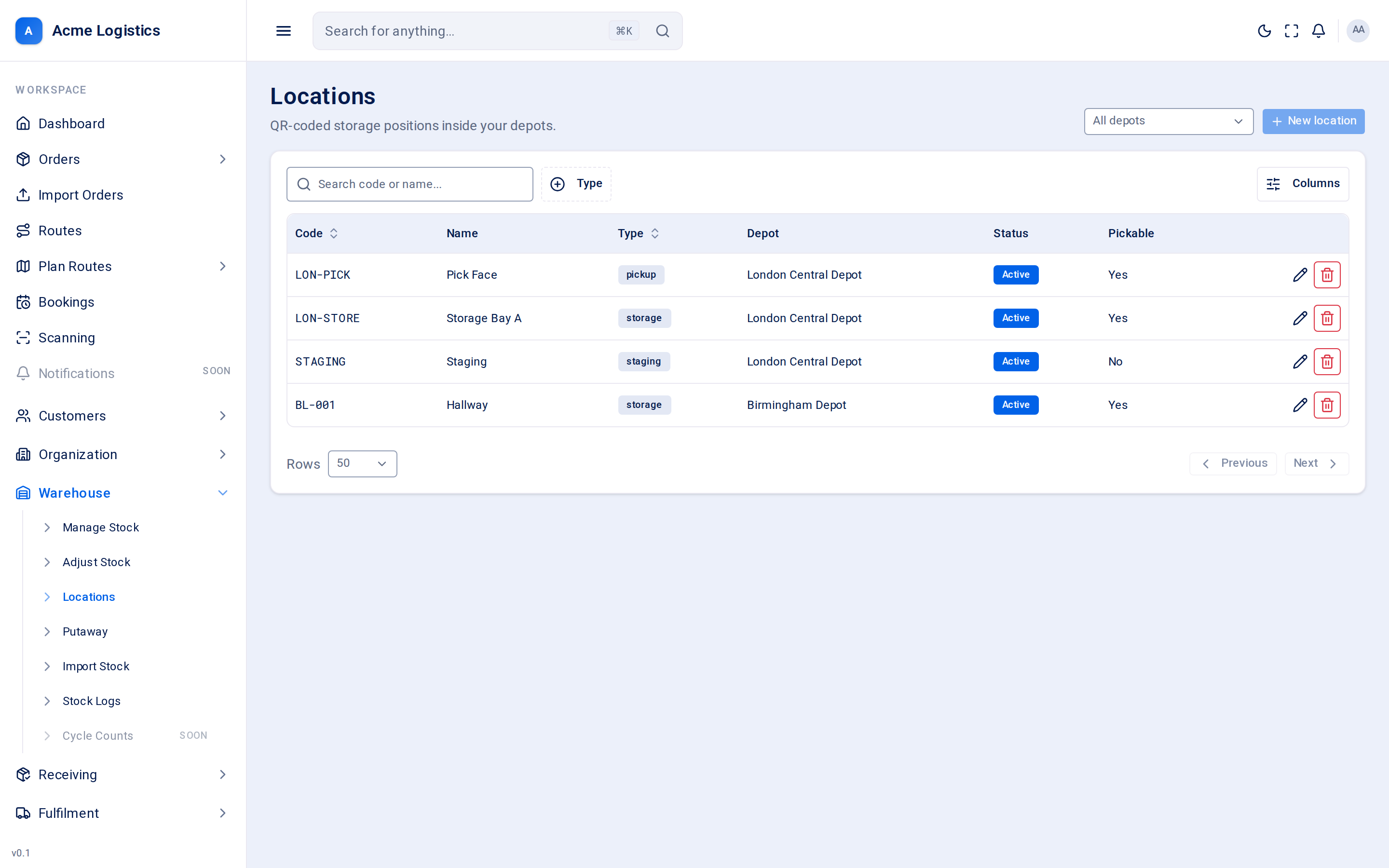
A location is a place inside a depot where stock can sit: a shelf, a bin, a staging bay or the pickup area. Every unit of stock lives in a location, so your locations decide where putaway sends stock and where pickers go to collect it.
Where to find it: Warehouse > Locations Who can use it: anyone with “View warehouse locations” can see the list. You need “Manage warehouse locations” to create, edit or archive locations.
When you use this
Section titled “When you use this”- Setting up a new depot before the first delivery.
- Adding shelves when the warehouse is re-racked.
- Taking a bin out of use while it is repaired.
Choosing a depot
Section titled “Choosing a depot”Use the All depots picker at the top to choose a depot. Without a depot the list shows every location you can see, but New location stays disabled - a location always belongs to one depot. The choice is kept in the page address.
The location list
Section titled “The location list”| Column | What it means |
|---|---|
| Code | The location’s short code, such as A1-R3-S2. Unique within its depot. |
| Name | An optional friendly name. Shows “-” when empty. |
| Type | What the location is used for. See Location types. |
| Depot | The depot the location is in. |
| Status | Active or Inactive. |
| Pickable | Yes if pickers may take stock from it. |
You can sort by Code and Type, filter by Type and Pick zone, and search by code or name. Type a zone such as A in Pick zone to see only that zone.
Printing location labels
Section titled “Printing location labels”Who can use it: you need “Generate & reprint labels” as well as “View warehouse locations”.
- Choose a depot.
- Tick the rows you want. To take every match across pages, tick the page and press Select all matching.
- Press Print labels. The PDF downloads when it is ready.
- One print run takes at most 500 locations. If you pick more, Tracovy asks you to narrow the selection by Type, Pick zone or search.
- Print on plain A4 and cut the labels by hand. Each label shows the QR code, the code large and the name small.
- Reprinting never changes a code, so old labels on the shelf keep working.
- On the handheld, open Lookup, find the shelf and press Print label.
Fields
Section titled “Fields”| Field | What it means | Required | Why it matters |
|---|---|---|---|
| Code | The location’s code. | Yes, up to 60 characters, unique in the depot | It is what staff see on every putaway and pick, so match the label on the shelf. “This location code already exists in the depot” means another location there already uses it. |
| Name | A friendly name, such as “Bulk rack aisle A”. | No, up to 255 characters | Shown next to the code in pickers. |
| Type | Storage, pickup, returns, quarantine, staging or disposal. New locations default to storage. | Yes | Decides what Tracovy uses the location for. See below. |
| Path (optional) | Where the location sits in the building, written like A>A1>R3>S2 (area, aisle, rack, shelf). |
No, up to 255 characters | Helps staff find it. |
| Active | Whether the location is in use. On for new locations. | - | Inactive locations are not offered for stock in or moves, and stock cannot be moved into or out of them. |
| Pickable | Whether pickers may take stock from it. On for new locations. | - | Pick waves only take stock from storage locations that are pickable. Turn it off for overflow or reserve stock you do not want picked. |
A location’s depot cannot be changed after it is created.
Location types
Section titled “Location types”| Type | What Tracovy does with it |
|---|---|
| storage | Normal shelves and bins. The only type offered on Putaway, and the only type pick waves take stock from (when pickable). |
| pickup | Where picked stock is brought together. A depot needs at least one pickable pickup location before a pick wave can be generated. |
| staging | Where received and imported stock lands before putaway. Tracovy creates a location called STAGING in each depot automatically the first time stock is received there. |
| returns, quarantine, disposal | Places for returned, held or to-be-scrapped goods. Use them to keep such stock physically apart; stock in them is never picked. |
Buttons and actions
Section titled “Buttons and actions”| Action | What it does |
|---|---|
| New location | Opens the form for a new location in the chosen depot. Create location saves it. |
| Edit location (pencil icon) | Opens the same form for that location. Save changes saves it. |
| Archive location (bin icon) | Archives the location straight away - there is no confirmation. It is refused if the location still holds stock: “This location still holds N unit(s). Move the stock out, or deactivate the location instead.” |
Tips and common mistakes
Section titled “Tips and common mistakes”- Before the first pick wave in a new depot, create at least one location of type pickup with Pickable on.
- To take a shelf out of use for a while, switch Active off rather than archiving it.
- Keep codes the same as the physical labels, so scanning and reading always agree.