Routes
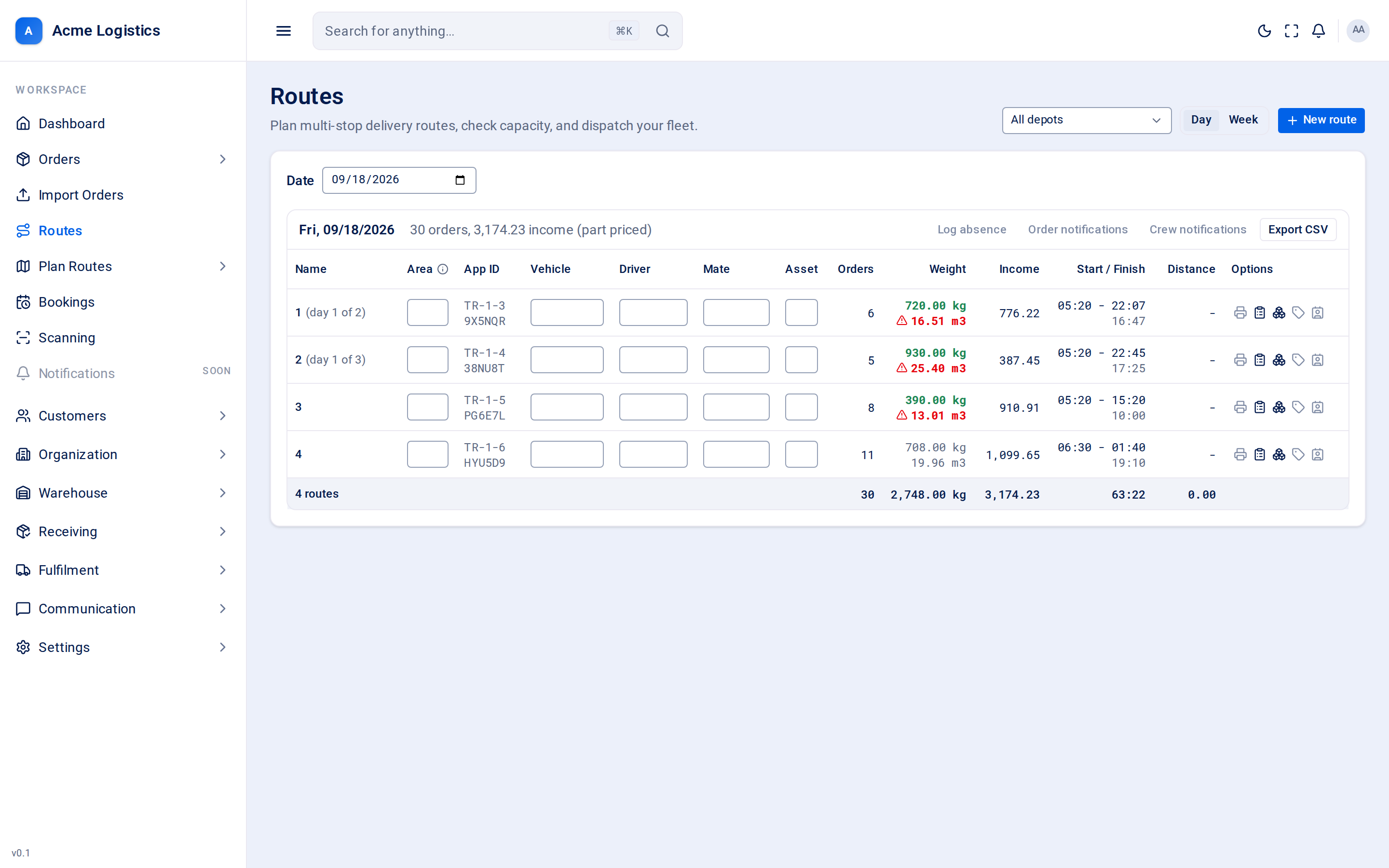
The Routes screen is the operations sheet: one table per day, one row per route running that day. Planners and transport office staff use it to fill in who is driving what, check each van’s load against its limits, and print the paperwork the driver and the warehouse need.
Where to find it: Routes in the sidebar Who can use it: anyone with “View routes” can open it. You need “Plan / edit routes” to type into the sheet and to see the New route button. Income figures only appear for users with “View route income, profit, cost and zone charges”.
When you use this
Section titled “When you use this”- See every route running tomorrow (or any day) at one depot or across all of them.
- Type in the van, driver and mate for each route as the day is crewed.
- Spot a van that is over its weight or volume limit before it is loaded.
- Print a run sheet for a driver or a load sheet for the warehouse.
- Export a day to CSV.
Controls at the top
Section titled “Controls at the top”| Control | What it means | Why it matters |
|---|---|---|
| Depot | All depots, or one depot. | Narrows the sheet to the routes leaving one site. It is part of the page address, so you can bookmark or send a link to “the Northampton sheet”. |
| Day / Week | Show one day, or seven days stacked one under the other. | Week view is the same table repeated for each day, empty days included. |
| Date (Day view) | The day to show. Defaults to today. | Pick any date - there is no need to step day by day. |
| Week starting (Week view) | The first of the seven days to show. | The second, greyed out date after to is the end of the week. It is worked out for you and cannot be typed in. |
| New route | Opens Create a route. | Only shown if you can plan and edit routes. |
The day header
Section titled “The day header”Each day has its own header line above its table.
| Item | What it means |
|---|---|
| Date | The day, for example Tue, 15/09/2026. |
| Orders and income | How many orders are on that day’s routes and, if you can see money, the day’s income. (part priced) means some orders have no agreed price, so the income is lower than it will really be. |
| Log absence, Order notifications, Crew notifications | Shown but not available yet (greyed out, “coming soon”). |
| Export CSV | Downloads exactly what is on screen for that day as a CSV file named routes-<date>.csv. Income is only included if you can see money. Greyed out on a day with no routes. |
Columns
Section titled “Columns”| Column | What it means | Editable | Why it matters |
|---|---|---|---|
| Name | The route’s name, or its code if it has no name. A multi-day route shows one row per day with (day 2 of 3) after the name. Click it to open the route. | No | Tells you which run this is. |
| Area | Free text: where the route is going, to help planning. | Yes, up to 120 characters | Only for people reading the sheet. It does not change the route. |
| App ID | Two lines: the route code, and under it the driver’s passcode. | No | The driver signs in to the driver app with these two values. Treat the passcode like a password. |
| Vehicle | Free text: the van running the job today, usually its registration. | Yes, up to 120 characters | Free text on purpose, so a hired van or a subcontractor’s truck can be written in. It is printed on the paperwork. |
| Driver | Free text: the first crew member. | Yes, up to 120 characters | Printed on the run sheet. |
| Mate | Free text: the second crew member. | Yes, up to 120 characters | Printed on the run sheet. |
| Asset | Free text: anything else the run is carrying that the office needs on the sheet (for example a trailer). | Yes, up to 120 characters | Information only. |
| Orders | How many orders are on the route. | No | |
| Weight | Two lines: total weight (kg) and total volume (m3). Green means within the vehicle’s limit, red with a warning triangle means over it, grey means no limit is set. | No | An over-limit van cannot be dispatched. On days 2 and later of a multi-day route it says on day 1, because the van is loaded once and the whole run’s load is shown on its first day. |
| Income | The agreed price of the route’s orders. Only for users who can see money. | No | |
| Start / Finish | When the van leaves and when it is back, worked out from the schedule. Under it, in grey, the length of the run (for example 14:35). |
No | A route that has never been scheduled shows only its start time. Later days of a multi-day route show on day 1 for the length. |
| Distance | The estimated distance of the whole run, in km. | No | Shown on day 1 only for multi-day routes. |
| Options | Paperwork buttons for the route (see below). | - |
The day’s totals (number of routes, orders, weight, income, driving time and distance) are shown in the last row of each table. A multi-day route is counted once, on its first day.
Buttons and actions
Section titled “Buttons and actions”| Action | What it does |
|---|---|
| Print run sheet | Creates the driver’s run sheet as a PDF. It is prepared in the background; a message tells you when it is ready to open. A note is added to the route’s log saying which version of the plan was printed, so you can tell later if the plan changed after the driver was handed the paper. |
| Print load sheet | Creates the warehouse load sheet as a PDF, in the same way. It lists what has to go on the van. |
| Print all paperwork | Not available yet. |
| Print delivery labels | Not available yet. Only shown when the route carries deliveries. |
| Print customer label | Not available yet. |
| Print collection labels | Not available yet. Only shown when the route has collections. |
| Try again | Shown if the sheet could not load. Reloads the date range. |
Tips and common mistakes
Section titled “Tips and common mistakes”- “No routes running on this day.” means the day really is empty. If the sheet failed to load you see an error with Try again instead.
- Weight and volume show grey (no verdict) when no capacity is known for the van - pick a vehicle type on the route so there is something to measure against.
- The Vehicle column is only text. It does not book a vehicle in Tracovy and is not what the capacity limit is read from - the limit comes from the route’s vehicle type.
- Reprint the run sheet after any change to the route. The driver’s paper does not update itself.