Zones
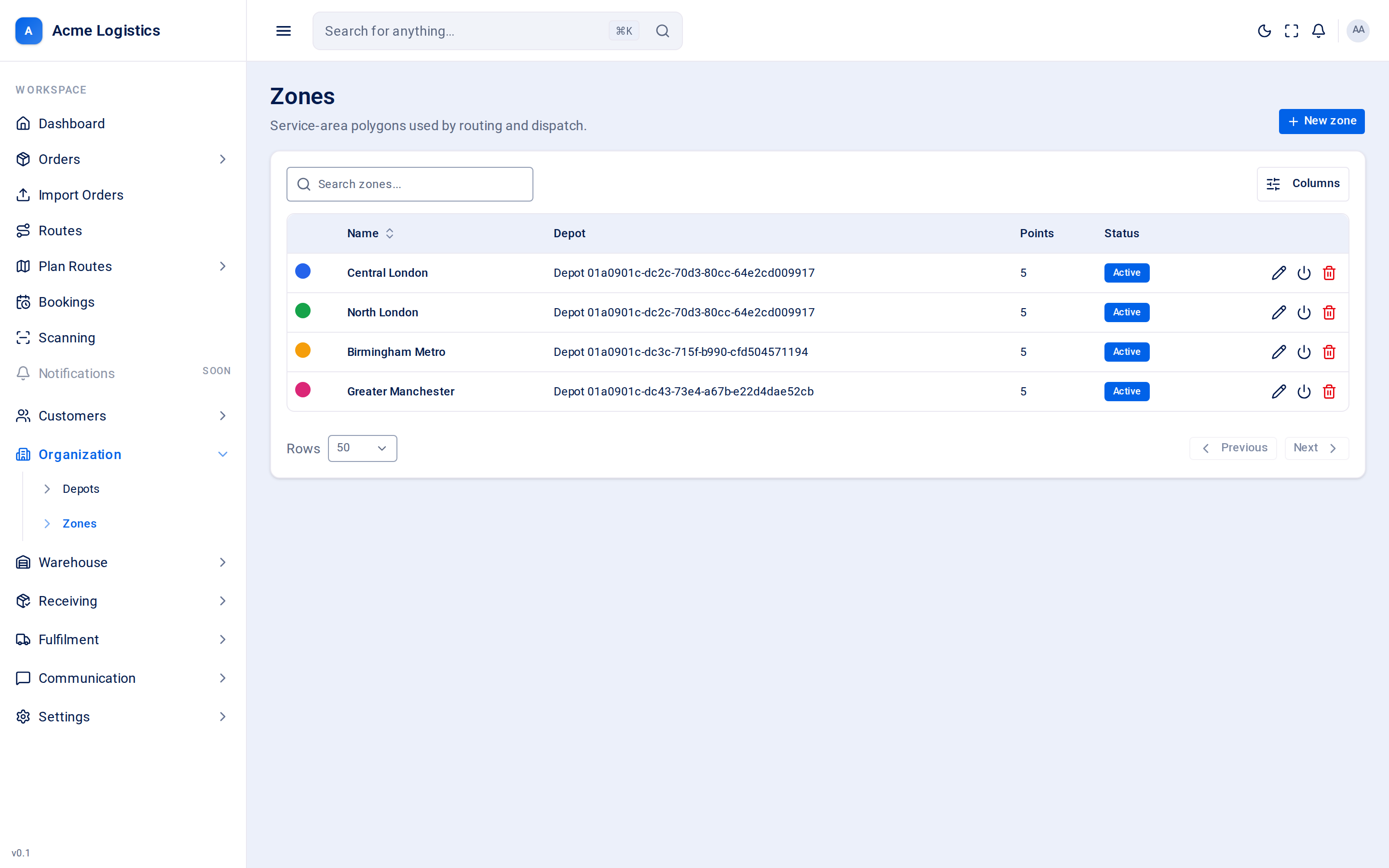
Zones are the service areas your business covers, drawn as shapes on the map - for example “Central London” or “North depot area”. Each zone can belong to a depot and has its own colour so you can tell them apart.
Where to find it: Organization > Zones, on the Service areas tab. The Price zones tab beside it holds each depot’s price zones, which decide the delivery price; it needs “View price lists, price zones and serviceable countries”. Who can use it: “View zones” to see the list; “Manage zones” to add, change and delete zones. Managers and Administrators can manage zones by default.
When you use this
Section titled “When you use this”- Setting up your workspace: record the areas each depot serves.
- Changing a depot’s coverage.
- Switching off an area you no longer serve.
The zone list
Section titled “The zone list”| Column | What it means |
|---|---|
| (colour dot) | The zone’s colour. |
| Name | The zone’s name. |
| Depot | The depot the zone belongs to, or “-”. |
| Points | How many points the boundary has (0 if no shape has been entered). |
| Status | Active or Inactive. |
Adding or editing a zone
Section titled “Adding or editing a zone”| Field | What it means | Required | Why it matters |
|---|---|---|---|
| Name | The zone’s name. | Yes, up to 255 characters | Pick a name your planners recognise. |
| Depot (optional) | The depot that serves this zone. | No | Links the area to the depot it is delivered from. You can only pick depots you can see. Choose No depot to unlink it. |
| Color | One of eight colours. | No | Only for telling zones apart on screen. |
| Active | Whether the zone is in use. | - | Switch it off when you stop serving an area. |
| Boundary polygon | The shape of the area, as a list of points. | No | Type one point per line as longitude,latitude - longitude first. You need at least 3 different points. Tracovy closes the shape for you by repeating the first point. |
Entering the boundary
Section titled “Entering the boundary”Each line is one corner of the area, written as longitude then latitude, separated by a comma. For example:
-0.118,51.509-0.115,51.508-0.114,51.511Press Apply (or click out of the box) to check the points. A message tells you which line is wrong if a line is not two numbers, or if a value is out of range (longitude must be between -180 and 180, latitude between -90 and 90).
Buttons and actions
Section titled “Buttons and actions”| Action | What it does |
|---|---|
| New zone | Opens an empty form. |
| Edit | Opens the zone in the side panel. |
| Deactivate / Activate | Switches the zone off or back on, straight from the row. |
| Delete | Removes the zone straight away, without a confirmation. |
| Apply | Checks the boundary points and closes the shape. |
| Clear | Removes the boundary. |
| Create zone / Save changes | Saves the zone. |
Tips and common mistakes
Section titled “Tips and common mistakes”- Paste the points in order around the edge of the area. Jumping back and forth makes a shape that crosses itself.
- Deactivate rather than delete an area you may serve again.