Import orders
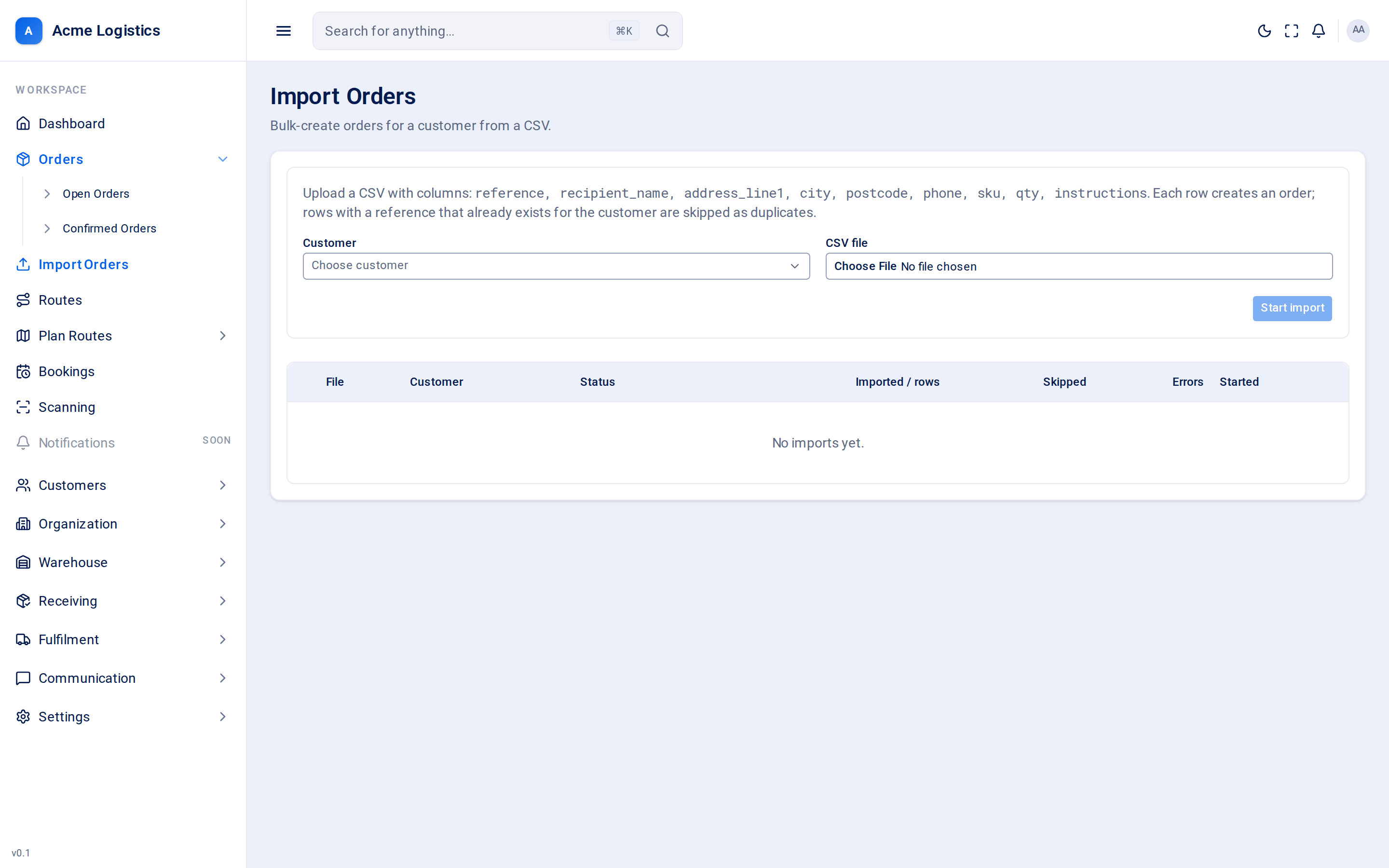
Import Orders creates orders in bulk for one customer from a CSV file, and lists every import you have run with how many orders it created, skipped or could not create. Admins and customer service staff use it when a customer sends a spreadsheet instead of entering orders one at a time.
Where to find it: Import Orders in the main menu Who can use it: anyone with permission to import orders.
When you use this
Section titled “When you use this”- A customer sends a spreadsheet of deliveries for the week.
- You are moving a customer’s open orders into Tracovy.
- You uploaded a file, fixed some rows, and want to load it again without creating duplicates.
Starting an import
Section titled “Starting an import”| Field | What it means | Required | Why it matters |
|---|---|---|---|
| Customer | The customer every order in the file belongs to. | Yes | SKUs in the file are looked up in this customer’s catalogue only. One file is one customer. |
| CSV file | The file to load. | Yes, a .csv file of at most 5 MB |
Save from your spreadsheet as CSV (comma separated). |
Start import uploads the file. It shows “Starting…” while uploading and then “Import started.”. The file is processed in the background; the import appears in the list below and its status updates when it is done.
File layout
Section titled “File layout”The first row must be a header row. Column names are matched without case or spaces, and the columns can be in any order. A column Tracovy does not know is reported as a warning and otherwise ignored. These are the Standard columns that matter most; the template has the full list.
| Column | What it means | Required |
|---|---|---|
| Order Number | The customer’s order number. Rows with the same Order Number are one order. | Yes |
| Recipient Name | The recipient’s name. | Yes |
| Address 1 | The first line of the address. | Yes |
| Postcode | Postcode. | Yes |
| Town/City | Town or city. | No |
| Mobile Number | The recipient’s mobile number. | No |
| Action | Blank or DELIVER to deliver the line, COLLECT to collect it. |
No |
| QTY | How many of this line. A blank QTY counts as 1, with a warning. | No |
| Code | The product code from the customer’s catalogue. A code not in the catalogue is only a warning. | A line needs a Code or a Title/Description |
| Title/Description | What the line is, for a line with no Code. | A line needs a Code or a Title/Description |
The order details (recipient, address, instructions) are taken from the first row of each Order Number. Later rows with the same Order Number only add lines; if their order details differ, that is a warning.
The template
Section titled “The template”Click Template above the upload form to download order-import.csv. It has the Standard column headers and a sample row for each case, and its codes all start with EXAMPLE-:
Trading Name,Order Number,Recipient Reference,Recipient Name,Address 1,Address 2,Town/City,Postcode,Country,Home Number,Work Number,Mobile Number,Email Address,Action,QTY,Code,Title/Description,Parts,Cube,Weight (KG),Delivery Charge,Delivery Instructions,Other Instructions,Timed Service,Service Type,Service Level,Delivery Point,Unpack Items,Packaging Disposal,Assemble,Dis-Assemble,Collect Disposal,Confirmed Delivery Date,Priority,EXAMPLE-1001,,Jane Example,1 Example Street,,Testford,ZZ1 1AA,,,,07700900001,,,1,EXAMPLE-SKU-1,Example sofa,,,,,,,,,,,,,,,,,,EXAMPLE-1001,,,,,,,,,,,,,2,EXAMPLE-SKU-2,Example cushion,,,,,,,,,,,,,,,,,,EXAMPLE-1002,,Sam Sample,2 Sample Road,,Testford,ZZ1 2BB,,,,07700900002,,COLLECT,1,EXAMPLE-SKU-3,Example table,,,,,,,,,,,,,,,,,This is two orders: EXAMPLE-1001 with two lines (the recipient is on the first row only) and EXAMPLE-1002, a collection with one line.
What every imported order gets
Section titled “What every imported order gets”- Order type is always Warehouse (pick stock).
- Stock is reserved for each line from the customer’s stock, as for an order placed by hand.
- The order is released straight away, and the address is looked up on the map.
- Service options, drop time and other settings come from the customer’s defaults.
- No email address is imported, so the recipient only receives text messages (if they have a phone number). The Order / Created message is off by default; see Notifications.
The import list
Section titled “The import list”| Column | What it means |
|---|---|
| (arrow) | Shown when the import has errors. Click the row to open the error report. |
| File | The name of the file you uploaded. |
| Customer | The customer the orders were created for. |
| Status | pending (waiting to start), processing, completed, completed_with_errors (some orders could not be created) or error (the file could not be processed at all). |
| Imported / rows | Orders created, against the number of data rows in the file. Rows are counted one per line, so a file of 10 rows that makes 4 orders shows 4 / 10. |
| Skipped | Orders not created because their reference already exists for the customer. |
| Errors | Orders that could not be created. |
| Started | When the import was started. |
Errors
Section titled “Errors”Click a row with errors to see them. Each error shows the row number in the file (the header is row 1) and a message. The row number is the first row of the order that failed; one bad line fails the whole order, and the other orders in the file still go in.
| Message | What went wrong | How to fix it |
|---|---|---|
| Missing required “reference”. | The reference cell is blank. | Fill in a reference. |
| Missing required recipient name or address. | recipient_name or address_line1 is blank on the order’s first row. |
Fill both in on the first row of that reference. |
| Unknown SKU “…” | The product code is not in this customer’s catalogue (or is blank). | Check the code against the customer’s products, or add the product first. |
| Invalid quantity for SKU “…” | qty is blank, not a number, or less than 1. |
Use a whole number of 1 or more. |
| Quantity for SKU “…” exceeds the maximum of 100. | One row asks for more than 100 units. | Split it across rows or orders. |
| This is a sample row from the template. Delete the EXAMPLE- rows before you import. | The Code starts with EXAMPLE-. |
Delete the sample rows from the file. |
Fix the rows and upload the file again. Orders already created are skipped, so only the fixed ones are added.
Buttons and actions
Section titled “Buttons and actions”| Action | What it does |
|---|---|
| Start import | Uploads the file and starts processing it. Enabled once a customer and a file are chosen. |
| Click a row with errors | Shows or hides its error report. |
Tips and common mistakes
Section titled “Tips and common mistakes”- Save the spreadsheet as CSV, not as an Excel workbook.
- Keep the recipient details identical on every row of one reference - only the first row is read, so a correction on a later row is ignored.
- Use product codes exactly as they are in the customer’s catalogue.
- Live (cross-dock) orders, collections, delivery dates and email addresses cannot be imported. Add them on the order screen afterwards.