Custom zones
Custom zones are areas a route is measured against: a tolled crossing, a congestion or clean-air zone, a low bridge, a site you would rather not drive through. When a route passes through a zone, Tracovy records it, warns the planner or flags the route, depending on the zone’s type.
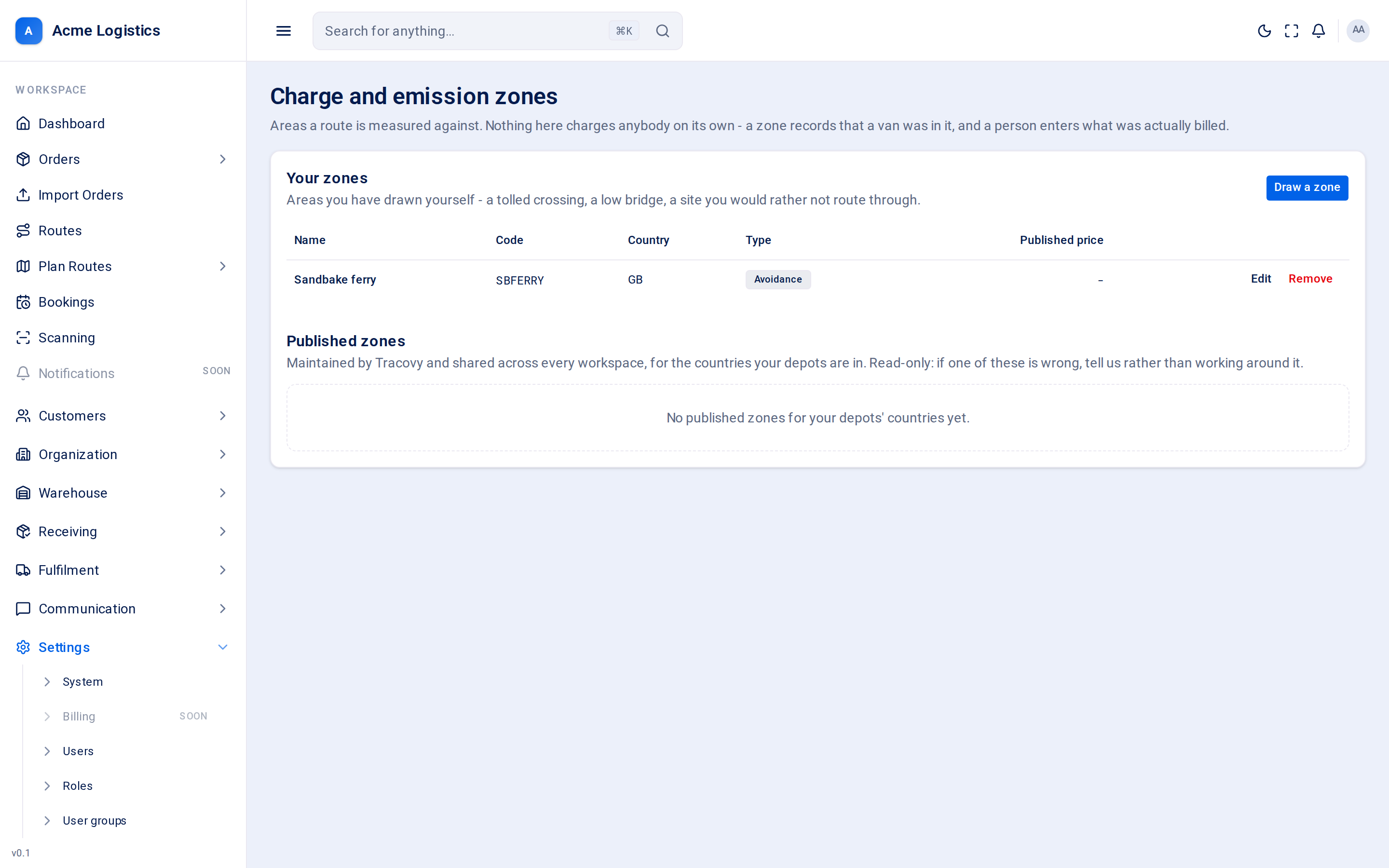
Nothing here charges anybody on its own. A chargeable zone records that a van was in it; a person enters what was actually billed.
Where to find it: Settings > Custom zones (the screen is titled “Charge and emission zones”) Who can use it: “View charge zone boundaries” to see the list; “Edit charge zone polygons and amounts” to draw, edit and remove zones. Managers and Administrators can edit by default.
When you use this
Section titled “When you use this”- A new toll or clean-air zone affects the areas you deliver to.
- Your drivers report a low bridge or a road your larger vehicles must avoid.
- You want planners warned before a route enters a busy area.
The two lists
Section titled “The two lists”Your zones are the ones you have drawn yourself. You can edit and remove them.
Published zones are maintained by Tracovy and shared across every workspace, for the countries your depots are in. They are read-only. If one is wrong, tell Tracovy support rather than drawing a copy of it.
| Column | What it means |
|---|---|
| Name | The zone’s name. |
| Code | Its short code. |
| Country | The country it belongs to. |
| Type | Chargeable, Advisory or Avoidance (see below). |
| Published price | The usual charge for entering, with its currency, or “-” if none is set. A suggestion only. |
The list shows zones in force today. A zone that has not started yet, or has been retired, is not shown.
Zone types
Section titled “Zone types”| Type | What happens when a route passes through |
|---|---|
| Chargeable | Records an entry on the route for someone to price. Never charges anybody automatically. |
| Advisory | Warns the planner. Costs nothing and records nothing. |
| Avoidance | Flags the route in red. For a low bridge, a height-restricted tunnel, or a zone a non-compliant vehicle may not enter. |
Drawing or editing a zone
Section titled “Drawing or editing a zone”Click Draw a zone, or Edit on one of your zones. The editor opens as a full screen so the map has room.
| Field | What it means | Required | Why it matters |
|---|---|---|---|
| Name | The zone’s name, for example “Dartford Crossing”. | Yes, up to 255 characters | Shown to planners when a route passes through. |
| Code | A short code for the zone. | Yes, up to 40 characters | Used where space is tight. |
| Country | The two-letter country code, for example GB. New zones start with GB. |
Yes, exactly 2 letters | Zones are only loaded for countries you have a depot in. A zone with the wrong country is never checked. |
| Type | Chargeable, Advisory or Avoidance. | Yes | Decides what happens when a route passes through (see above). The line under the fields explains the selected type. |
| Published price | The usual charge, as a number. Only for Chargeable zones. | No, 0 or more | Shown to the planner as a suggestion beside the field where they enter the real charge. Never charged automatically. Leave it empty if there is no fixed price - empty is not the same as 0. |
| Charged | Once a day or Every crossing. Only for Chargeable zones. | - | Whether the charge applies once per day however often the van goes in, or each time it crosses into the zone. |
| Map | The zone’s shape. | Yes, at least 3 corners, at most 20 | Click the map to add a corner. Drag a corner to move it; click a corner to remove it. Tracovy closes the shape for you. |
New zones are in force from the day you save them.
Buttons and actions
Section titled “Buttons and actions”| Action | What it does |
|---|---|
| Draw a zone | Opens the editor for a new zone. Only shown if you can edit zones. |
| Edit | Opens one of your zones in the editor. Published zones cannot be edited. |
| Remove | Asks you to confirm, then removes the zone. Routes stop being checked against it. This cannot be undone. |
| Undo point | Removes the last corner you added. |
| Start again | Removes every corner. |
| Zones (back arrow) / Cancel | Returns to the list without saving. |
| Save zone | Saves the zone and returns to the list. Greyed out until the zone has a name, a code and at least 3 corners. |
Tips and common mistakes
Section titled “Tips and common mistakes”- Draw the zone a little larger than the real area, so a route that clips the edge is still caught.
- Check the country: a zone saved as
UKinstead ofGBwill never be loaded. - If the map does not load, your workspace has no map key set up; contact Tracovy support.
Related
Section titled “Related”- Zones - service areas, which are a different thing
- Depots - a depot’s country decides which zones are loaded
- Vehicle types