Create a route
Use this screen to create an empty route - or many at once - ready to be filled with orders on the route planner. A planning day is often dozens of routes, so the form can create a numbered batch in one go.
Where to find it: Routes > New route Who can use it: users with “Plan / edit routes”.
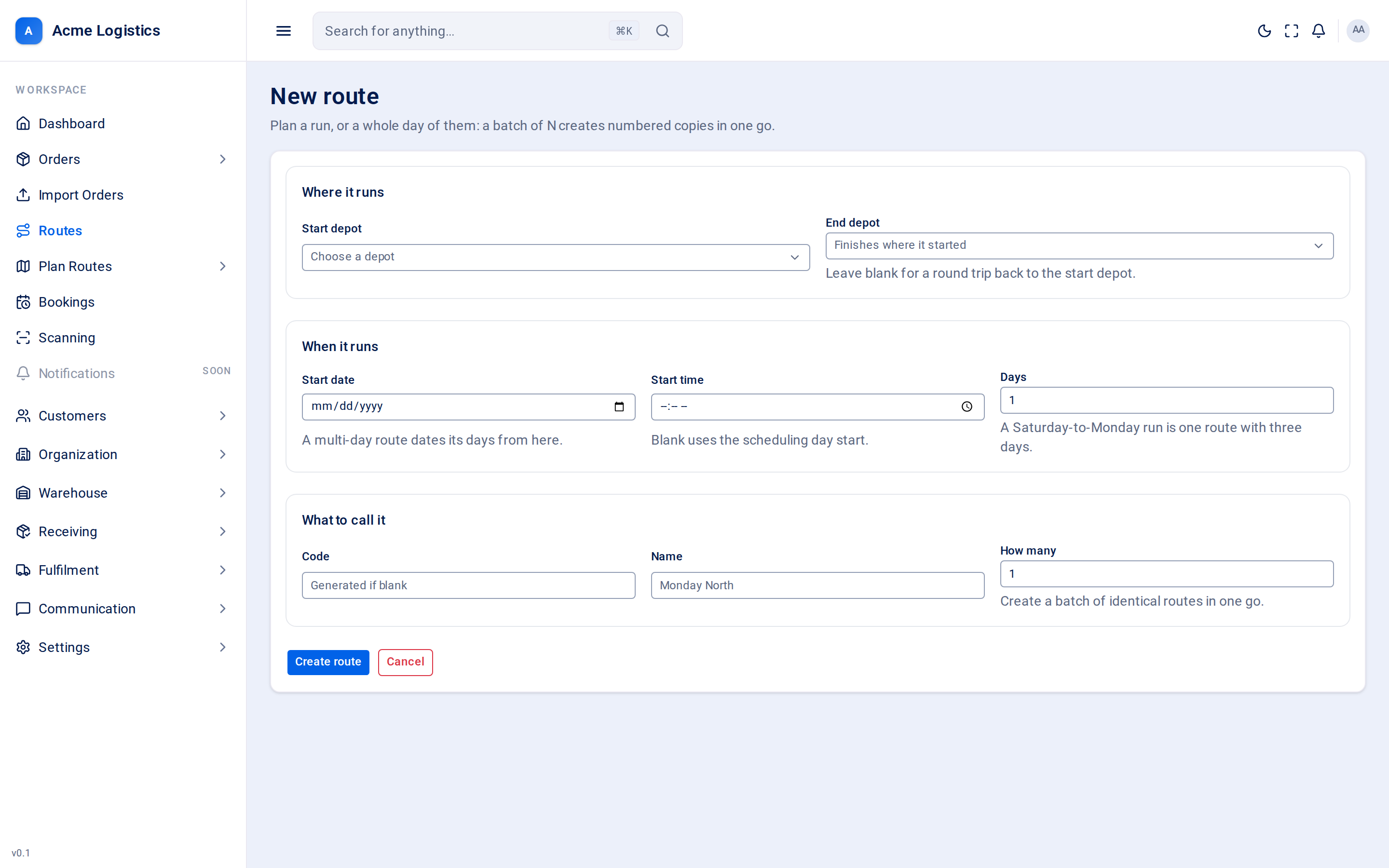
Screenshot coming soonThe new route form
When you use this
Section titled “When you use this”- Set up tomorrow’s runs for a depot before planning them.
- Create a multi-day run, for example a Saturday-to-Monday trip that is one route with three days.
- Create 20 identical routes (
MON-1toMON-20) at once.
Fields
Section titled “Fields”Where it runs
Section titled “Where it runs”| Field | What it means | Required | Why it matters |
|---|---|---|---|
| Start depot | The depot the van leaves from. | Yes | The route belongs to this depot: it appears on that depot’s planning board and sheet, and the first leg of the schedule is measured from here. You can only pick depots you have access to. |
| End depot | Where the van finishes. | No | Leave it blank for a round trip back to the start depot. The last leg of the schedule is measured to this depot. |
When it runs
Section titled “When it runs”| Field | What it means | Required | Why it matters |
|---|---|---|---|
| Start date | The date the route (its first day) runs. | No | A multi-day route dates its days from here, one calendar day after another. A route with no date cannot be scheduled until its days are dated. Orders put on the route take this date as their delivery date. |
| Start time | When the van leaves the depot. | No | Leave it blank to use the working-day start from your routing settings. Every arrival time is worked out from this. |
| Days | How many consecutive days the run lasts. | Yes, 1 to 14. Default 1 | Each day gets its own list of stops. Day 2 starts where day 1 finished - the van does not go back to the depot overnight. |
What to call it
Section titled “What to call it”| Field | What it means | Required | Why it matters |
|---|---|---|---|
| Code | The route’s short code. | No, up to 34 characters | Leave it blank and Tracovy generates one. The code is what the driver types to sign in to the driver app, together with the passcode Tracovy creates. Codes must be unique - if any code in a batch is already used, nothing is created and the form tells you which codes are taken. |
| Name | A friendly name, such as “Monday North”. | No, up to 110 characters | Shown on the routes sheet and the planner instead of the code. |
| How many | How many routes to create. | Yes, 1 to 200. Default 1 | Creates a batch of identical routes in one go. |
How a batch is named
Section titled “How a batch is named”When How many is more than 1:
- The code gets a number on the end: code
MONwith 3 routes givesMON-1,MON-2,MON-3. Under the form you see a preview, for example “Creates 3 routes: MON-1 through MON-3.” - The name gets a number on the end too: “Monday North 1”, “Monday North 2”, and so on.
- If you leave the code blank, each route gets its own generated code.
The whole batch is created together or not at all, so you never end up with half a batch.
Buttons and actions
Section titled “Buttons and actions”| Action | What it does |
|---|---|
| Create route / Create N routes | Creates the route(s). After a single route you go straight to its detail page; after a batch you go back to the routes sheet. Each new route starts as Planned, with a driver passcode already created. |
| Cancel | Goes back to the routes sheet without creating anything. |
Tips and common mistakes
Section titled “Tips and common mistakes”- Check the batch preview before you press Create - 80 routes is a lot to tidy up.
- Use Days for a run that stays out overnight, rather than creating separate routes for each day: the van is loaded once, and its capacity is checked across the whole run.
- Remember to set a Start date. An undated route cannot be scheduled or recalculated.