Orders
Orders is a section of the menu rather than a single screen. It holds the board of open orders, and next to it the screen for importing orders in bulk. Operators, planners and admins all start here when they need to find, place or fix an order.
Where to find it: Orders in the main menu Who can use it: anyone who can view orders sees the section; Import Orders needs permission to import orders.
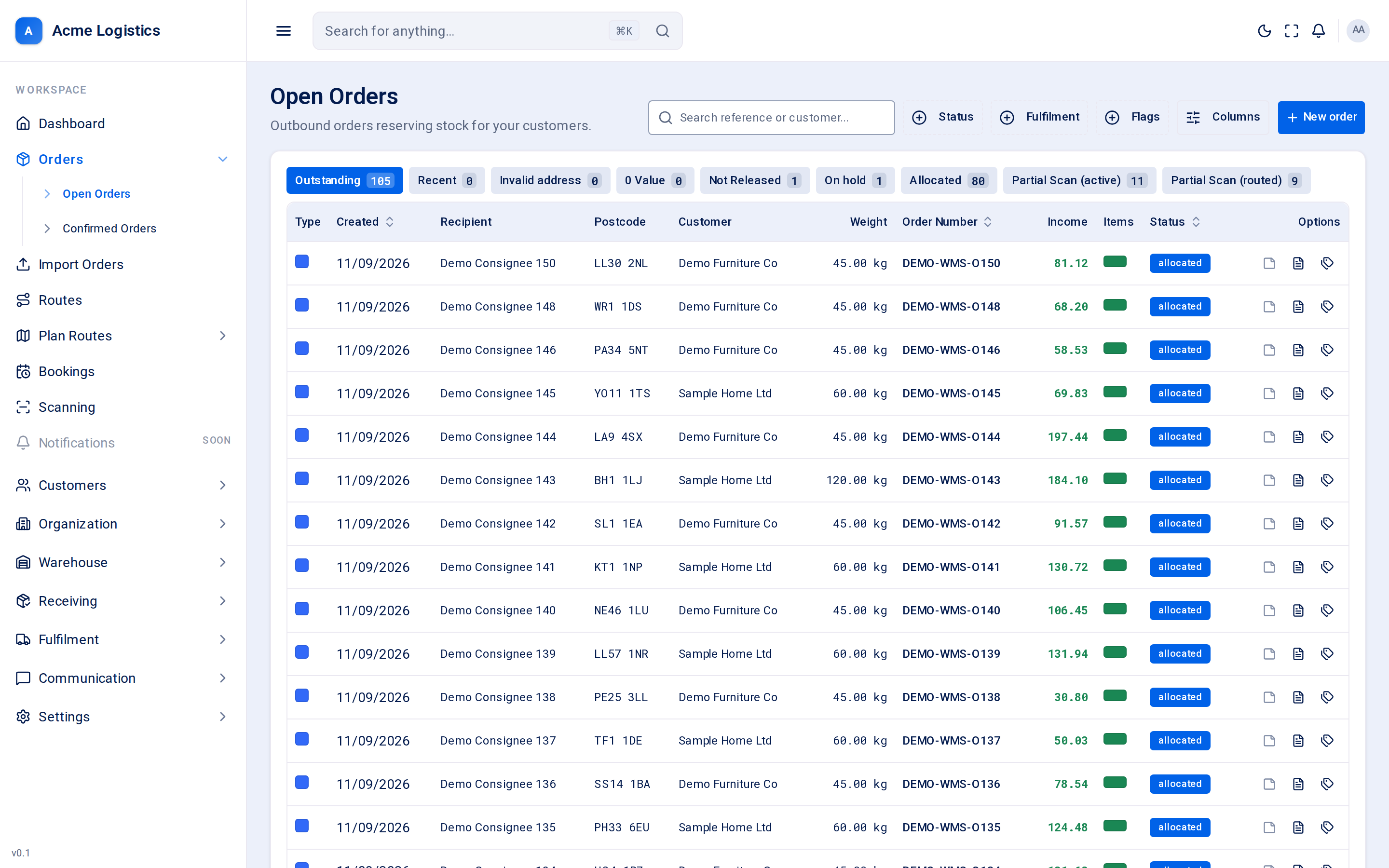
Screenshot coming soonThe Orders section opens on the Open Orders board
When you use this
Section titled “When you use this”- Find an order a customer or recipient is asking about.
- See which orders still need work today (not routed, on hold, address problems, missing boxes).
- Place a new order by hand.
- Load many orders for one customer from a CSV file.
What is in the Orders menu
Section titled “What is in the Orders menu”| Menu entry | What it opens |
|---|---|
| Orders > Open Orders | The order board: every order that is not on a route yet, split into worklist tabs. See Open Orders. |
| Orders > Confirmed Orders | Shown in the menu but not available yet. It does not open a screen. |
| Import Orders | Upload a CSV file of orders for one customer. See Import orders. |
Finding a single order
Section titled “Finding a single order”| Where | How |
|---|---|
| Open Orders search box | Type part of the order number or the customer name. The match is not case-sensitive and can be anywhere in the text. The tab counts update to match. |
| Open Orders tabs | Orders already on a route are not on the default Outstanding tab. Partly scanned routed orders have their own tab; other routed orders are reached from their route. |
| The app-wide search | The command search (“Search orders, users, depots… or run a command”) also finds orders. |
Click the order number on any row to open the order screen.
Buttons and actions
Section titled “Buttons and actions”| Action | What it does |
|---|---|
| New order | Opens the new order form. Only shown if you can create orders. |
| Order number link | Opens that order’s screen. |
Tips and common mistakes
Section titled “Tips and common mistakes”- Looking for an order and cannot see it on Open Orders? It is probably already on a route. Find it with the app-wide search, or open it from its route.
- Bulk actions (selecting many orders and changing them at once) are not available on the board yet.