Customer details
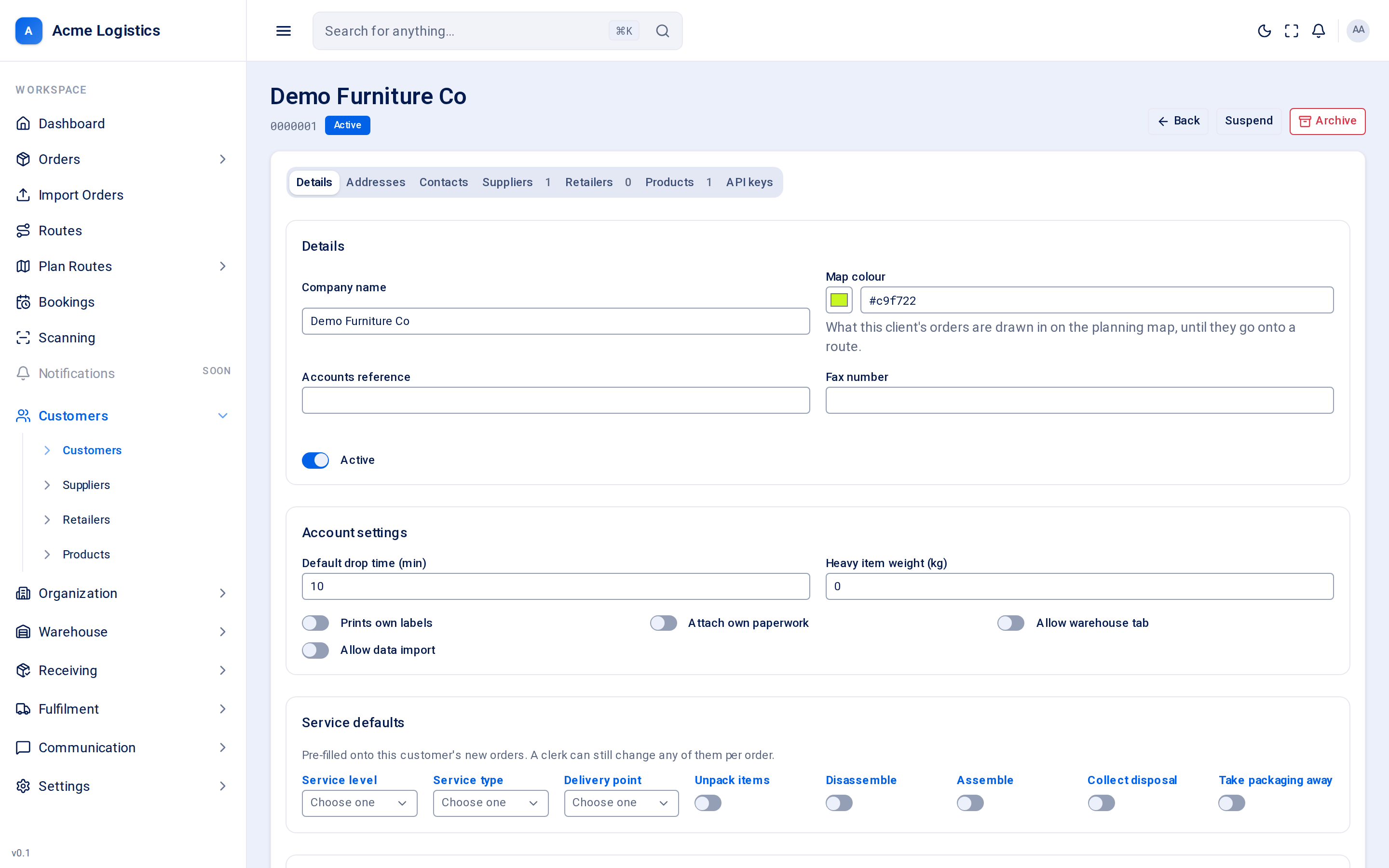
Everything about one customer lives on this page, split into tabs. The header shows the company name, the account number and whether the account is Active or Suspended.
Where to find it: Customers > Customers, then click a company name. Who can use it: you need permission to view customers to open it and to manage customers to change details, addresses and contacts. The Suppliers, Retailers, Products and API keys tabs have permissions of their own, listed with each tab below.
When you use this
Section titled “When you use this”- Change a customer’s defaults or who receives their alert and manifest emails.
- Add an address or a contact.
- Maintain the customer’s product catalogue, suppliers and retailers.
- Give the customer’s own system an API key.
- Suspend a customer who has stopped paying, or archive one who has left.
Buttons in the header
Section titled “Buttons in the header”| Action | What it does |
|---|---|
| Back | Returns to the customers list. |
| Suspend | Switches the account off straight away. The customer’s API keys are refused and their portal users cannot sign in. The button then reads Activate. |
| Activate | Switches a suspended account back on. |
| Archive | Archives the customer straight away, with no confirmation, together with their addresses, contacts, products and suppliers, and returns you to the list. There is no button to undo it. |
Details tab
Section titled “Details tab”The same form as Adding a customer, without the Addresses and Contacts cards (those have their own tabs). Every field is explained on that page:
- Details - company name, map colour, accounts reference, fax, active
- Account settings - default drop time, heavy item weight and the four switches
- Opening hours - when the customer takes deliveries, or blank to use the default
- Service defaults and Order property defaults
- Configuration - delivery instructions, stock status, proof of delivery logo and disclaimer
Click Save changes to save the tab.
Notification lists
Section titled “Notification lists”Four boxes of email addresses, one per line. These decide which people at the customer receive Tracovy’s customer emails.
| List | What is sent to it | If the list is empty |
|---|---|---|
| Alert emails | Delivery Failure when a delivery fails; the weekly Orders On Hold digest; the weekly Recently Completed digest if switched on. | Falls back to Warehouse emails. |
| Invoice emails | New Invoice, with the invoice PDF, when someone presses Send on an issued invoice. Copy Invoice is not sent yet. Only users with “Create invoice drafts, issue and send invoices” can change this list. | The invoice cannot be sent. |
| Contact-request emails | Kept for contact requests; no email uses it yet. | - |
| Warehouse emails | Manifest emails: Manifest Completed, Manifest Missing Items, Manifest Damage, Manifest Import Success. | Falls back to Alert emails. |
If both Alert and Warehouse lists are empty, the customer receives none of these emails.
Addresses tab
Section titled “Addresses tab”Who can change it: permission to manage customers.
Each saved address shows its type (main, invoice or collection) and the address on one line. Needs geocoding in red means Tracovy could not find the address on the map when it was saved - check the postcode.
| Field | What it means | Required | Why it matters |
|---|---|---|---|
| Type | Main, Invoice or Collection. | Yes | What the address is for. |
| Line 1 | First line of the address. | No, up to 255 characters | Part of the address. |
| City | Town or city. | No, up to 255 characters | Part of the address. |
| Postcode | Postcode. | No, up to 20 characters | Used to find the address on the map. |
| Action | What it does |
|---|---|
| Add | Saves the new address and clears the boxes for the next one. |
| Bin button | Deletes that address straight away. |
To change an address, delete it and add it again.
Contacts tab
Section titled “Contacts tab”Who can change it: permission to manage customers.
Each contact shows its role (primary or alternative), name, phone and email.
| Field | What it means | Required | Why it matters |
|---|---|---|---|
| Role | Primary or Alternative. | Yes | The first primary contact is shown in the customers list. |
| Name | The person’s name. | Yes, up to 255 characters | Add stays disabled until a name is entered. |
| Phone | Their phone number. | No, up to 40 characters | For your team to call. |
| Their email address. | No, a valid email | For your team to write to. Contacts do not get automatic emails - use the notification lists for that. |
| Action | What it does |
|---|---|
| Add | Saves the contact. |
| Bin button | Deletes that contact straight away. |
Suppliers tab
Section titled “Suppliers tab”Who can use it: permission to view customer suppliers to see it, and to manage customer suppliers to change it. The number on the tab is how many suppliers the customer has.
The businesses that send this customer’s stock to you. The tab works like the Suppliers page, but only for this customer, and it is where you add them.
| Action | What it does |
|---|---|
| Search suppliers… | Narrows the list. |
| New supplier | Opens the supplier form. All fields are explained on Suppliers. |
| Status switch | Suspends or reactivates one supplier on the spot. |
| Edit (row menu) | Opens the supplier form. |
| Delete (row menu) | Asks you to confirm, then removes the supplier. A supplier with products linked to it cannot be deleted. |
| Tick boxes, then Activate / Suspend / Delete | Acts on every ticked supplier at once. Bulk delete skips suppliers that have linked products. |
Retailers tab
Section titled “Retailers tab”Who can use it: permission to view customer suppliers to see it, and to manage customer suppliers to change it.
The brands this customer delivers for. Active retailers can be chosen on this customer’s orders. See Retailers for the fields.
| Action | What it does |
|---|---|
| New retailer | Opens the retailer form. |
| Pencil | Edits that retailer. |
| Archive | Archives the retailer straight away. |
Products tab
Section titled “Products tab”Who can use it: permission to view customer products to see it, and to manage customer products to change it. Stock breakdown also needs permission to view stock.
The customer’s product catalogue: everything you can receive, store and deliver for them. See Products for every field.
| Action | What it does |
|---|---|
| Search by code, description, barcode… | Narrows the list. |
| All suppliers | Shows only products from one supplier. Appears once the customer has suppliers. |
| New product | Opens the product form. |
| Edit (row menu) | Opens the product form. |
| Stock breakdown (row menu) | Shows how much of the product you hold and where. |
| Delete (row menu) | Asks you to confirm, then removes the product. |
| Tick boxes, then Delete | Removes every ticked product. |
API keys tab
Section titled “API keys tab”Who can use it: only shown with permission to view API keys. Creating, changing, rotating, revoking and deleting keys needs permission to manage API keys. By default only administrators have these.
An API key lets the customer’s own system - their web shop or warehouse software - send orders and manifests to Tracovy directly through the public API. Each key belongs to this customer, so everything sent with it lands on this customer’s account.
The key list
Section titled “The key list”| Column | What it means |
|---|---|
| Name | Your label for the key. |
| Key | A masked form of the key showing only its last four characters, for example tcv_sk_...abcd, enough to tell keys apart. The full key is never shown again after it is created. |
| Status | active, inactive (switched off by you), expired (past its expiry date) or revoked (permanently stopped). |
| IP whitelist | Any IP, or how many addresses the key is limited to. |
| Last used | When the key was last used. Hover to see the internet address it came from. Never if it has not been used. |
| Expires | When the key stops working, if it has an expiry date. |
The key form
Section titled “The key form”| Field | What it means | Required | Why it matters |
|---|---|---|---|
| Name | A label such as “Warehouse sync”. | Yes, up to 100 characters | Tells you which system uses the key when you need to rotate or revoke it. |
| IP whitelist | Internet addresses allowed to use the key, one per line (IPv4 or IPv6). | No | Leave empty to allow any address. When filled in, a request from any other address is refused - a stolen key is useless elsewhere. |
| Expires | A date after which the key stops working. Only on a new key. | No | Cannot be changed later. To extend a key, rotate it. |
| Active | Switch the key off or on. Only when editing. | - | An inactive key is refused until you switch it back on. Use it to pause a key without losing it. |
Buttons and actions
Section titled “Buttons and actions”| Action | What it does |
|---|---|
| New API key | Opens the form. Create key makes the key and shows it once in Your new API key. |
| Copy key / Done | In the new-key window. Copy the key and give it to the customer securely. Once you click Done it cannot be shown again. |
| Edit | Change the name, IP whitelist or Active switch. Not offered on revoked or expired keys. |
| Rotate | Makes a replacement key and shows it once. Choose how long the old key keeps working while the customer switches over: Revoke old key immediately, Old key works for 1 more hour, 24 more hours or 7 more days. |
| Revoke | After you confirm, the key stops working immediately. This cannot be undone. |
| Delete | Only for revoked or expired keys. Removes the key from the list for good. |
Tips and common mistakes
Section titled “Tips and common mistakes”- Suspend rather than archive when a customer pauses. Suspending is undone with one click; archiving is not.
- Check the Service defaults card every time you save the Details tab (see the caution above).
- Lost an API key? You cannot see it again - rotate it.
Related
Section titled “Related”- Adding a customer - every field on the Details tab
- Products
- Suppliers
- Retailers
- Customer portal