User groups
A user group is a named team, such as “Night shift” or “Customer service”. Groups decide who gets told - a reminder addressed to a group reaches every member. They do not give anyone any access: what a person can do still comes only from their role.
Where to find it: Settings > User groups Who can use it: “View users” to see the groups; “Manage users” to create, edit and delete them.
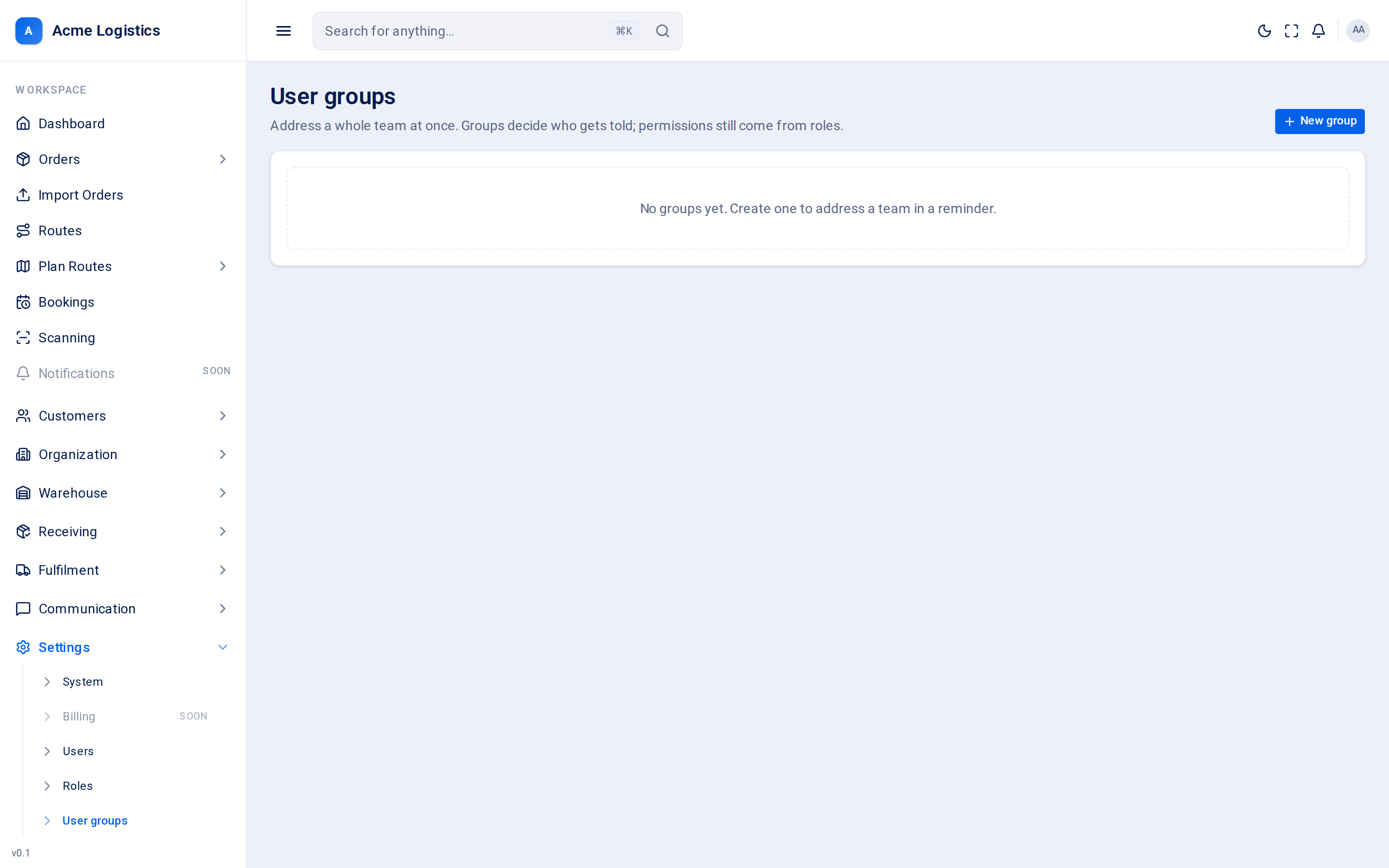
Screenshot coming soonThe user groups list with member counts
When you use this
Section titled “When you use this”- Set up the teams in your office so work can be handed to a team rather than one person.
- Add a new starter to their team.
- Retire a team that no longer exists without losing its open reminders.
The group list
Section titled “The group list”Each row shows the group’s name, its code, its description (or “No description.”), an Inactive badge if it is switched off, and the number of members.
Creating or editing a group
Section titled “Creating or editing a group”| Field | What it means | Required | Why it matters |
|---|---|---|---|
| Name | The group’s name, as people see it. | Yes, up to 255 characters | Pick something everyone recognises. |
| Code | A short handle for the group. | Yes, up to 50 characters, unique among live groups | Reminders address the group by its code, so it cannot be changed once the group exists. |
| Description | What the group is for. | No, up to 255 characters | Helps others pick the right group. |
| Active | Whether the group can be used. | - | An inactive group can no longer be picked as a reminder target. Reminders already sent to it stay open. |
| Members | The people in the group. Search by name, then tick each person. | No | The counter shows how many are selected, including any hidden by your search. Membership grants nothing; it only decides who is told. |
Buttons and actions
Section titled “Buttons and actions”| Action | What it does |
|---|---|
| New group | Opens an empty form. Only shown if you can manage users. |
| Edit | Opens the group in the side panel. |
| Delete | Removes the group straight away, without a confirmation. |
| Create group / Save group | Saves the group and its members. Unticking everyone and saving empties the group. |
Tips and common mistakes
Section titled “Tips and common mistakes”- To stop using a team, switch it to inactive rather than deleting it: that stops new reminders without hiding the open ones.
- Groups are not a way to give access. If a team needs to see a new screen, change their role.