Route detail
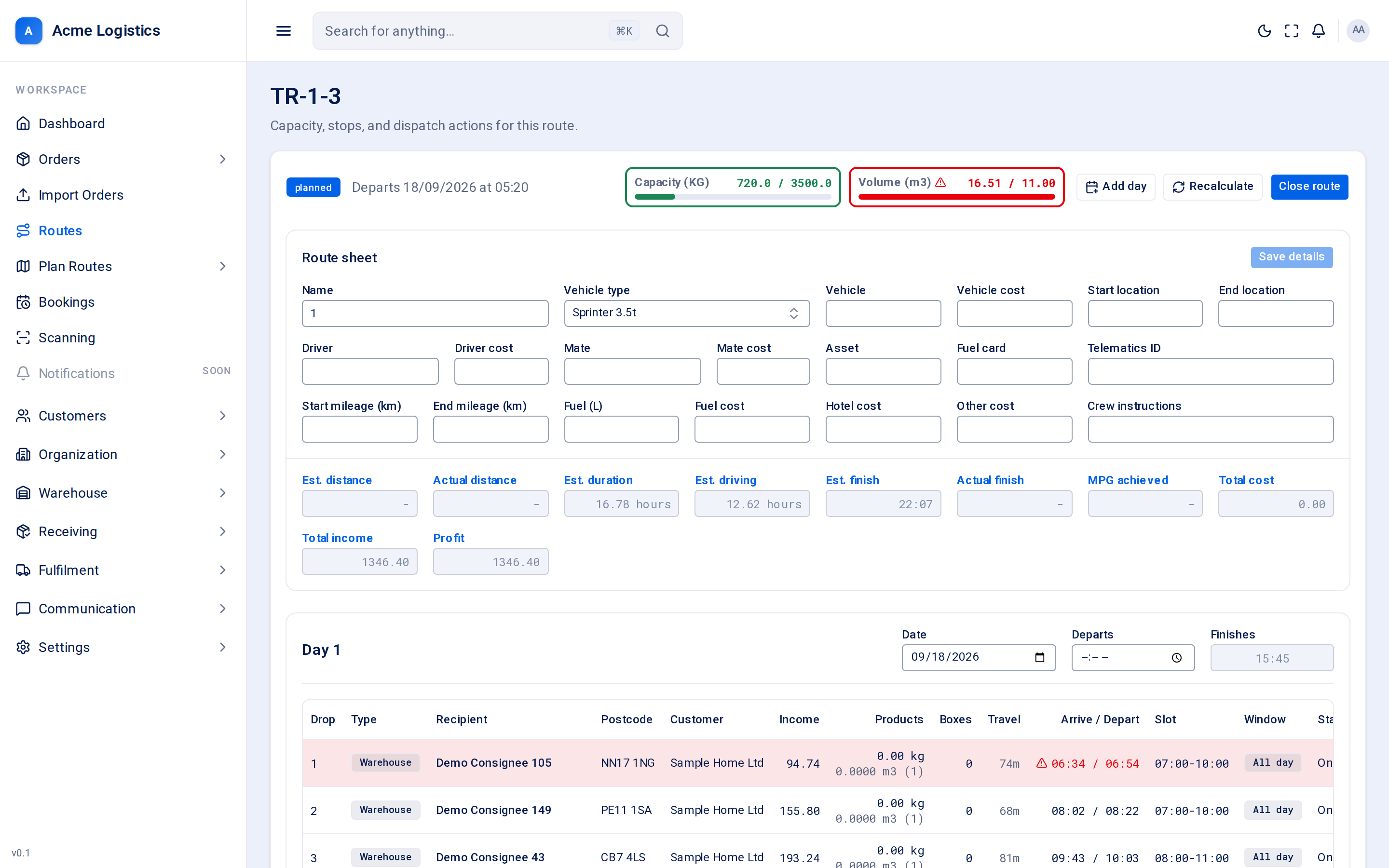
The route page shows everything about one route: how full the van is, who is crewing it and what it cost, every stop on every day with its planned times, and the notes and logs written about it. It is also where a planned route is closed and then dispatched.
Where to find it: Routes > click a route name. Also from the route links in an order’s proximity report. Who can use it: anyone with “View routes” can open it. You need “Plan / edit routes” to edit the route sheet, add days, recalculate, close and dispatch. Costs, income and profit only appear for users with “View route income, profit, cost and zone charges”.
When you use this
Section titled “When you use this”- Fill in the crew, vehicle, mileage and costs for a run.
- Check each stop’s arrival time against the recipient’s time window.
- Close a route once it is planned, then dispatch it when the van leaves.
- Read or add notes and call logs, and check what has to be loaded.
The header
Section titled “The header”| Item | What it means | Why it matters |
|---|---|---|
| Status | The route’s status (see Statuses). | Decides which buttons you get and whether the route can still change. |
| Departs | The date and time the route leaves, or Undated. | An undated route cannot be scheduled. |
| Capacity (KG) | Weight loaded against the van’s weight limit. Green when it fits, red with a triangle when it is over. | Hover to see where the limit comes from (the vehicle or the vehicle type). With no limit known it says “No capacity set - pick a vehicle type.” |
| Volume (m3) | Volume loaded against the van’s volume limit, in the same way. |
The load is worked out from the parcels on the route’s orders. If an order has not been packed yet, the weight and volume declared on its delivery lines are used instead. Collections are not counted - they come back on the van, they do not leave on it.
Buttons and actions
Section titled “Buttons and actions”| Action | Shown when | What it does |
|---|---|---|
| Add day | Status is planned | Adds another day to the end of the run. Its date follows on from the last day. |
| Recalculate | Status is planned or finalized | Works out the travel time between stops, breaks, and each stop’s arrival and departure time, for every day of the route. Every order must have a map location and the route’s days must be dated, or it stops with a message saying why. This uses your map provider, so press it when you need fresh times rather than after every small change. |
| Close route | Status is planned | Use this when you have finished planning the route. Tracovy recalculates the schedule and then finalizes the route in one step. Finalizing checks the load against the vehicle’s capacity and that the vehicle is not already booked on another route that day. If any check fails, nothing changes and you see why. A finalized route can no longer be edited. |
| Dispatch | Status is finalized | Use this when the van leaves. The load is checked one last time, every parcel that was load-scanned onto the van becomes in transit, and the route becomes dispatched. Each order’s recipient is sent the “on its way” message (order.en_route). |
Route sheet
Section titled “Route sheet”The route sheet card holds the details operations fill in on the day. Every field can be changed until the route is cancelled, even after dispatch - a van swapped at 6am has to be correctable at 6am. Change what you need and press Save details. Without “Plan / edit routes” the same fields are shown but locked. Without money permission the cost fields are locked and show Hidden.
| Field | What it means | Required | Why it matters |
|---|---|---|---|
| Name | The route’s name. Shows the code as a hint when empty. | No, up to 110 characters | Shown on the sheet, the planner and the paperwork. |
| Vehicle type | The kind of van, from your vehicle types. | No | Sets the capacity limit the load is measured against (when no specific vehicle is assigned) and the travel-time correction used when the schedule is worked out. |
| Vehicle | Free text: the van running the job, usually its registration. | No, up to 120 characters | Same value as the Vehicle column on the routes sheet. |
| Vehicle cost | What the van costs for the day. | No, 0 or more | Counts towards total cost and profit. |
| Start location | Where the run starts, as you would write it, usually a postcode. | No, up to 120 characters | For the paperwork. A subcontracted run can start from a yard that is not one of your depots. It does not change the schedule - the schedule uses the depots. |
| End location | Where the run ends, in the same way. | No, up to 120 characters | As above. |
| Driver | The first crew member’s name. | No, up to 120 characters | Printed on the run sheet. |
| Driver cost | What the driver costs for the day. | No, 0 or more | Counts towards total cost. |
| Mate | The second crew member’s name. | No, up to 120 characters | Printed on the run sheet. |
| Mate cost | What the mate costs for the day. | No, 0 or more | Counts towards total cost. |
| Asset | Anything else the run is carrying (for example a trailer). | No, up to 120 characters | Information only. |
| Fuel card | The fuel card used. | No, up to 60 characters | Information only. |
| Telematics ID | The van’s tracking unit reference. | No, up to 60 characters | Information only. |
| Start mileage (km) | Odometer reading when the van left. | No | With the end mileage, gives the actual distance and MPG achieved. |
| End mileage (km) | Odometer reading when the van returned. | No | Cannot be lower than the start mileage. |
| Fuel (L) | Litres of fuel used. | No | Used for MPG achieved. |
| Fuel cost | What the fuel cost. | No, 0 or more | Counts towards total cost. |
| Hotel cost | Overnight costs for a multi-day run. | No, 0 or more | Counts towards total cost. |
| Other cost | Any other cost. | No, 0 or more | Counts towards total cost. |
| Crew instructions | A short note for the crew, such as a gate code or a number to ring. | No, up to 2000 characters | Printed on the sheet the driver is handed. |
Under the editable fields is a strip of figures Tracovy works out. You cannot type into them.
| Figure | What it means |
|---|---|
| Est. distance / Actual distance | Planned distance from the schedule, and the distance from the mileage readings. |
| Est. duration / Est. driving | The planned length of the whole run, and how much of it is driving. |
| Est. finish / Actual finish | When the schedule says the run ends, and when it actually ended. |
| MPG achieved | Fuel economy from the mileage and fuel figures. |
| Total cost | The sum of the cost fields. Money permission only. |
| Total income | The agreed prices of the route’s orders. If some orders have no price it says how many are priced, for example “(12 of 14 priced)”. Money permission only. |
| Profit | Income minus cost. Money permission only. |
Days and stops
Section titled “Days and stops”Each day of the route has its own card. Stop numbers start again at 1 each day.
Day header
Section titled “Day header”| Field | What it means | Why it matters |
|---|---|---|
| Day N | Which day of the run this is. | |
| Date | The date this day is driven. Saves when you leave the field. | Cannot be emptied. Orders on this day take this date as their delivery date. |
| Departs | When the van leaves on this day. Saves when you leave the field. | Leave it empty and the day leaves at the route’s start time. |
| Finishes | When the last stop is done, from the schedule. Read only. | It is worked out, not typed: you cannot make a van finish earlier by writing an earlier time. |
Stops table
Section titled “Stops table”| Column | What it means |
|---|---|
| Drop | The stop’s position in the day. |
| Type | Delivery, collection and so on. |
| Recipient | The person or business receiving it, linked to the order. A cup icon with minutes means a driver break is planned before this stop. The recipient’s delivery instructions are shown underneath. |
| Postcode | The delivery postcode. |
| Customer | Your client the order belongs to. |
| Income | The order’s agreed price. Money permission only. |
| Products | Weight (kg), and under it volume (m3) with the number of units in brackets. |
| Boxes | Number of parcels. |
| Travel | Minutes of driving to reach this stop. |
| Arrive / Depart | When the van arrives and leaves, from the last recalculation. --:-- means it has not been scheduled yet. A red triangle and red times mean a problem: the arrival is outside the customer’s time window, before the working day starts, or outside the customer’s opening hours. Hover to see which. The whole row is tinted red too. |
| Slot | The delivery slot given to the recipient. A padlock means the slot has been confirmed with the recipient and will not move on a recalculation. |
| Window | The order’s time window, or All day. |
| Status | The stop’s progress: On route, Arrived, Delivered, Failed or Skipped. These are updated from the driver app. |
Activity tabs
Section titled “Activity tabs”At the bottom of the page are four tabs.
| Tab | What it shows | Who writes it |
|---|---|---|
| Notes | Notes about the route, plus entries Tracovy writes itself (shown with source Tracovy), such as “Run sheet printed at version 4.” or a reopen. Type in the box and press Save note (up to 2000 characters). | You, and Tracovy |
| Driver app log | Entries written from the driver app. Read only. | The driver app |
| Call log | A record of phone calls about the route. Type what was said and press Save note. | You |
| Products to be loaded | Every unit to be loaded, in drop order: Drop, Rec? (ticked when the item is in the warehouse), Customer, Code, Description, Weight, CBM, and Part (for example “2 of 3” for one box of a three-box item). The total units, weight and CBM are at the bottom. | Tracovy, from the orders |
Notes and call log entries cannot be edited or deleted once saved. The note box is only shown to users who can edit routes.
Statuses
Section titled “Statuses”| Status | What it means | What you can do |
|---|---|---|
| planned | Being built. Stops can be added, moved and removed. | Edit everything, add days, recalculate, close. |
| finalized | Planning is finished. The load passed the capacity check and the vehicle is booked for the day. | Recalculate, dispatch, edit the route sheet. Stops can no longer change. A user with “Reopen a finalized or dispatched route” can put it back to planned. |
| dispatched | The van has left. Parcels are in transit and recipients have been told. | Edit the route sheet. It cannot be reopened. |
| completed | The run is over. | Read only. |
| cancelled | The route will not run. | Read only. |
The driver passcode
Section titled “The driver passcode”Every route gets a driver passcode when it is created. The driver signs in to the driver app with the route code and this passcode - there are no driver accounts. You can see the passcode in the App ID column of the routes sheet. Give it only to the crew of that route.
Tips and common mistakes
Section titled “Tips and common mistakes”- Set the Vehicle type early. Without it the capacity bars have nothing to measure against.
- If Close route fails on capacity, move orders to another route on the route planner, then try again.
- Recalculate after changing a day’s date or departure time, or the stop times are out of date.
- Load-scan the parcels onto the van with scanning before you press Dispatch - only loaded parcels move to in transit.