Vehicle types
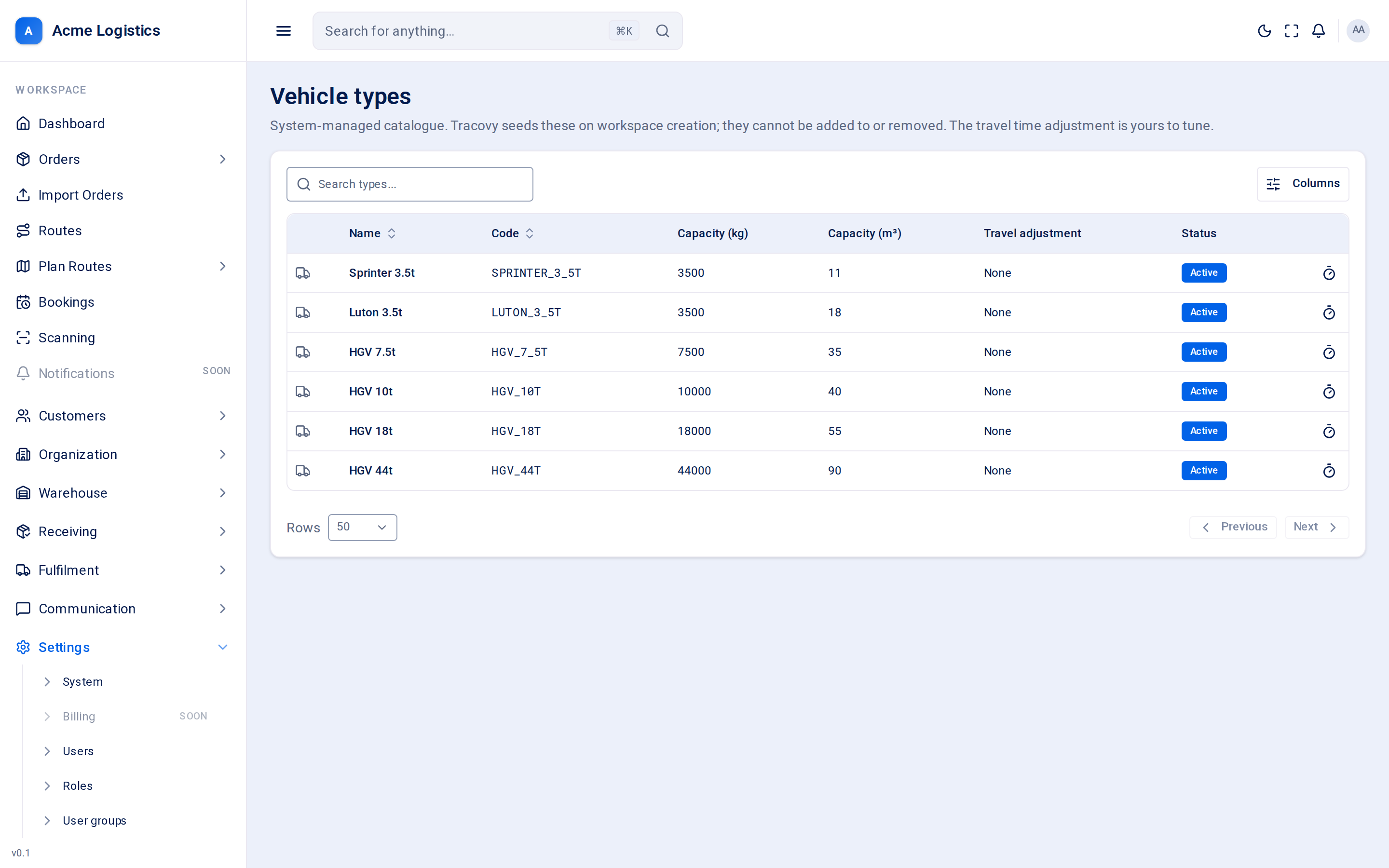
Vehicle types are the classes of vehicle Tracovy plans for - from a 3.5 tonne Sprinter to a 44 tonne HGV. Each type has a typical capacity and a speed allowance built in. Tracovy creates the same list for every workspace; you cannot add or remove types, but you can tune how long each type takes to drive.
Where to find it: Settings > Vehicle types Who can use it: “View vehicle types” to see the list; “Tune vehicle type travel time” to change the travel time adjustment. Managers and Administrators can tune it by default.
When you use this
Section titled “When you use this”- Your route schedules are consistently too optimistic (or too cautious) for one kind of vehicle.
- Checking the capacity Tracovy assumes for a vehicle class.
Columns
Section titled “Columns”| Column | What it means |
|---|---|
| (icon) | A picture of the vehicle class. |
| Name | The vehicle type, for example “Luton 3.5t”. |
| Code | Its fixed code, for example LUTON_3_5T. |
| Capacity (kg) | The typical payload weight for this class. |
| Capacity (m3) | The typical load volume in cubic metres. |
| Travel adjustment | Your adjustment to travel times for this type, for example “+10%”, or “None”. |
| Status | Active or Inactive. |
The types every workspace has are: Sprinter 3.5t, Luton 3.5t, HGV 7.5t, HGV 10t, HGV 18t and HGV 44t.
Adjusting travel time
Section titled “Adjusting travel time”Choose Adjust travel time in a type’s row menu. A panel opens with one field.
| Field | What it means | Required | Why it matters |
|---|---|---|---|
| Travel time adjustment (%) | A percentage added to (or taken off) every travel leg driven by this type of vehicle. | Yes. More than -100 and at most 200. Use 0 for no adjustment. | Positive slows the estimate down, negative speeds it up. It changes every route schedule for vehicles of this type: arrival times, the delivery windows quoted to recipients, and when the driver’s day ends. |
Tracovy already allows for larger vehicles being slower; this adjustment is on top of that, for your own roads and drivers. The Travel buffer in Scheduling settings is added to every leg as well.
Buttons and actions
Section titled “Buttons and actions”| Action | What it does |
|---|---|
| Adjust travel time | Opens the adjustment panel. Only shown if you can tune vehicle types. |
| Save adjustment | Saves the new percentage. |
Tips and common mistakes
Section titled “Tips and common mistakes”- Compare planned and actual arrival times over a week or two before changing the adjustment.
- Slots a recipient has already confirmed do not move when schedules are recalculated.
Related
Section titled “Related”- Scheduling settings
- Custom zones - areas a large vehicle should avoid