Products
A product is one item a customer sells: a bed, a sofa, a wardrobe. Products belong to one customer. Getting a product’s parts, size and barcode right pays off on every order: it decides how many boxes are labelled, how much van space is used and whether a scan at goods-in finds the right item.
Where to find it: Customers > Products for every customer’s products in one list; a customer’s own Products tab to add products for that customer. Who can use it: you need permission to view customer products to see them, and to manage customer products to add, change or delete them.
When you use this
Section titled “When you use this”- Set up a new customer’s catalogue before their first manifest arrives.
- Fix a product whose barcode does not scan, or whose size is wrong.
- Look up a product code across all customers.
- Check how much of a product you hold, and where.
The Customer products list
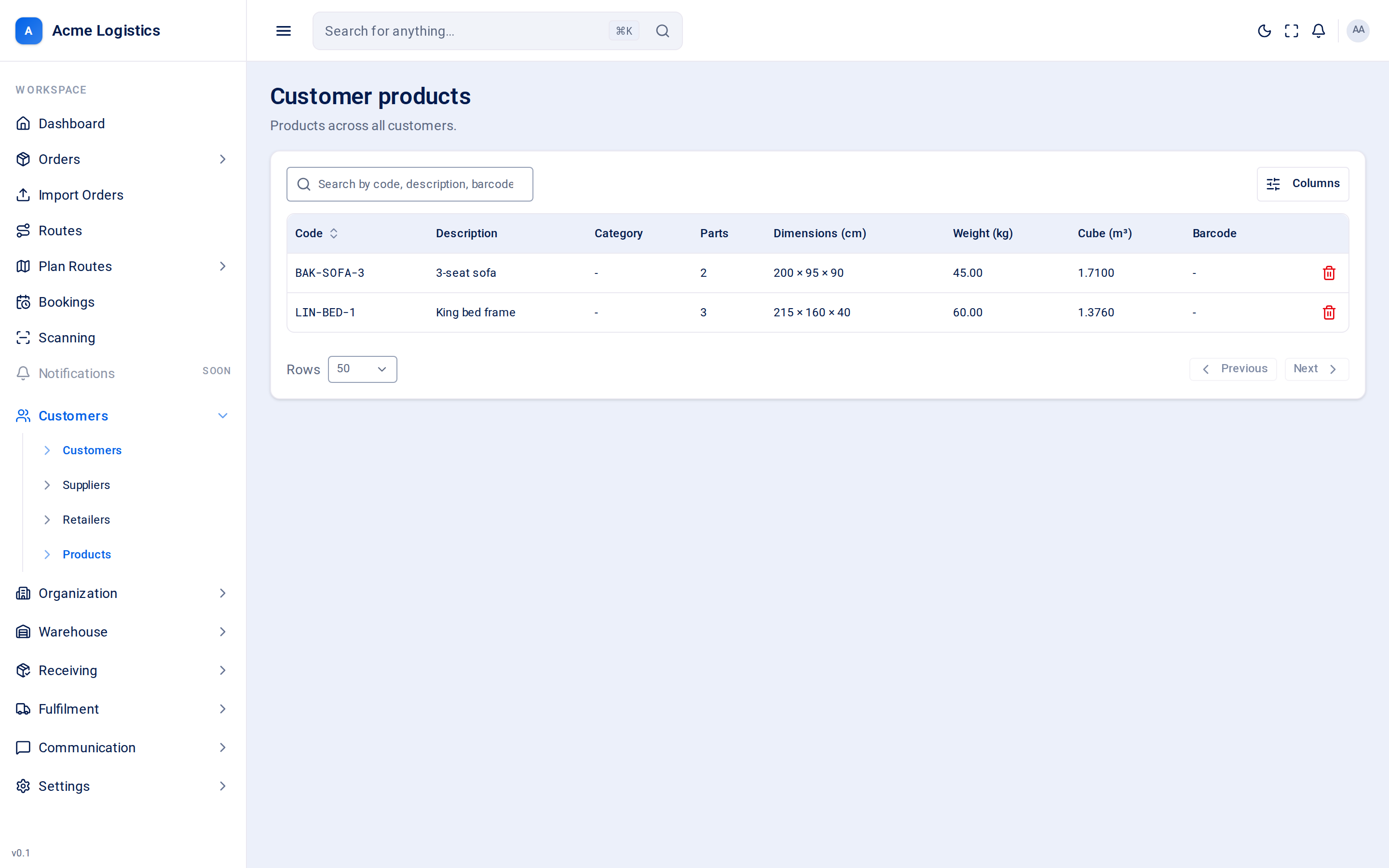
Section titled “The Customer products list”“Products across all customers.” This list is for finding and checking products. To add a product, open the customer and use their Products tab - a product always belongs to one customer.
| Column | What it means |
|---|---|
| Code | The product code. Click it to open the product. |
| Description | What the product is. |
| Category | Your free-text category. |
| Parts | How many boxes one unit comes in. |
| Dimensions (cm) | Length x width x height, or “-” if not measured. |
| Weight (kg) | Weight of one unit. |
| Cube (m3) | The space one unit takes up. |
| Barcode | The barcode printed on the product, or “-”. When each box has its own, the first barcode shows with +1, +2, … for the other boxes. |
| Action | What it does |
|---|---|
| Search by code, description, barcode… | Narrows the list. |
| Sort by code or date added | Click the column heading. |
| Delete (row menu) | Asks you to confirm, then removes the product. |
On a customer’s Products tab the table also shows the Supplier column, can be filtered by supplier, and offers New product, Edit, Stock breakdown and bulk Delete.
The product form
Section titled “The product form”The same form is used for New product on a customer’s tab, Edit on that tab, and the product’s own page (click a code in the list).
| Field | What it means | Required | Why it matters |
|---|---|---|---|
| Product code | The customer’s code for the product, as printed on their paperwork. | Yes, up to 255 characters, unique within the customer | Orders, manifests and imports find the product by this code. Two customers can use the same code; one customer cannot use it twice. |
| Description | What the product is. | No, up to 255 characters | Shown on lists and orders so staff recognise the item. |
| Supplier | Which of this customer’s suppliers it comes from, or N/A. | No | Lets you filter the catalogue by supplier. A supplier with products linked to it cannot be deleted. |
| Depot | One of your depots, or None. | No | Recorded on the product. You can only choose a depot you have access to. |
| Parts | How many boxes (pieces) one unit arrives in. Defaults to 1. | No, 1 or more | Each unit on an order gets this many pieces, and each piece gets its own label and is scanned on its own. A bed in three boxes must say 3, or two boxes will be left behind. |
| Weight (kg) | Weight of one unit. | No, 0 or more | Route planning adds weights up and warns when a route is heavier than its van can carry. |
| Category | Free text, for example “Sofas” or “Beds”. | No, up to 255 characters | For your own grouping and searching. |
| Length (cm), Width (cm), Height (cm) | The measured size of one unit. | No, 0 or more | Tracovy works out the cube from these. |
| Cube (m3) | Read-only. Length x width x height, or the manual figure below when there are no dimensions. The note under it says which. | - | The space one unit takes on a van. Route planning adds these up and warns when a load will not fit the van. |
| Manual cube (m3) | A cube figure for an item you have not measured. | No, 0 or more | Only used when there are no dimensions; measuring the item replaces it. Leave it empty rather than typing 0 - zero claims the item takes no space at all. |
| Barcode | The barcode on the product’s packaging. | No, up to 255 characters | When stock is scanned in at goods-in, the barcode is matched to this customer’s products. If a customer uses one barcode on several products, Tracovy prefers the ones expected on the manifest being received. |
| All boxes share one barcode | A switch that appears when Parts is more than 1. On by default. | - | Leave it on when every box carries the same barcode. Turn it off when each box has its own barcode. |
| Box 1 barcode, Box 2 barcode, … | One field per box, shown when the switch is off. Box 1 starts as the Barcode above. | Yes for each box, up to 255 characters, no two the same | Goods-in matches each scanned box to its own place on the unit, so a late box can be received on its own. A box barcode cannot be a box of another of the customer’s products, and box 2 or later cannot be another product’s barcode either: a scan must name one product. |
Save product saves the form. Errors, such as a product code that is already in use for this customer, are shown under the field.
Correcting a product’s Weight (kg) or its cube (the dimensions or Manual cube (m3)), here or through a stock import, also updates the orders that carry it and are still to be delivered: their lines take the new figures and the order is priced again. An order with a manual quote keeps its price. Delivered and cancelled orders keep the figures they had.
While units of a product with a barcode per box are still waiting for a box, its Parts, Barcode and box barcodes are locked. Saving a change shows “Some units of this product are still waiting for a box. Receive the boxes or adjust those units out first.” Receive the missing boxes, or count those units out on Adjust stock, then try again. Other fields can still be changed.
Stock breakdown
Section titled “Stock breakdown”Who can use it: permission to view stock.
From a customer’s Products tab, Stock breakdown in a row’s menu shows Total on hand for the product and how much is in each depot and location. With warehouse permissions you can also Stock in and Move stock from here. These are explained in the Warehouse section of this guide.
Tips and common mistakes
Section titled “Tips and common mistakes”- Measure items with several boxes carefully: dimensions are for one unit, and Parts says how many boxes that unit is.
- If a scan at goods-in finds nothing, check the barcode on the product matches the packaging exactly.
- Deleting a product does not delete orders that already used it.
Related
Section titled “Related”- Customer details - the Products tab
- Suppliers
- Glossary - pieces, order lines