Users
Users are the people in your own business who sign in to Tracovy: office staff, planners, warehouse staff and managers. Each user has one role, which decides what they can do, and an optional depot scope, which decides which depots they can see. Customer portal logins for your customers are managed separately, on the customer.
Where to find it: Settings > Users Who can use it: you need “View users” to see the list and “Manage users” to add, edit or delete users.
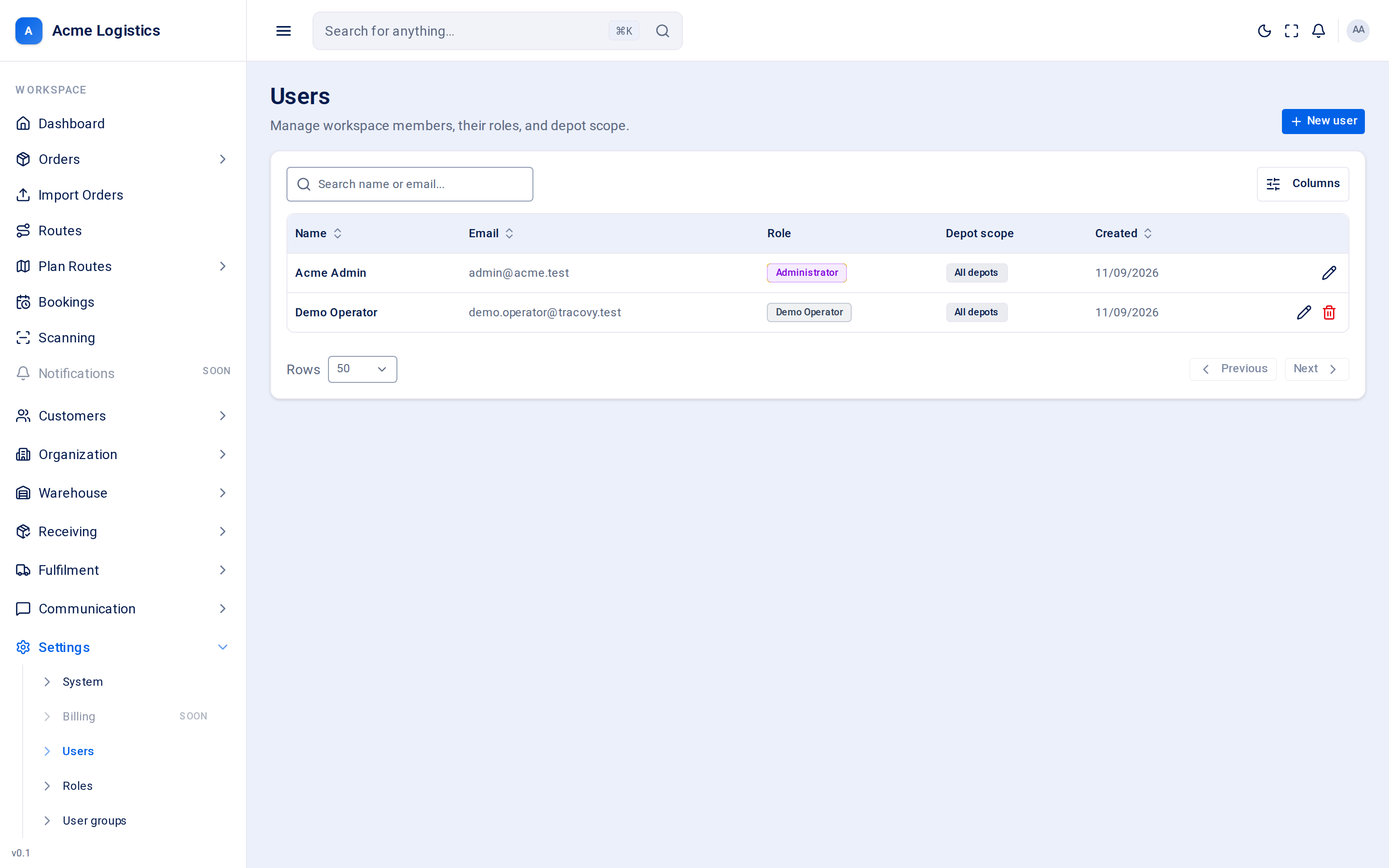
Screenshot coming soonThe users list with role and depot scope columns
When you use this
Section titled “When you use this”- A new member of staff joins and needs a login.
- Someone changes job and needs a different role.
- A depot team should only see their own depot’s work.
- Someone leaves and must no longer be able to sign in.
The user list
Section titled “The user list”Search by name or email with the search box. Click a column heading marked as sortable to sort by it.
| Column | What it means |
|---|---|
| Name | The person’s name. |
| The address they sign in with. | |
| Role | Their role, which decides what they can do. See Roles. |
| Depot scope | All depots if they are not limited, otherwise the depots they are limited to. |
| Created | When the user was added. |
Adding or editing a user
Section titled “Adding or editing a user”Click New user, or Edit in a user’s row menu. The form opens in a panel on the right.
| Field | What it means | Required | Why it matters |
|---|---|---|---|
| Name | The person’s full name. | Yes, up to 255 characters | Shown across Tracovy, for example on reminders and in the audit trail. |
| The address they sign in with. | Yes, up to 255 characters, unique | Two users cannot share an email address. | |
| Initial password | The first password, on new users only. | Yes, at least 8 characters | Use the generator to make a strong one and pass it on safely. The user can change it after their first sign-in. |
| Role | What the user is allowed to do. | No | The list only offers roles whose permissions you hold yourself, so you can never give someone more access than you have. You cannot change your own role. |
| Display timezone | The timezone dates and times are shown in for this user. | No | Useful for someone working in a different timezone from your business. |
| Depot scope | The depots this user may see. | No | Empty means all depots. Pick one or more depots to limit the user to them. You can only give depots you can see yourself. |
| Sending number | The phone number this user’s SMS and calls come from. Shown when editing an existing user. | No | Only active numbers are offered. Pick Unassigned to take the number away. Changes save as soon as you pick a number - you do not need to press Save. |
Buttons and actions
Section titled “Buttons and actions”| Action | What it does |
|---|---|
| New user | Opens an empty form for a new user. |
| Edit | Opens the user in the side panel. |
| Delete | Removes the user and signs them out of every device straight away. It happens without a confirmation. You cannot delete yourself. |
| Create user / Save changes | Saves the form. Errors (for example an email already in use) are shown under the field. |
Tips and common mistakes
Section titled “Tips and common mistakes”- Give each person their own login. Shared logins make the audit trail useless.
- When someone leaves, delete their user the same day so they cannot sign in.
- If a user says a screen is missing from their menu, check their role first: menu items only appear for people with the right permission.
- If a depot-limited user cannot find an order, check whether it belongs to a depot outside their scope.
Related
Section titled “Related”- Roles - what each role allows
- User groups - address a team in a reminder
- Depots