Adding a customer
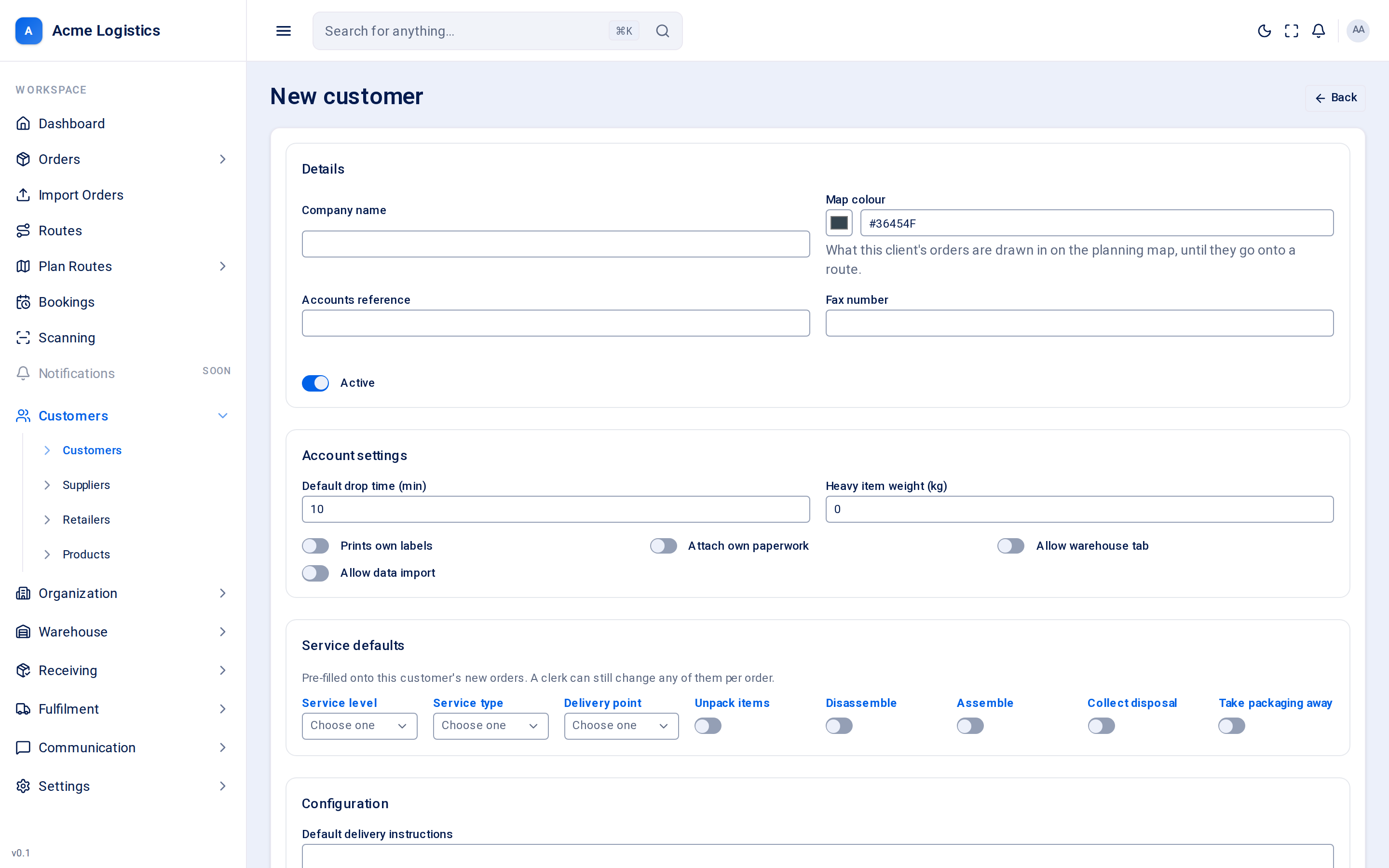
Add a customer before you take their first order or receive their first manifest. Only the company name is required, but the defaults you set here are copied onto every new order for this customer, so a few minutes now saves typing on every order later.
Where to find it: Customers > Customers > New customer Who can use it: you need permission to manage customers.
When you use this
Section titled “When you use this”- A new client signs up with you.
- You want orders for a client to arrive pre-filled with the right service, drop time and handling.
- You need to decide who at the client receives failed-delivery alerts, weekly digests and manifest emails.
The same form appears later on the customer’s Details tab, where you can change any of it. See Customer details.
Details
Section titled “Details”| Field | What it means | Required | Why it matters |
|---|---|---|---|
| Company name | The customer’s business name. | Yes, up to 255 characters | Shown in every list, on orders and as the customer’s name in emails. |
| Map colour | A colour, picked with the swatch or typed as a code such as #36454F. Defaults to charcoal (#36454F). |
No, must be # followed by 6 letters or digits |
This customer’s orders are drawn in this colour on the route planning map until they are put on a route, so planners can tell clients apart at a glance. |
| Accounts reference | Your own reference for this customer, for example their code in your accounts system. | No, up to 255 characters | For your records; it does not change how Tracovy behaves. |
| Fax number | The customer’s fax number. | No, up to 40 characters | For your records. |
| Active | Whether the account is switched on. On by default. | - | Switching it off suspends the customer: their API keys stop working and their portal users cannot sign in. |
The account number is not on the form. Tracovy gives the customer the next 7-digit number when you save.
Account settings
Section titled “Account settings”| Field | What it means | Required | Why it matters |
|---|---|---|---|
| Default drop time (min) | How many minutes a delivery for this customer usually takes at the door. Defaults to 10. | No, 0 to 1440 | Pre-filled as the drop time on this customer’s new orders. Route planning uses the drop time to work out how long each stop takes, so a too-small figure makes routes run late. |
| Heavy item weight (kg) | The weight above which you treat an item as heavy for this customer. Defaults to 0. | No, 0 or more | Recorded on the customer. Tracovy does not act on it yet. |
| Prints own labels | The customer prints their own labels. | - | Recorded on the customer. Tracovy does not act on it yet. |
| Attach own paperwork | The customer attaches their own paperwork. | - | Recorded on the customer. Tracovy does not act on it yet. |
| Allow warehouse tab | Intended to control the customer’s access to warehouse information. | - | Recorded on the customer. Tracovy does not act on it yet. |
| Allow data import | Intended to control whether the customer can import data. | - | Recorded on the customer. Tracovy does not act on it yet. |
Opening hours
Section titled “Opening hours”When the customer’s deliveries can be received. Leave the times blank and the customer uses the default opening hours in Scheduling settings.
| Field | What it means | Required | Why it matters |
|---|---|---|---|
| Opens | The time the customer’s deliveries can start, in 24-hour time. | Only if Closes is filled in | The route planner and route detail mark a stop in red when the van is due to arrive before this time. |
| Closes | The time deliveries must arrive by. | Only if Opens is filled in; must be after Opens | A stop planned to arrive after this time is marked in red. |
| Open on | The days of the week the customer takes deliveries: Mon to Sun. Click a day to pick it. | No | A stop planned for a day that is not picked is marked in red. No days picked means open every day. |
The red mark is a warning only. Tracovy still lets you plan the stop there.
To hand a customer back to the default, clear both times and save.
Service defaults
Section titled “Service defaults”“Pre-filled onto this customer’s new orders. A clerk can still change any of them per order.”
| Field | What it means | Required | Why it matters |
|---|---|---|---|
| Service level | The level of service, chosen from the options your workspace has set up (for example one-man or two-man). | No | Copied onto new orders, so planners and crews see what level of service this customer has paid for. |
| Service type | The type of service, from your workspace’s list. | No | Copied onto new orders. |
| Delivery point | Where the goods are left, from your workspace’s list (for example hallway or room of choice). | No | Copied onto new orders, so the driver knows how far into the property to take them. |
| Unpack items | The crew unpacks the goods. | - | Copied onto new orders as a task for the delivery crew. |
| Disassemble | The crew takes something apart (usually an old item). | - | Copied onto new orders. |
| Assemble | The crew puts the new item together. | - | Copied onto new orders. Assembly takes time at the door - consider a longer drop time. |
| Collect disposal | The crew takes an old item away. | - | Copied onto new orders. |
| Take packaging away | The crew removes the packaging. | - | Copied onto new orders. |
A dropdown with no options is greyed out: your workspace has not set up any choices for it yet.
Order property defaults
Section titled “Order property defaults”This card only appears if your workspace has created its own order questions in Settings > Order properties. It shows the same questions as the order form; whatever you answer here is pre-filled on this customer’s new orders. It is saved together with the rest of the form - there is no separate save button.
Configuration
Section titled “Configuration”| Field | What it means | Required | Why it matters |
|---|---|---|---|
| Default delivery instructions | Standard instructions for this customer’s deliveries. | No | Recorded on the customer. It is not yet copied onto new orders automatically - add instructions on each order as well. |
| Product charge categories | The charge categories you use for this customer’s products. | No, up to 255 characters | Recorded on the customer. Tracovy does not act on it yet. |
| Default stock status | A stock status for this customer’s goods, as free text. | No, up to 255 characters | Shown on the route planning board for this customer’s orders, unless a product has its own stock status. |
| POD logo URL | A web address of the customer’s logo image, starting https://. |
No, a valid web address up to 2048 characters | The logo is printed on this customer’s proof of delivery documents beside your own. If the address does not work or the image is very large, the proof of delivery is produced without it. |
| POD disclaimer | Wording for the customer’s proof of delivery. | No | Recorded on the customer. It is not printed on the proof of delivery yet. |
Notification lists
Section titled “Notification lists”Four boxes of email addresses, one per line. Each address must be a valid email; a mistake is reported under the box when you save. These are the people at the customer who receive Tracovy’s customer emails - not your own staff, and not the recipient of a delivery.
| List | What is sent to it | If the list is empty |
|---|---|---|
| Alert emails | Delivery Failure - sent when a delivery for this customer fails. The weekly Orders On Hold digest, and the weekly Recently Completed digest if you have switched it on. | Alerts go to the Warehouse emails list instead. If both are empty, nothing is sent. |
| Invoice emails | New Invoice, with the invoice PDF, when someone presses Send on an issued invoice. Copy Invoice is not sent yet. Only users with “Create invoice drafts, issue and send invoices” can change this list. | The invoice cannot be sent. |
| Contact-request emails | Kept for contact requests. | No email uses this list yet. |
| Warehouse emails | Manifest emails: Manifest Completed, Manifest Missing Items, Manifest Damage, and Manifest Import Success for manifests sent in through the API. | Manifest emails go to the Alert emails list instead. If both are empty, nothing is sent. |
Each of these emails can be reworded or switched off in Email templates. An email that is switched off there is not sent to anyone, whatever is in these lists.
Addresses
Section titled “Addresses”On the new customer form you can add addresses with Add. You can also add them later on the customer’s Addresses tab.
| Field | What it means | Required | Why it matters |
|---|---|---|---|
| Type | Main, Invoice or Collection. | Yes | Says what the address is for: the head office, where invoices go, or where goods are collected from. |
| Line 1 | First line of the address. | No, up to 255 characters | Part of the address. |
| City | Town or city. | No, up to 255 characters | Part of the address. |
| Postcode | Postcode. | No, up to 20 characters | Needed to place the address on the map. |
Tracovy looks up each address on the map when it is saved. If it cannot find it, the address is still saved and shows Needs geocoding on the Addresses tab. The bin button removes an address from the form.
Contacts
Section titled “Contacts”Add the people you deal with at the customer with Add, or later on the Contacts tab (which also has a phone field).
| Field | What it means | Required | Why it matters |
|---|---|---|---|
| Role | Primary or Alternative. | Yes | The first Primary contact is shown in the customers list. |
| Name | The contact’s name. | Yes, up to 255 characters | Who your team asks for. |
| The contact’s email. | No, a valid email up to 255 characters | For your team to get in touch. Contacts do not receive automatic emails - use the notification lists above for that. |
Buttons and actions
Section titled “Buttons and actions”| Action | What it does |
|---|---|
| Back | Returns to the customers list without saving. |
| Add (Addresses / Contacts) | Adds an empty address or contact row. |
| Bin button | Removes that address or contact row. |
| Create customer | Saves the customer, then the order property defaults, and opens the new customer’s page. Problems are shown under the fields concerned. |
Tips and common mistakes
Section titled “Tips and common mistakes”- Opening hours need both times or neither. A single time is refused with an error under the other box.
- Fill in Default drop time and the Service defaults now. Every order you create for this customer starts from them.
- Put alert addresses in, even just one. Without any, nobody at the customer hears about failed deliveries.
- A contact’s email address is not a notification list. Add it to Alert emails too if they should get failure alerts.